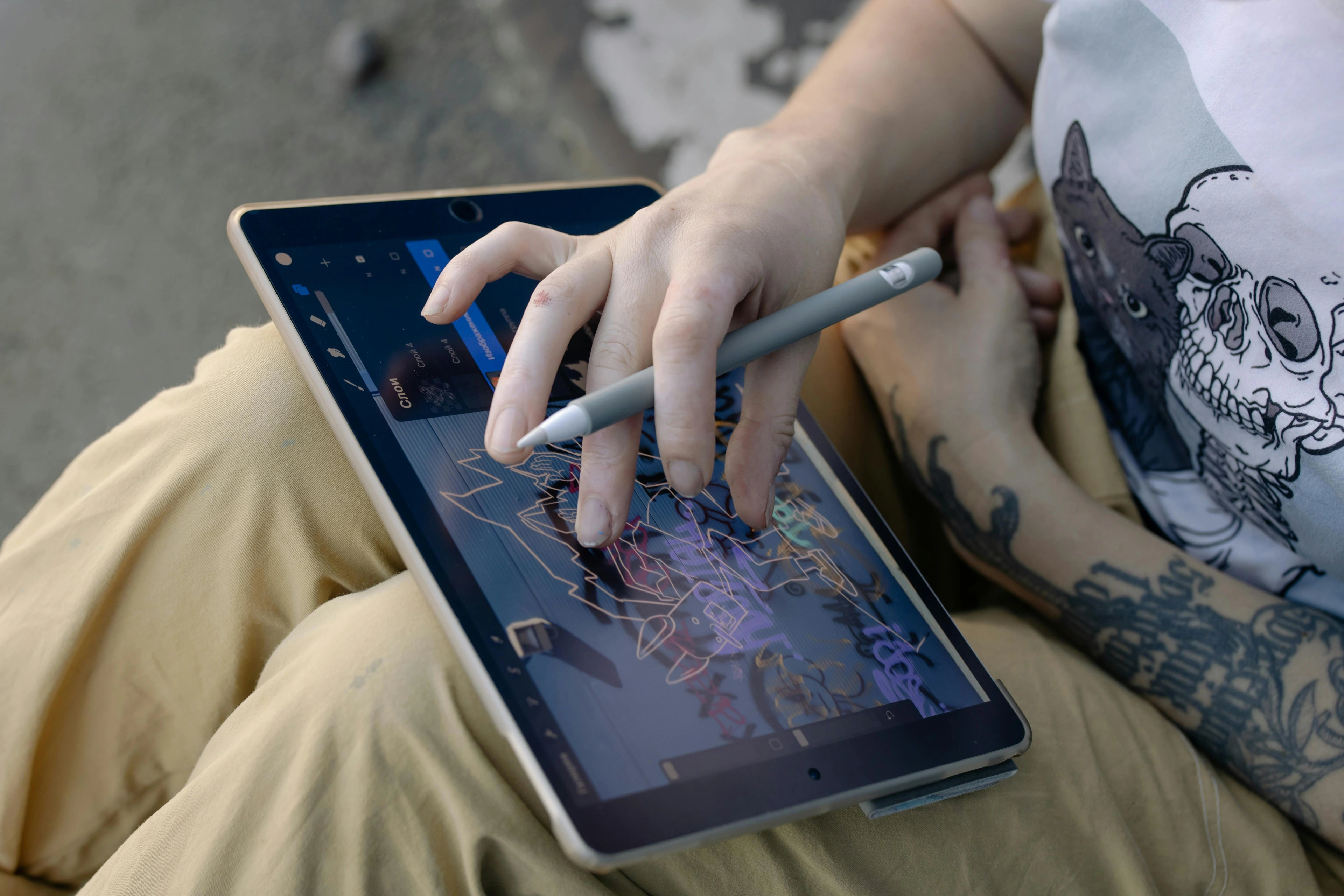
Apple Pencil for Artists: An Honest Review (Is It Worth It?)
A no-nonsense, personal review of the Apple Pencil for artists. I cover pressure sensitivity, my pet peeves, and if it's actually worth the high price.

Is the Apple Pencil Actually Worth It for Artists? An Honest, No-Nonsense Review
Welcome, fellow creators! If you're anything like me, your studio probably smells faintly of turpentine (or maybe coffee and existential dread, depending on the day), and your hands are rarely spotless. We artists are a tactile bunch, aren't we? So, when a sleek, digital stylus like the Apple Pencil comes along, promising to revolutionize our craft, a healthy dose of skepticism is natural. Is it a genuine tool, a true extension of our creative spirit, or just another shiny gadget destined to gather dust next to that forgotten tube of obscure cadmium green? Let's dive in. This isn't just a review; it's a conversation from one artist to another about whether this digital wand truly deserves a place in your unique artistic toolbox.
Are you an artist caught between the rich, tactile world of traditional mediums and the gleaming, boundless possibilities of digital creation? I know that feeling intimately. It's the hum of doubt, the quiet question of whether a sleek piece of tech can truly capture the soul of your art. From the moment I first unboxed my Apple Pencil, that question echoed: Is this just a fancy gadget, or a legitimate extension of my artistic self? For years, my studio was a symphony of turpentine, charcoal dust, and the satisfying grit of pigment on canvas. The very idea of drawing on glass felt... well, a bit cold and impersonal. But as artists, we're constantly seeking new avenues, new languages for our vision. So, I plunged into the digital depths. What I discovered, dear reader, is a truth far more complex and fascinating than a simple 'yes' or 'no'. The Apple Pencil isn't here to replace the magic of traditional art; it's here to augment it, to unlock dimensions of your creative spirit you might not have known existed. It's a bridge, not a barrier, between the tangible and the digital. It's about how this sleek tool can extend the very essence of your creative spirit, not replace it entirely. It’s about unlocking new frontiers, not abandoning the old. Think of it as adding a new instrument to your creative orchestra – one that plays in ways you might not have imagined before. Let's figure out, together, if this particular "magic wand" belongs in your toolbox.
First Impressions: Unboxing the Magic Wand for Artists
Digital art, at its heart, offers a fascinating blend of the immediate and the infinitely editable. Unlike traditional mediums where every stroke is permanent, the digital canvas offers layers, undo buttons, and a freedom to experiment without fear of 'ruining' a piece. This non-destructive workflow is, for me, one of the most compelling reasons to embrace tools like the Apple Pencil. It fosters a different kind of bravery, allowing you to push boundaries, try wild compositions, or explore daring color palettes with the comforting knowledge that you can always step back. This inherent flexibility is what allows for true artistic growth, transforming mistakes into learning opportunities rather than costly errors.
I remember the apprehension I felt switching from a physical sketchbook, where every pencil mark felt so precious, to the boundless possibilities of digital. But what a revelation it was! The ability to swiftly undo a 'mistake' or to duplicate a layer and try a completely different approach without fear of ruining the original transformed my creative process. It felt like I'd unlocked a secret cheat code for artistic exploration, encouraging me to take risks and experiment with a freedom I hadn't known before. It truly changed how I approached conceptualizing new pieces, making the initial stages of creation far more playful and less intimidating.
Design and Ergonomics: More Than Just a Stylus
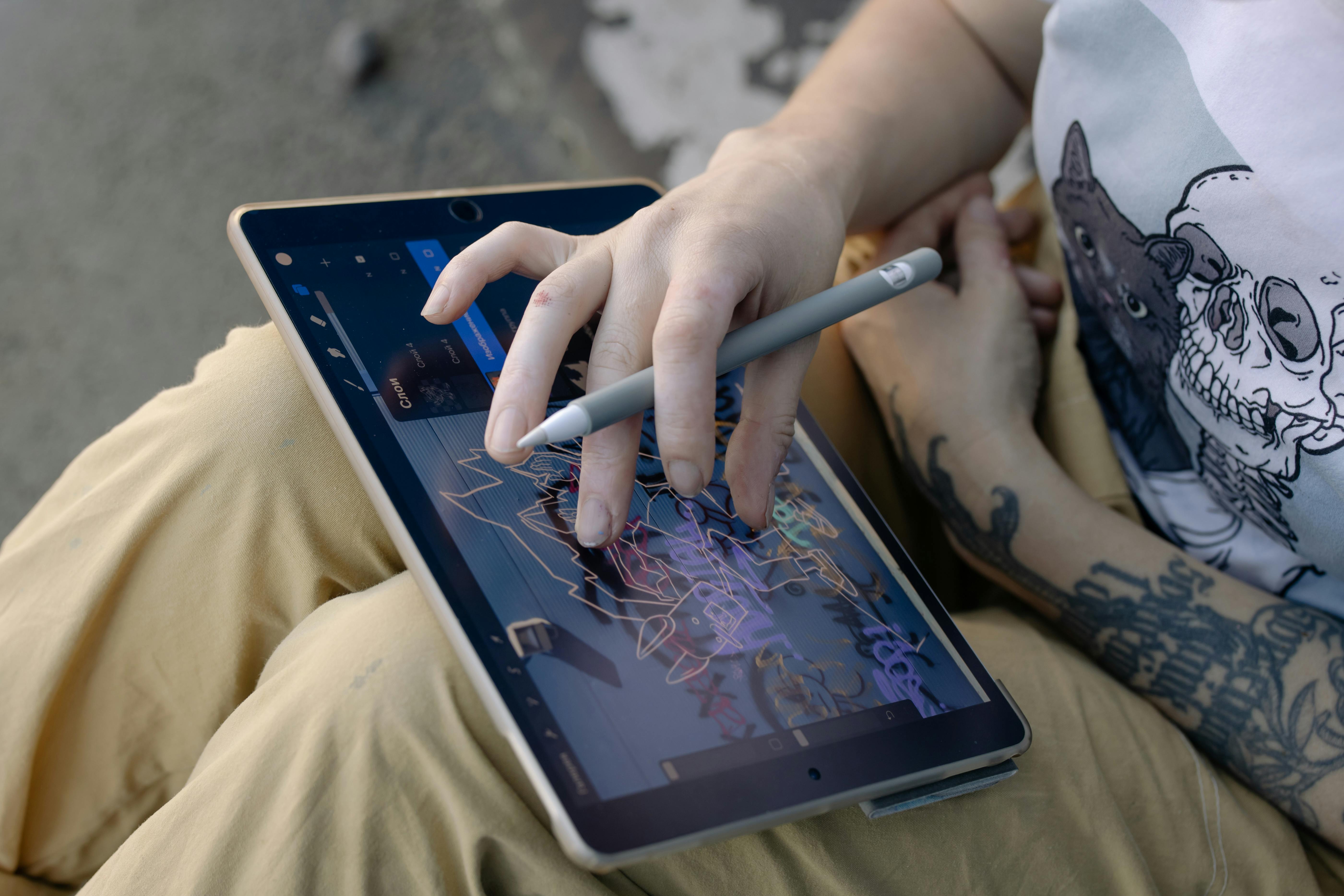
There's no denying it, Apple knows how to make things feel premium. From the moment you pick it up, the Apple Pencil has a satisfying weight and balance. It doesn’t feel like a cheap, flimsy stylus you’d get in a dollar bin; this is a precision instrument, crafted with intent, designed to feel like a natural extension of your hand. The choice of materials, often a smooth, minimalist matte finish, speaks to Apple's dedication to creating tools that feel substantial and well-engineered. For me, that immediate tactile feedback of quality is important; it sets the stage for the serious creative work I intend to do.
For the 2nd Generation and Pro models, the flat edge isn't just an aesthetic choice – it’s a stroke of ergonomic genius. It prevents the Pencil from rolling off your desk (a small but significant victory for any artist who’s ever chased a runaway pen!) and, crucially, allows for that magnetic snap as it docks securely to the side of your iPad. This was a monumental leap from the first generation's slightly awkward, almost comical, Lightning connector charging method, where it stuck out like a flag on a digital flagpole. That magnetic attachment isn't just about charging; it's about quick access and peace of mind, always knowing where your tool is. It's a small thing, but when you've spent years losing pens, caps, and your sanity, that simple, secure connection feels like a minor miracle, always ready to go when inspiration strikes. This attention to detail truly sets it apart, ensuring that your initial interaction is one of seamless potential.
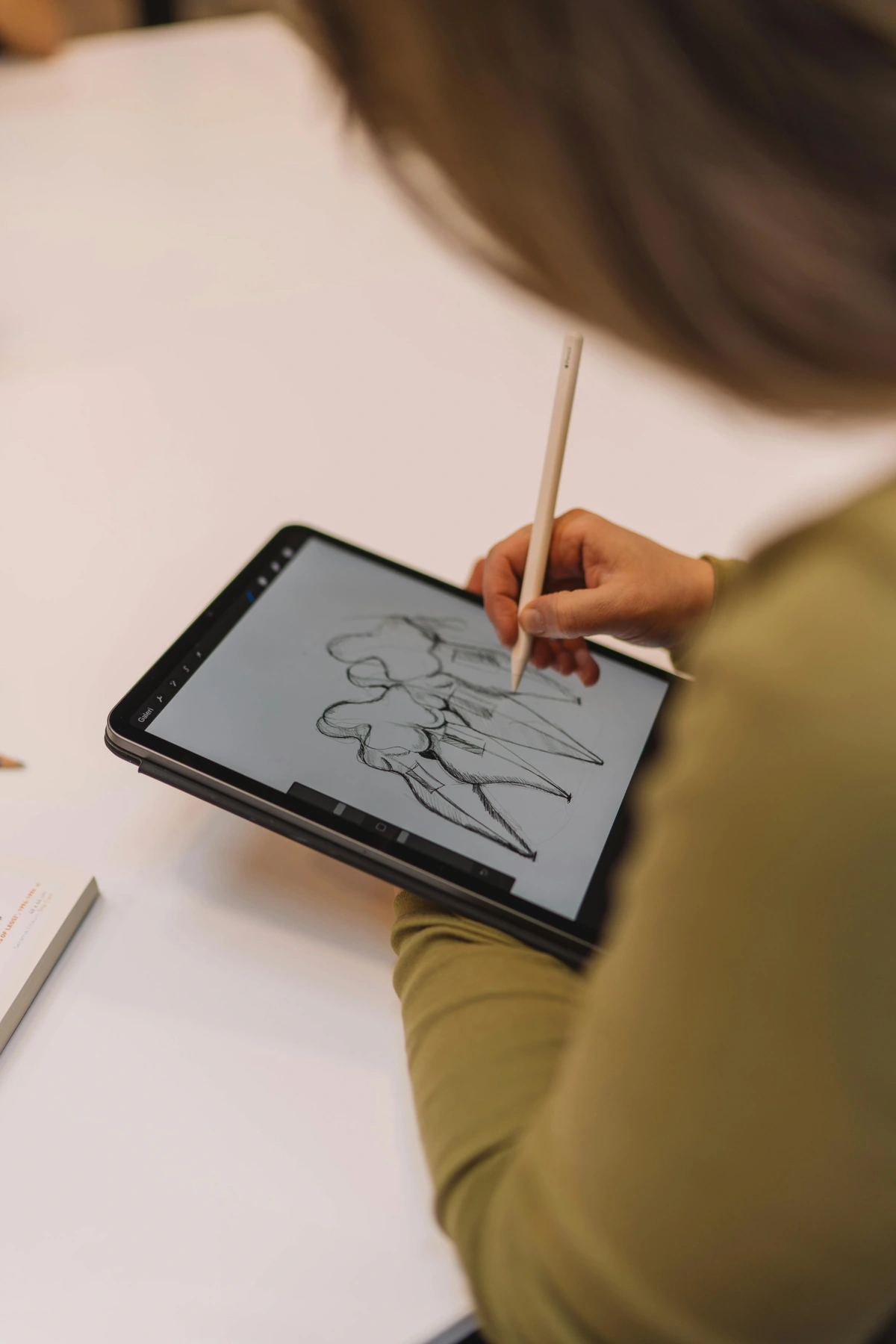
But does it feel like a real pencil? Or a brush, or a piece of charcoal? Honestly, not really. And that, for many of us, is the first hurdle you need to clear mentally. The Apple Pencil is its own unique tool, not a perfect mimicry of traditional mediums. Comparing it to a graphite stick is like comparing a synthesiser to an acoustic guitar – they both make music, but the feel, the technique, the entire physical experience is profoundly different. The somewhat sterile feel of the hard plastic nib on a smooth glass screen is a real, tangible issue for many artists, myself included. It’s why countless artists quickly seek out textured screen protectors or alternative nibs (such as felt or metal tips) to try and bridge that inherent gap between the digital and the physical, striving for that satisfying friction and auditory feedback we're so accustomed to. This isn't just a preference; for many, it's essential for achieving the control and expressive nuance they're used to from traditional mediums. It's a learning curve, yes, but one that opens up new horizons. But before we get there, let's appreciate the canvas itself, the iPad. Its vibrant display and smooth glass surface are designed for a seamless touch experience, but for us artists, it's often about finding ways to introduce just enough resistance to make it feel 'right'. This tension between the perfect glide of glass and the desired drag of paper is a fascinating paradox of digital art, constantly inspiring innovators to bridge the gap.
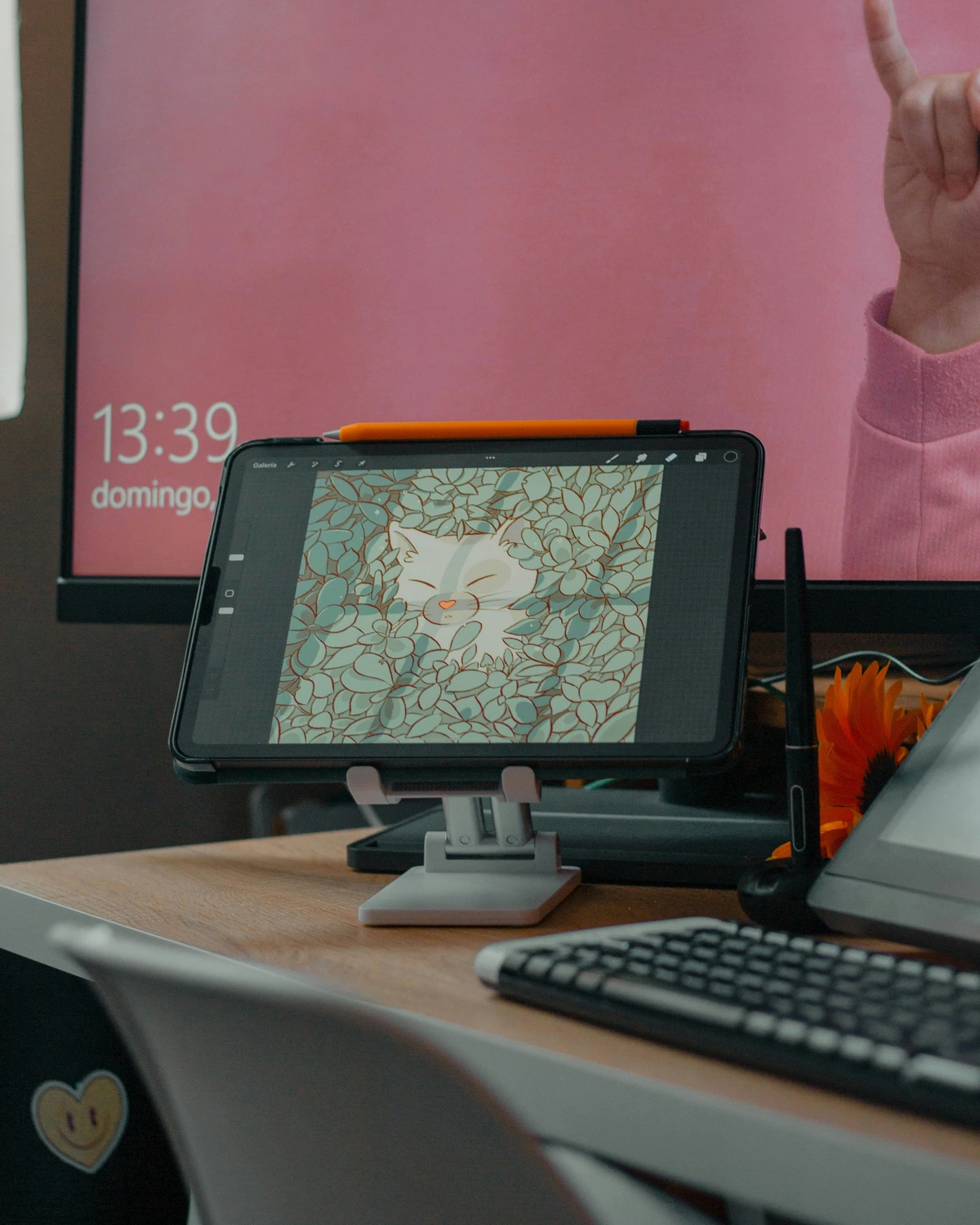
Evolution of the Pencil: From Gadget to Essential Tool
The history of digital drawing tools is a relatively short but incredibly dynamic one. From clunky, pressure-less styluses of yesteryear to the highly refined instruments we have today, the journey has been about making the technology disappear, leaving only the art. The Apple Pencil stands as a testament to this evolution, constantly refining the interaction between artist and screen. Understanding this journey isn't just a historical curiosity; it helps us appreciate the thoughtful engineering that goes into making a tool feel truly intuitive, almost like an extension of your own hand. And let's be honest, it's fun to look back and see how far we've come!
The Apple Pencil, much like many artists (myself included!), has evolved significantly over time. It's been a fascinating journey to watch this device mature, moving it further from a simple, if sophisticated, stylus to a truly integrated and indispensable art tool for a vast number of digital creators. Understanding this evolution is key to appreciating its current capabilities and choosing the right model for your specific artistic needs. This evolution is crucial for any artist considering the investment, as each generation has addressed specific pain points and opened up new creative avenues.
The first generation was, without a doubt, a groundbreaking start. It introduced artists to unprecedented precision and responsiveness on a tablet, opening up a whole new world of digital possibilities. For its time, the low latency (the delay between your movement and the line appearing) was revolutionary, making it feel remarkably direct. It democratized digital art in a way that had previously been limited to expensive graphics tablets tethered to computers. Suddenly, a new generation of artists, myself included, saw the iPad as a viable creative canvas. But let's be honest, that Lightning port charging was a bit... clunky. It often left the Pencil sticking out like a digital flagpole, vulnerable to knocks and easy to misplace, and the pairing process sometimes felt like a small ritual in itself. It was a functional marvel for its time, but the user experience still had room to grow, particularly in terms of seamless integration.
Then came the second generation, which felt like Apple truly started listening to artists. The magnetic charging and pairing was a game-changer, making the Pencil feel like a natural extension of the iPad itself. This wasn't just about convenience; it transformed the Pencil from a peripheral into an integrated part of the artistic workflow, always charged and always ready. Suddenly, my pencil was always where I needed it, no more frantic searches, no more fumbling with awkward charging cables when inspiration struck. But beyond convenience, it also introduced the double-tap gesture, a simple yet powerful customization that allowed for quick tool switching (like flipping between brush and eraser), accessing a color picker, or invoking a custom shortcut without ever lifting the Pencil from the screen. This was a significant step towards seamless, intuitive digital art creation, mimicking the fluid motions of traditional artists and drastically speeding up my workflow. On compatible iPad Pro models, it also introduced Hover, allowing for tool previews before committing a mark, which felt like a little glimpse into the future of digital interaction, providing a crucial layer of precision and confidence for every stroke.
The Apple Pencil (USB-C) then arrived as a more affordable, yet highly capable, option primarily aimed at the broader iPad lineup. While it foregoes pressure sensitivity (a crucial feature for many artists, myself included), it retains excellent tilt sensitivity, pixel precision, and the convenience of magnetic attachment and USB-C charging. It fills a niche for note-takers, annotators, and casual sketchers who prioritize accuracy and convenience over advanced artistic features, offering a compelling entry point into the Apple Pencil ecosystem without the premium price tag.
And now, with the Apple Pencil Pro, we see a continued commitment to refining the artistic experience. With the introduction of the squeeze gesture, barrel roll, and enhanced hover (now across all compatible iPads), it further blurs the lines between a mere input device and a genuinely intuitive creative instrument. Each iteration is a testament to incremental innovation, always pushing the boundaries of what's possible on a digital canvas and, frankly, making my old charcoal sticks look on with a mix of awe and slight bewilderment. This latest model truly embodies a philosophy of making the technology disappear, leaving you freer to focus on your creative expression.
The Core Artistic Experience: Where the Apple Pencil Shines (and Where It Skids)
Alright, enough with the unboxing and philosophical ponderings about digital versus traditional. Let’s get down to the brass tacks: what’s it actually like to draw and paint with this thing? The real test of any art tool, digital or analog, is how it performs under pressure—literally and figuratively. This is where the Apple Pencil truly separates itself from cheaper styluses, leaving them floundering in its digital wake, and reveals its true value as a serious creative instrument. For me, it's not just about the technical specs; it's about the feeling of flow, the seamless translation of an idea from my mind, through my hand, and onto the digital canvas without resistance. It's that moment where the tool disappears, and only the art remains.
Precision and Accuracy: Every Pixel Counts
At the heart of the Apple Pencil's appeal for artists is its astonishing precision and accuracy. When you make a mark, that mark appears exactly where you intended it, without wobbling, jagged edges, or frustrating offset. This pixel-perfect placement is crucial for everything from intricate line art and detailed illustration to subtle shading and precise masking in photo manipulation. It ensures that your artistic vision is translated onto the screen with minimal interpretation, making the digital canvas feel truly responsive to your hand. It's like having an invisible, perfectly calibrated ruler guiding every stroke, allowing you to focus on the nuances of your art rather than fighting against the tool's limitations. This foundational accuracy is what allows us to truly trust the digital medium, knowing that every delicate curve or bold statement will be rendered faithfully. For me, it's not just about the technical specs; it's about the feeling of flow, the seamless translation of an idea from my mind, through my hand, and onto the digital canvas without resistance. It's that moment where the tool disappears, and only the art remains.
Alright, enough with the unboxing and philosophical ponderings about digital versus traditional. Let’s get down to the brass tacks: what’s it actually like to draw and paint with this thing? The real test of any art tool, digital or analog, is how it performs under pressure—literally and figuratively. This is where the Apple Pencil truly separates itself from cheaper styluses, leaving them floundering in its digital wake, and reveals its true value as a serious creative instrument.
Pressure & Tilt Sensitivity: The Real Magic Behind the Apple Pencil
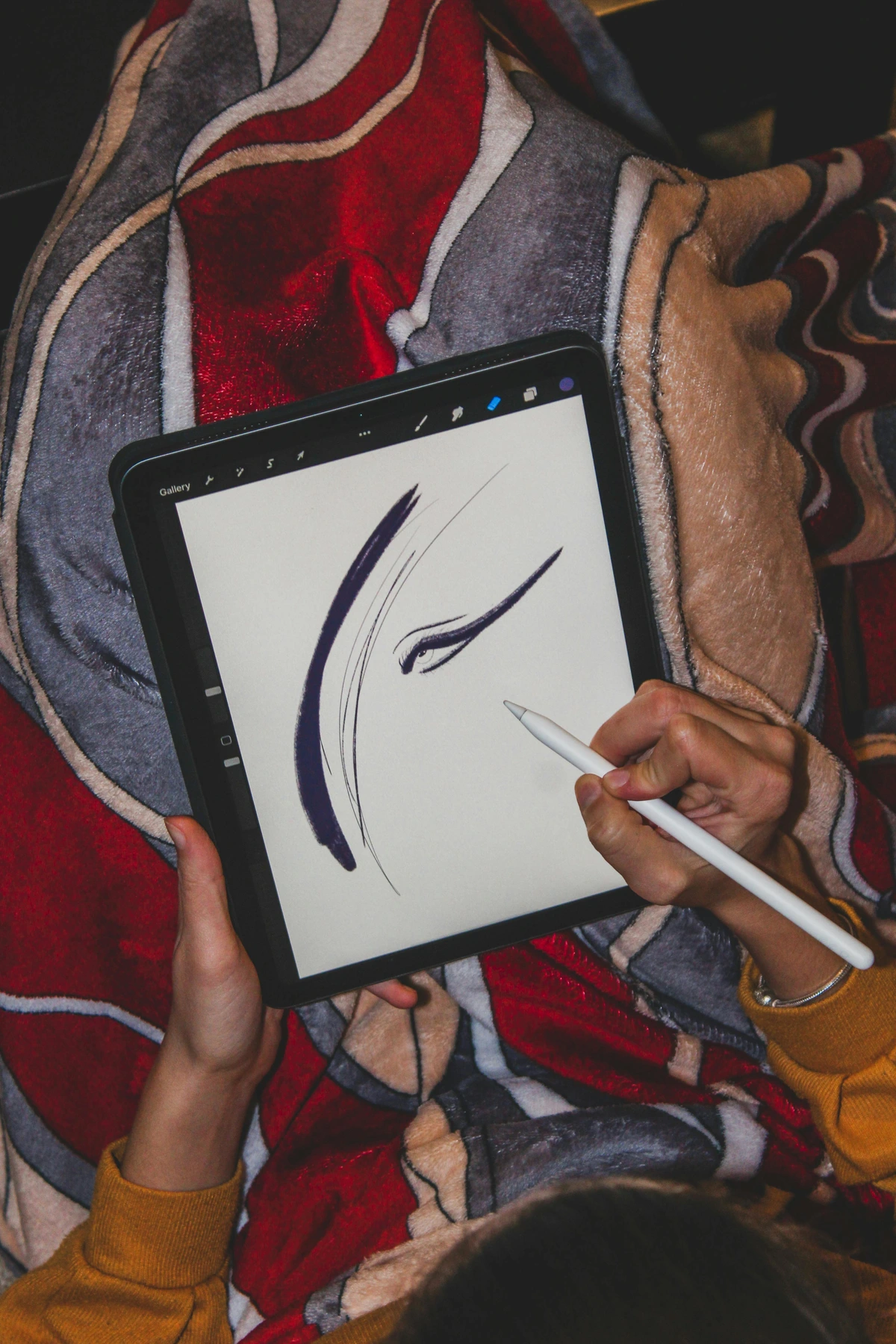
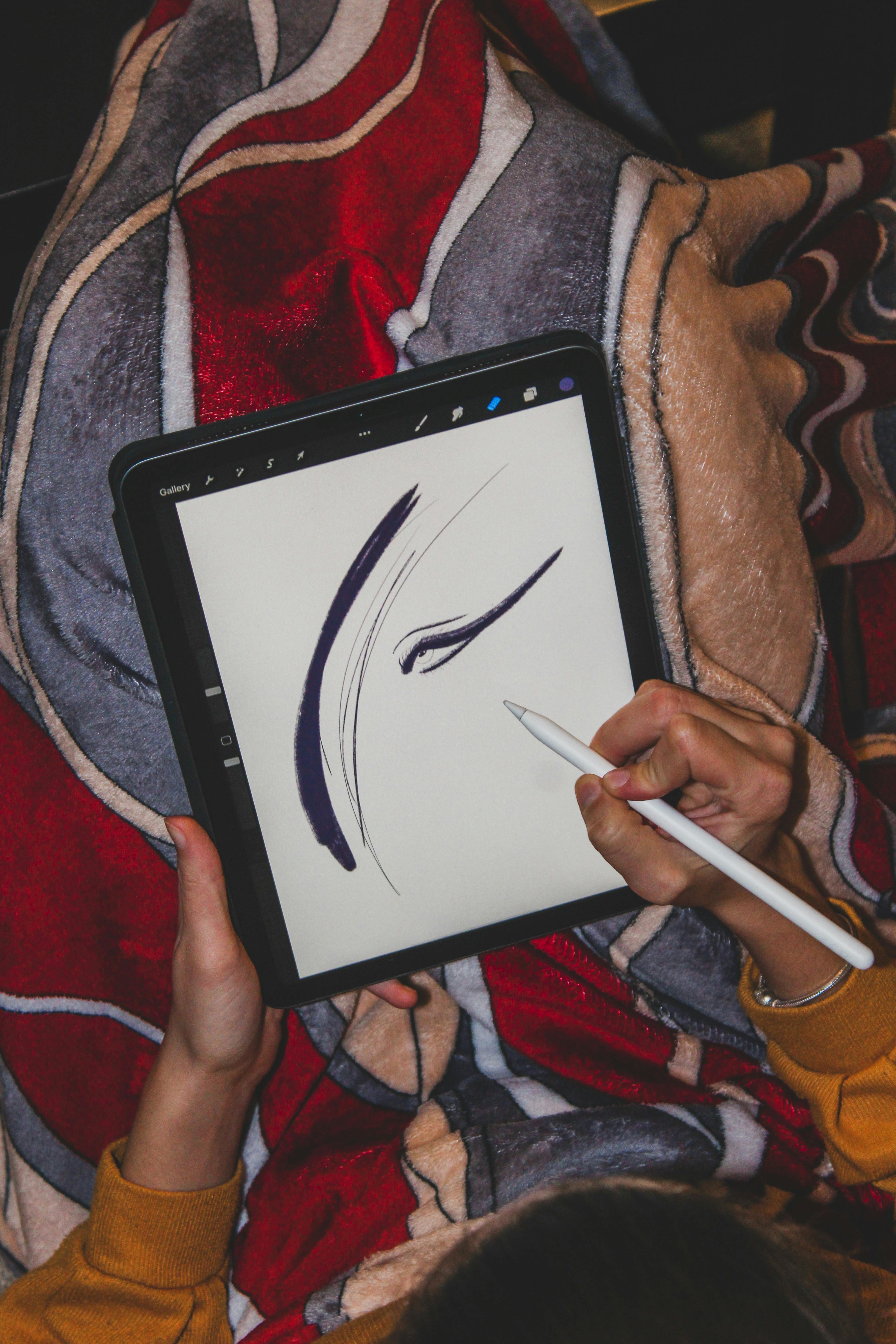
This is the secret sauce. Pressure sensitivity means the harder you press, the thicker or more opaque your line becomes. This translates directly to line weight variation in sketching, subtle opacity shifts in digital watercolor, or building up layers in digital oil painting. It’s the difference between a delicate whisper of a line and a bold, declarative stroke. Tilt sensitivity means you can shade with the side of the tip, just like a real graphite pencil or a broad-edge charcoal stick, allowing for expressive broad strokes and soft gradations. When you combine these, the act of drawing digitally starts to feel intuitive, almost organic. It’s the closest digital has come to replicating the nuances of basic brushstrokes for acrylic painting, or even the expressive potential of exploring oil sticks for expressive mark-making. This foundational technology is what truly differentiates the Apple Pencil from basic styluses and makes it a professional-grade tool capable of incredible nuance. Whether you're aiming for the stark simplicity of what is minimalism in art or the vibrant chaos of abstract art, these features provide the control.
This responsiveness is what allows for a genuine translation of emotion into abstract art, where every mark carries intent. It’s not just about making lines; it’s about making expressive, varied marks that have character, that can convey the full spectrum of human feeling, much like how artists use color to evoke mood or explore the emotional landscape in famous pieces like Despair by Edvard Munch. The technology becomes invisible, and it's just you and your idea, flowing directly onto the screen, unhindered. This is the bedrock of serious digital art, allowing for nuanced control whether you're working on delicate color studies or bold, expressive strokes, even reminiscent of the impactful lines seen in works by ultimate-guide-to-keith-haring. For example, I find the pressure sensitivity invaluable for creating the subtle gradients of a digital watercolor wash, while the tilt allows me to mimic the broad, textural marks of a charcoal stick for laying down initial values in a figure study. It's this faithful translation of physical gesture into digital outcome that makes it so indispensable.
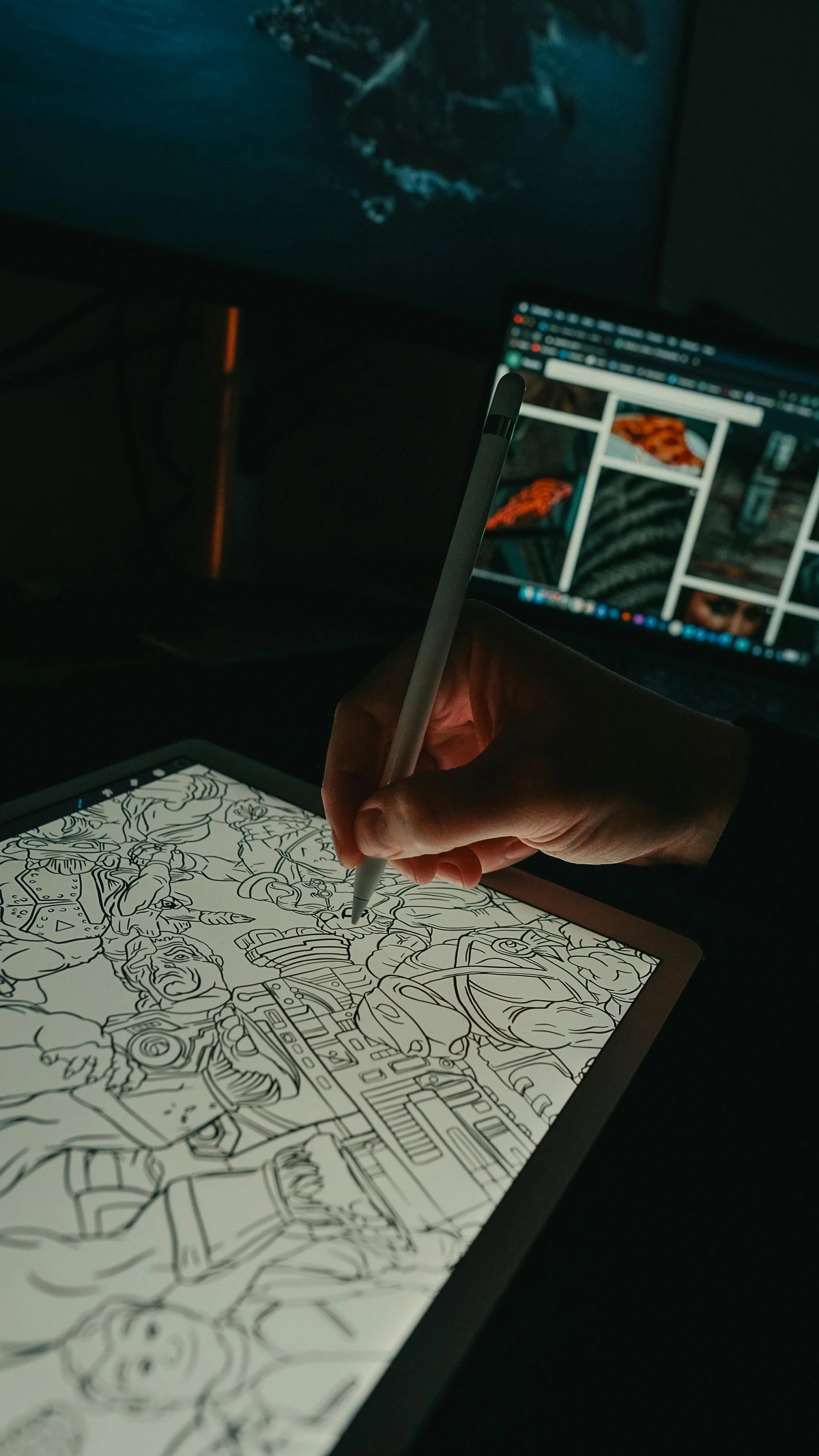
This responsiveness is what allows for a genuine translation of emotion into abstract art, where every mark carries intent. It’s not just about making lines; it’s about making expressive, varied marks that have character, that can convey the full spectrum of human feeling, much like how artists use color to evoke mood or explore the emotional landscape in famous pieces like Despair by Edvard Munch. The technology becomes invisible, and it's just you and your idea, flowing directly onto the screen, unhindered. This is the bedrock of serious digital art, allowing for nuanced control whether you're working on delicate color studies or bold, expressive strokes.
The Foundation: Elements of Art & Principles of Design Amplified
For me, the real magic of the Apple Pencil's sensitivity lies in how effortlessly it allows an artist to manipulate the elements of art – things like line, shape, value, and texture. With precise pressure control, I can create a bold, confident line or a whisper-thin suggestion, guiding the eye across the canvas with purpose. The tilt sensitivity lets me block in broad areas of tone or create delicate shading, mimicking the side of a graphite stick or the broad sweep of a wash. It's about having direct, intuitive command over these fundamental building blocks of visual creation, giving you the power to craft intricate details or sweeping gestures. This level of control opens up vast possibilities for exploring depth and form in your digital artwork, whether you're focusing on minute details or grand, sweeping abstract compositions. I find it particularly useful for quickly defining forms or suggesting light and shadow, much like a rapid charcoal sketch in a physical sketchbook. And let's not forget the incredible array of digital brushes that simulate everything from dry charcoal to wet watercolor; the Pencil makes each one feel uniquely responsive, almost alive in your hand. This empowers artists to experiment with diverse visual languages, from the stark simplicity of minimalism to the rich complexity of hyperrealism, all within a single digital environment. This empowers artists to experiment with diverse visual languages, from the stark simplicity of minimalism to the rich complexity of hyperrealism, all within a single digital environment.
Beyond the individual elements, the Pencil also allows for seamless application of the principles of design – concepts like balance, contrast, rhythm, and emphasis. Whether I’m digitally sketching a quick composition, refining a detailed illustration, or exploring abstract forms akin to those in Christopher Wool's 'Untitled' painting, the tool’s responsiveness means I can focus on achieving the visual harmony and impact I desire, rather than fighting against the technology. It genuinely removes a layer of technical friction, allowing me to concentrate on the art of it all, shaping my vision with unparalleled freedom. This foundational understanding is key, whether you're a beginner exploring the elements of art or a seasoned pro refining complex compositions. It truly amplifies your ability to orchestrate the visual symphony of your artwork, transforming the digital canvas into an extension of your artistic will. For example, achieving perfect symmetry or a dynamic asymmetrical balance is made effortless with digital guides and transform tools, freeing you to focus on the emotional impact of your composition. I often use digital guidelines and perspective tools to ensure my architectural illustrations maintain perfect balance, or to experiment with dynamic contrasts in my abstract pieces, all with the Pencil as my primary interface. I often use digital guidelines and perspective tools to ensure my architectural illustrations maintain perfect balance, or to experiment with dynamic contrasts in my abstract pieces, all with the Pencil as my primary interface.
Palm Rejection: Drawing Without Interference for a Natural Workflow
The underlying technology uses advanced algorithms to ignore broader capacitive touches (your palm) while registering the precise, smaller contact point of the Pencil tip. It's truly a testament to thoughtful engineering.
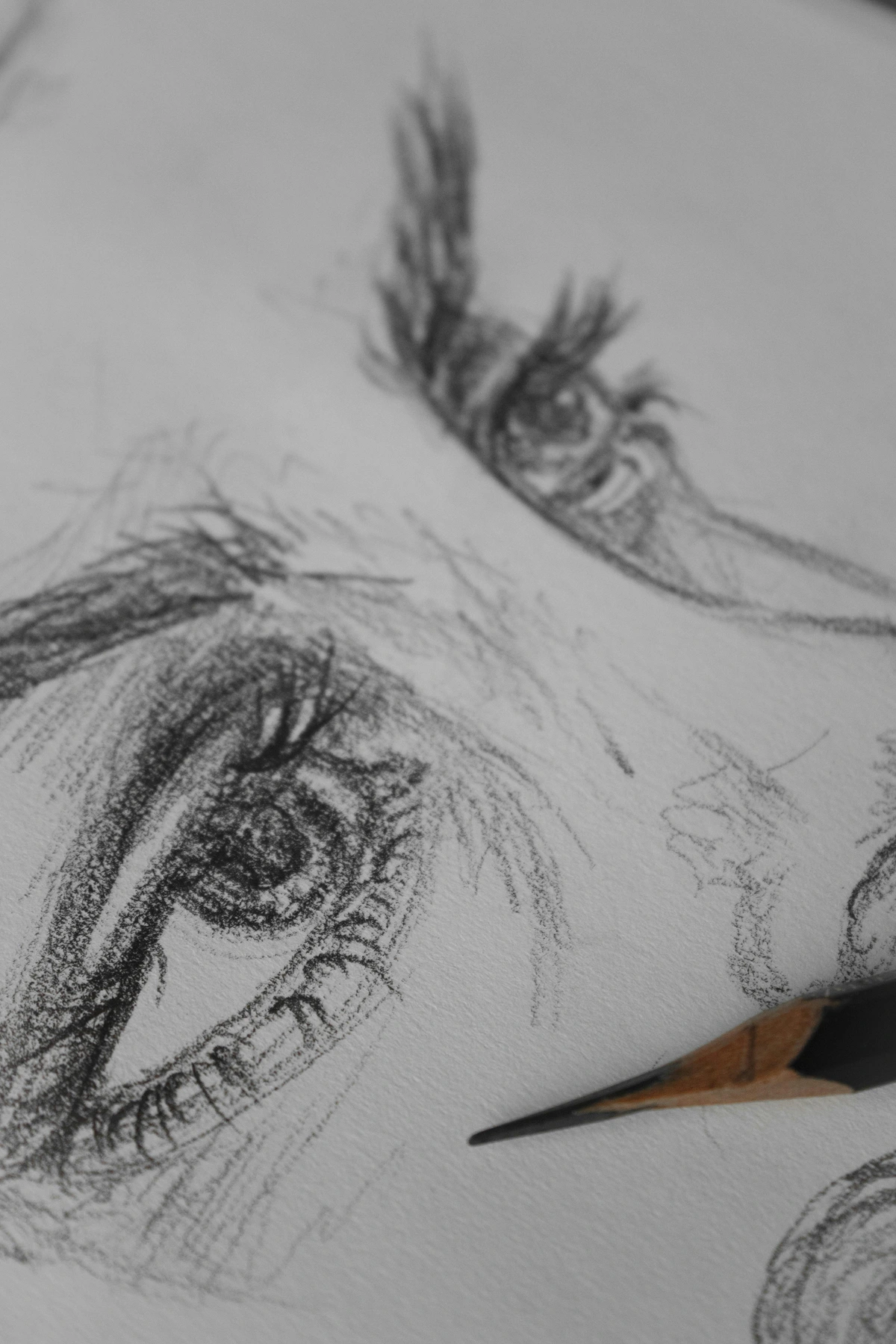
Here’s another unsung hero in the Apple Pencil's arsenal: palm rejection. If you've ever tried to draw on a touchscreen with a cheap stylus, you know the frustration of accidental marks appearing from your resting hand. The Apple Pencil, however, intelligently differentiates between the Pencil's input and your palm resting on the screen. This is crucial for maintaining a natural drawing posture, mimicking the way you'd rest your hand on a physical canvas or sketchbook. This means you can comfortably lean into your work, just as you would with a physical sketchbook, without fear of creating unwanted smudges or lines. It’s a seemingly simple feature, but it’s absolutely critical for maintaining a natural and comfortable drawing posture, allowing for hours of uninterrupted creative flow. Without effective palm rejection, the digital drawing experience would be severely compromised, making fine detail work and comfortable sketching nearly impossible, effectively breaking the immersion of the creative act. Trust me, I’ve tried drawing on iPads without this feature, and it’s like trying to paint with boxing gloves on—utterly frustrating.

Here’s a quick breakdown of the main models:
| Feature | Apple Pencil (1st Gen) | Apple Pencil (USB-C) | Apple Pencil (2nd Gen) | Apple Pencil Pro | | :--- | :--- | :--- | :--- | | Connectivity/Charging | Lightning Connector (Physical Port) | USB-C (Physical Port) | Magnetic Pair & Charge | Magnetic Pair & Charge | | Pressure Sensitivity | Industry-leading precision | No | Industry-leading precision | Industry-leading precision | | Tilt Sensitivity | Natural shading & angling | Natural shading & angling | Natural shading & angling | Natural shading & angling | | Latency | Ultra-low, imperceptible | Ultra-low, imperceptible | Ultra-low, imperceptible | Ultra-low, imperceptible | | Palm Rejection | Flawless | Flawless | Flawless | Flawless | | Double-Tap | No | No | Yes (customizable actions) | Yes (customizable actions) | | Squeeze Gesture | No | No | No | Yes (customizable tool palette) | | Barrel Roll | No | No | No | Yes (brush orientation control) | | Hover (Tool Preview) | No | Yes (on compatible iPads) | Yes (on compatible iPads) | Yes (on all compatible iPads) | | Haptic Feedback | No | No | No | Yes (subtle tactile responses) | | Find My | No | No | No | Yes (locates lost Pencil) | | Best For | Budget-conscious, older iPad users, note-takers, basic digital art, students | Students, note-takers, annotators, casual sketchers who need precision but not pressure sensitivity, budget-conscious users with newer iPads | Vast majority of iPad artists, serious hobbyists, illustrators, aspiring professionals seeking premium features without the latest Pro gestures | Professionals, latest iPads, animators, graphic designers, advanced workflow, niche digital art forms requiring ultimate control | | Compatible iPads | iPad (6th-10th Gen), iPad Air (3rd Gen), iPad Mini (5th Gen), iPad Pro (1st & 2nd Gen) | iPad (10th Gen), iPad Air (4th Gen & later), iPad Mini (6th Gen), iPad Pro (11-inch 1st-4th Gen), iPad Pro (12.9-inch 3rd-6th Gen) | iPad Air (4th Gen & later), iPad Mini (6th Gen), iPad Pro (11-inch 1st-4th Gen), iPad Pro (12.9-inch 3rd-6th Gen) | iPad Air M2, iPad Pro M4 |
Apple Pencil Pro: New Gestures, New Possibilities for Artists
The Apple Pencil Pro introduced a suite of new interactions that push the boundaries of digital artistry even further. These aren't just minor tweaks; they're genuine workflow enhancers that, once you get used to them, become indispensable. It truly feels like Apple listened to professional artists and refined the tool to meet their demanding needs, especially for those who spend hours immersed in their digital craft.
Customization and Workflow Integration: Streamlining Your Process
Beyond the raw responsiveness, the Apple Pencil Pro excels in its ability to integrate seamlessly into and enhance your existing creative workflow. The new gestures aren't just parlor tricks; they're carefully considered additions designed to minimize friction, reduce trips to on-screen menus, and keep you in that coveted 'flow state' where the technology disappears, and only the art remains. It’s about making your digital canvas feel as intuitive and responsive as your most cherished physical tools, adapting to your unique way of creating.
Hover (Enhanced for Apple Pencil Pro & Select 2nd Gen Compatible iPads)
This feature, while available on some earlier iPads with the 2nd Gen Pencil, is significantly enhanced and universal on all compatible iPads for the Apple Pencil Pro. It allows you to see a preview of your tool—whether it's a brush size, a color blend, or a text selection—before you touch the screen. Imagine knowing exactly how wide your brushstroke will be, or where a selection will snap, without committing to it. It’s a subtle but powerful enhancement for precision and confidence, especially when working on intricate details or balancing a complex abstract art composition. It removes guesswork and allows for a more deliberate, thoughtful application of marks, much like a seasoned painter testing a brushstroke on a palette before touching the canvas. This is particularly useful for me when I'm blocking out large areas of color or trying to achieve a very specific gradient – that instant preview saves so much trial and error. I also find it incredibly useful for digital calligraphy, where I can see the exact stroke width and angle before committing ink to virtual paper, or when refining details in portraiture to ensure every hair or eyelash is perfectly placed. It transforms a potentially hesitant process into one of assured precision.
Squeeze Gesture (Apple Pencil Pro)
A simple squeeze of the Pencil barrel brings up a customizable palette of tools, brushes, or colors. No more breaking your flow to tap through menus on the screen. It feels like having your favorite tools literally at your fingertips, making quick changes effortless. For me, this means I can instantly switch between a detail brush and an eraser, pull up my preferred color palette, or even trigger a custom command like a lasso selection or a layer duplicate without skipping a beat. It's a game-changer for maintaining focus during intense creative sessions, eliminating those tiny moments of friction that can pull you out of the zone. Imagine sketching a complex architectural piece and instantly calling up your favorite ruler tool, or shifting from a vibrant primary to a subtle secondary color with just a squeeze – it truly makes the technology feel intuitive rather than an obstacle. It's like having an extra set of hands, allowing you to fluidly navigate your digital canvas with unprecedented speed and efficiency.
Barrel Roll (Apple Pencil Pro)
For those who love working with textured brushes or calligraphic tools, the Barrel Roll is a revelation. By simply rotating the Pencil in your hand, you can change the orientation of certain brushes, mimicking the natural rotation of a physical brush or pen. This adds an incredible layer of organic control, especially for digital painting, lettering, and exploring complex textures. Imagine being able to create the broad, flat strokes of a chisel brush, the nuanced curves of a calligraphic pen, or even the distinctive grain of a wood-simulating texture brush with just a twist of your wrist – it brings a truly tactile and intuitive dimension to digital mark-making that was previously unavailable. This feature dramatically enhances the expressiveness of digital artwork, allowing for subtle variations in line work and shading that were previously difficult to achieve without breaking the creative flow, almost like mastering basic brushstrokes for acrylic painting in a digital space. For abstract artists like myself, this unlocks incredible possibilities for spontaneous gestural marks and dynamic texture creation, where the rotation itself becomes part of the expressive language of the piece, adding an organic, unpredictable quality that can be incredibly difficult to replicate through other digital means.
Haptic Feedback (Apple Pencil Pro)
This is a subtle but surprisingly impactful addition. The Apple Pencil Pro now includes a tiny haptic engine that provides gentle, tactile feedback for certain actions – like confirming a squeeze gesture, snapping to a guide, or performing a tool switch. It's a small "buzz" that subtly enhances the feeling of interaction, making the digital experience feel a little more physical and less ethereal. It's the kind of detail that, once you experience it, you wonder how you ever lived without. This tactile confirmation, even if small, makes interactions feel more grounded and responsive, improving the overall sense of control and immersion in your digital canvas. It provides that almost subconscious cue that you’ve successfully performed an action, much like the satisfying click of a pen. It's not just a fancy trick; it's subtle neuro-linguistic programming for artists, telling your brain that your digital actions have physical consequences, reinforcing the connection between your hand and the art. It's a small sensory anchor that helps ground the inherently ethereal nature of digital art, making each interaction feel more intentional and solid, ultimately deepening your connection to the creative act.
Find My Integration (Apple Pencil Pro)
Consider it a quiet guardian of your creative flow, ensuring minimal interruptions. This is especially vital when you're in the zone, lost in the rhythm of creation – those moments where a misplaced tool can break the spell are now a thing of the past. It’s a tiny detail, but for an artist, uninterrupted flow is priceless.
Find My Integration (Apple Pencil Pro)
Let's face it, artists are often messy, and studios can be chaotic. Tools get misplaced. The Apple Pencil Pro now integrates with the "Find My" network, meaning if you happen to misplace your digital wand, you can track it down using your iPhone or iPad. It's a small but mighty feature for peace of mind, saving countless minutes (and probably a few grey hairs) spent frantically searching for a tool that just moments ago was right in your hand. This simple addition tackles a real-world frustration, ensuring your valuable creative instrument is always locatable, much like finding your favorite brush amidst a pile of art supplies. For me, someone whose studio often resembles a beautiful, creative disaster zone, this feature is a true sanity saver.
Latency: What You See Is What You Get, Instantly
Ah, latency – the silent killer of creative flow on lesser digital drawing tools. This is the tiny, almost imperceptible delay between when your hand moves the Pencil and when the corresponding line actually appears on the screen. On older or cheaper devices, this lag can be infuriatingly distracting, creating a disconnect between your intention and the outcome. It's like trying to draw with a stretchy rubber band, or trying to mix Liquitex Basics acrylic paints and having them dry before you can blend them. This immediate response is crucial for capturing the fleeting nature of creative thought, ensuring that your ideas translate directly and fluidly onto the digital canvas. It's the difference between truly feeling the connection to your digital medium and constantly being reminded you're drawing on a screen. And believe me, that feeling makes all the difference.

With the Apple Pencil, especially on modern iPads (those glorious devices with ProMotion displays that offer up to a 120Hz refresh rate), the latency is so incredibly low that it’s virtually imperceptible. The ink, or paint, or charcoal, feels like it’s flowing directly from the tip, almost anticipating your movements before they fully happen. This isn't just a technical spec; it's a profound feeling of direct connection. For serious drawing and painting, this immediate responsiveness is a non-negotiable feature, a true cornerstone of the Apple Pencil experience, and one that Apple absolutely nails every single time. It allows for that fluid, unhindered expression where the technology truly fades into the background, leaving just you and your art, free to create bold abstract pieces or detailed portraits. This seamless interaction is a testament to the robust engineering behind the Apple Pencil and iPad ecosystem, making it an invaluable tool for any digital artist. They've essentially created a high-performance sports car for your creative ideas, ensuring every nuance of your artistic 'foot on the pedal' translates instantly to the 'road' of the digital canvas. It’s the kind of precision that fosters confidence, allowing you to experiment wildly without fearing technological hurdles getting in the way.

credit, licence
The Role of ProMotion Displays: Why Your iPad's Screen Matters
While the Pencil itself has ultra-low latency, the iPad's display plays a massive role in making that responsiveness feel real. ProMotion displays, available on iPad Pro models and some iPad Airs, dynamically adjust their refresh rate up to 120Hz. This means the screen updates much faster, resulting in lines that appear almost instantaneously beneath your tip. It's the difference between a smooth, continuous stroke and one that slightly trails your hand, creating a tangible sense of disconnection. For artists, this high refresh rate is a game-changer, making the digital canvas feel alive and directly responsive to every nuance of your movement. It's the visual equivalent of a perfectly tuned instrument, allowing your artistic movements to translate with absolute fidelity. Without ProMotion, even the fastest Pencil can feel a little sluggish, introducing a subtle drag that can disrupt your flow. It's why pairing the right Pencil with the right iPad is so crucial for maximizing your creative output. This isn't just about speed; it's about the quality of the visual feedback. When the lines appear instantly and smoothly, your brain processes the drawing as a direct extension of your hand, not as a mediated digital event. This cognitive seamlessness is a profound advantage for artists, making long hours of detailed work less fatiguing and more enjoyable. It means less time waiting for lines to catch up, and more time truly immersed in the act of creation, leading to a more natural and intuitive artistic flow.
Choosing the Right Apple Pencil for You: A Comprehensive Guide for Artists
With three distinct models now available, picking the "right" Apple Pencil can feel a bit like choosing the perfect brush from a vast collection – exciting, but also a little daunting. Here’s how I break it down for fellow artists, considering different needs, budgets, and creative ambitions:
- Apple Pencil (1st Gen): This is your entry-level workhorse, perfect for budget-conscious beginners, students, or those with older iPad models (like the 9th or 10th generation iPad). It still offers excellent pressure and tilt sensitivity, making it a fantastic tool for sketching, basic drawing, and detailed note-taking. While you'll manage with Lightning charging and a slightly less seamless pairing experience, it provides a robust and accurate digital drawing foundation. Think of it as a reliable student-grade brush – it gets the job done beautifully, especially if your primary need is for accurate line work and basic digital painting, without the need for advanced gestures. I've seen incredible works created with this 'original' magic wand, proving that it's the artist, not just the tool, that truly matters. For artists who primarily focus on line art, intricate details, or precise handwriting, the 1st Gen remains a highly capable and cost-effective choice.
- Apple Pencil (USB-C): For students, note-takers, annotators, and casual sketchers who prioritize precision and convenience but don't require pressure sensitivity for their artistic endeavors. This model is ideal if you have a newer iPad with a USB-C port (including the 10th Gen iPad, and many iPad Air and Pro models) and are looking for a more affordable, reliable, and magnetically attachable stylus without the artistic bells and whistles like pressure sensitivity or advanced gestures. It's a perfect everyday companion for schoolwork, marking up documents, or quick digital journaling.
- Apple Pencil (2nd Gen): For the vast majority of iPad artists, including serious hobbyists, illustrators, and aspiring professionals, this is the sweet spot. If your iPad is compatible (iPad Air 4th Gen and later, iPad Mini 6th Gen, iPad Pro 3rd Gen and later), the magnetic charging and customizable double-tap are workflow enhancers you won't want to live without. It provides all the core artistic functionality with a significant boost in convenience and usability, truly integrating the Pencil into your iPad. This is my go-to recommendation for those seeking a premium, yet accessible, digital art experience without needing the absolute latest features. The convenience alone makes it a worthwhile upgrade for any dedicated digital artist. It’s like moving from a good studio easel to one with all the ergonomic adjustments – it simply makes the process smoother and more enjoyable. It’s particularly suited for digital painters, comic artists, and designers who rely on pressure and tilt for expressive marks but find the Pro model's additional gestures a bonus rather than a necessity.
- Apple Pencil Pro: This is for the professional digital artist, graphic designers, animators, or anyone who craves the absolute bleeding edge of creative technology. If you have a compatible M4 iPad Pro or M2 iPad Air, the new Squeeze gesture, Barrel Roll, Haptic Feedback, and Find My integration offer genuinely new ways to interact with your art. These features streamline complex workflows, provide unprecedented fine control over brushes, and add a layer of tactile satisfaction that truly elevates the digital drawing experience. If art is your livelihood, your deepest passion, and your budget allows, the Pro is an undeniable upgrade that will push the boundaries of what you can achieve digitally, offering new avenues for mixed media and advanced textural explorations. Think of it as the difference between a finely tuned racing machine and a standard, albeit excellent, car – for those who demand the absolute peak of performance, the Pro delivers. It's a statement, a commitment to pushing the boundaries of what digital art can be, especially for motion graphic artists, advanced illustrators, and those exploring hyper-realistic digital painting or sophisticated 3D texturing.
Remember, the best Pencil is the one that best suits your iPad, your workflow, and your budget. Don't feel pressured to get the latest and greatest if your current setup or needs don't warrant it. It's about finding the tool that empowers your creativity, not just having the newest gadget.
The Not-So-Great Stuff: My Pet Peeves and What to Expect
It’s not all sunshine and perfectly rendered lines. I have a few bones to pick, because no tool, however brilliant, is without its quirks. And as artists, we tend to be a discerning bunch, don't we? So let's talk about the elephant in the digital art studio.
- Compatibility Confusion: Oh, Apple, why must you make things so convoluted? Determining which Apple Pencil works with your specific iPad model is far from straightforward. There's the 1st Gen, USB-C, 2nd Gen, and now the Pro, and each has a specific (and often limited) range of compatible iPads. You can't just pick up any Pencil and expect it to work. It's a genuine headache that forces you into a labyrinth of model numbers and cross-referencing charts, creating unnecessary friction before you even get to draw your first line. It's a prime example of where Apple's typically seamless ecosystem hits a major snag, leaving many artists scratching their heads (and sometimes buying the wrong, expensive, accessory). My strongest advice here: always double-check Apple's official compatibility page before purchase. Seriously, save yourself the headache and the return trip. I once saw an artist nearly weep in the Apple Store after realizing their brand new Pencil was incompatible with their older iPad – a mistake that's easily avoided with a few minutes of research. It's akin to buying a beautiful set of oil paints only to discover they don't work with your acrylic brushes – an entirely avoidable frustration that can dampen your creative spirit before you even begin. My personal trick? I always check the exact model number on the back of my iPad (it usually starts with 'A' followed by four digits) and then cross-reference it with Apple's official support document. This takes just a minute and saves so much potential grief.
- The Slippery Tip on Glass & The Accessory Rabbit Hole: This is, without a doubt, my biggest, most visceral complaint, and it leads directly into the third point. Drawing on a smooth, cold glass screen feels nothing like the subtle, resistive drag of paper or the satisfying friction of canvas. It's slippery, almost like trying to sketch on ice, and your lines can sometimes feel uncontrolled, lacking that grounded tactile feedback. And let's not forget the incessant 'tap-tap-tap' sound of the hard plastic nib on glass – it can be incredibly annoying, especially during long, quiet creative sessions. This is a purely tactile and auditory issue, but for artists, where touch and feel are paramount, it's a significant barrier. It's why countless artists, myself included, immediately experiment with third-party nibs (some offering more friction, like felt or metal tips) or invest in textured screen protectors to try and bridge that chasm between digital and physical.
To genuinely solve that slippery problem and optimize the drawing experience, you’ll almost certainly find yourself tumbling down the accessory rabbit hole. First up, a matte screen protector (brands like Paperlike, Elecom, or various generic "paper-feel" options come to mind). These do add a lovely, much-needed texture, providing that satisfying drag that mimics actual paper, but be warned: they can slightly reduce screen clarity and, yes, they will absolutely wear down your precious pencil nibs faster. Then, for ergonomic comfort during those marathon drawing sessions, a silicone grip might become essential, transforming that smooth, hard barrel into something more akin to your favorite brush handle. And for those who prefer an even more precise or differentiated feel, third-party nibs with different materials (like POM for a softer feel, or even metal for a more durable, slicker glide) are also available. Before you know it, your sleek, minimalist digital drawing tool has accumulated a small collection of its own: a multi-pack of replacement nibs, perhaps a few different types of grips, screen protectors to swap out, a protective case for transport, and maybe even a dedicated charging stand. It’s a bit of an irony, isn't it, how a device designed for digital minimalism can suddenly spawn so much physical clutter? But consider these not as extra costs, but as necessary investments to tailor the tool to your precise tactile preferences. It’s about creating your ideal workspace, digital or otherwise, that truly enhances your creative flow. My advice is to experiment cautiously, buying one item at a time until you find the perfect combination that truly makes the Pencil sing in your hand.

- The Price: Let's be blunt about this, because it’s often the elephant in the room. The Apple Pencil is expensive for what is, at its core, a digital drawing tool. We're talking about a significant investment. For the same price as the latest model, you could easily acquire a very nice set of professional Prismacolor pencils and a decent collection of Liquitex Basics acrylic paints (or even explore historical mediums like encaustic painting with some foundational supplies). Moreover, those precision tips? They're a consumable item, meaning you'll have to factor in replacement costs over time, especially if you use textured screen protectors. So, yes, you are absolutely paying a premium here. You're paying for the seamless, almost magical, integration into the Apple ecosystem, the unparalleled precision engineering, the near-zero latency, and the robust, continuous software support. The question you have to ask yourself, as an artist, is if that premium is truly worth the investment in your specific digital workflow and creative potential. For many, including myself, the answer is a resounding yes, but it’s a personal calculation. It's a commitment, but one that often pays dividends in creative freedom and efficiency. Think of it less as buying a pen and more as investing in a high-performance digital studio in your backpack. The cost of a few tubes of premium paint or a quality canvas can quickly add up, and the Pencil, in its own way, offers a virtually infinite supply of both, digitally speaking. When you consider the sheer number of canvases, sketchbooks, and art supplies it can digitally replace over its lifetime, the cost-per-use often becomes surprisingly low, making it a very economical long-term investment for a dedicated artist.

The Learning Curve (It's Real!)
And remember, every master was once a beginner, fumbling with their tools. The digital realm is particularly forgiving of those fumbling moments, offering a safe space to grow and explore.
Beyond the price and accessories, there's a more subtle hurdle: the learning curve. If you're coming from traditional mediums, drawing digitally with any stylus—even the Apple Pencil—requires a mental shift. You're learning a new kind of muscle memory, adapting to undo buttons instead of erasers, layers instead of direct application, and digital color mixing instead of physical palettes. It takes time and patience to truly make it your tool. Don't expect to pick it up and immediately replicate your traditional masterpieces. It's a new language you're learning, and that's okay. Embrace the experimentation! The beautiful thing about digital art is the freedom it offers for endless revisions and bold experiments without wasting materials. So dive in, make "mistakes," and discover how this tool can unlock entirely new avenues of creative expression for you, just as it did for me. My advice? Treat it like learning a new instrument or a new dance. It takes practice, patience, and a willingness to look silly sometimes, but the rewards are immense. Don't be afraid to make messes; the digital undo button is your best friend!
My Workflow: How I Actually Use the Apple Pencil in My Artistic Practice
It's less about choosing one over the other and more about a harmonious dance between the two, each informing and enriching the other. I often find my digital explorations sparking ideas for my physical abstract paintings, and vice-versa. It's a truly symbiotic relationship.
Despite its quirks, the Apple Pencil has undeniably become an indispensable part of my daily creative practice. It hasn’t replaced my physical studio, but rather, it has profoundly extended its capabilities, adding layers of efficiency and freedom I never thought possible. Here's a glimpse into how this elegant tool integrates into my artistic rhythm, seamlessly bridging the gap between traditional and digital approaches.

- The Digital Sketchbook: This is, arguably, where the Apple Pencil truly shines for me. It's my absolute go-to for capturing those fleeting ideas, whether I'm brainstorming a new series, planning a complex abstract art composition, or just indulging in some aimless doodling to clear my head. I can be anywhere – on a bustling train, waiting for a coffee, or even mid-hike – see something interesting, and within minutes have a full-color sketch done. I can explore various compositions, experiment with color palettes, and iterate endlessly without worrying about messy materials, drying times, or lugging around a heavy sketchbook. It’s pure, unadulterated creative flow, much like a rapid visual storytelling exercise, but with the added magic of infinite undo buttons and the freedom to instantly share or save my progress. And the best part? No smudged pages, no pencil dust, just pristine digital files ready to be revisited or developed further at any moment. I can quickly create a series of thumbnail sketches, instantly resize or rotate elements, and try out different lighting scenarios—all things that would take considerably more time and resources in a traditional setting.
- Composition and Planning: For my larger, often intricate physical paintings, the iPad and Apple Pencil have become an indispensable planning tool. I use them extensively to test out compositions, explore countless color palettes, and even perform detailed value studies. This iterative, risk-free digital process has saved me countless hours and, frankly, gallons of expensive paint, allowing me to refine my ideas, experiment with different layouts, and iron out any compositional kinks long before touching a physical canvas. It's a key part of my process of understanding balance in art composition and ensures a strong foundational design in art before committing to the permanence of paint. It's like having a digital sandbox where I can build and rebuild without consequence, leading to more confident and cohesive physical works. This stage is critical for larger, complex pieces, allowing me to resolve issues digitally rather than wasting expensive materials in the physical studio. Imagine being able to instantly mirror your composition to check its balance, invert colors to see how values hold up, or even overlay reference photos with different blending modes – these are game-changing capabilities for refining a piece before it ever touches a real brush.
- Finished Digital Pieces: And sometimes, wonderfully, the digital sketch itself evolves into the final, polished piece. This happens particularly often for graphic works, illustrations, or even complex abstract compositions where the fluidity of digital tools truly shines. The ability to work in infinite layers, to undo mistakes endlessly without damaging the "original," and to experiment fearlessly with colors, textures, and effects without any real-world consequence is incredibly freeing. It fosters a different way of thinking, a more iterative and experimental approach that perfectly complements my personal philosophy on abstract art. This digital canvas allows for a unique exploration of form and color, pushing boundaries in ways that traditional mediums, with their inherent physical limitations, sometimes restrict. It's a powerful avenue for discovering new artistic frontiers, often leading to surprising and delightful outcomes, especially in styles like what is minimalism in art or geometric abstraction. I've found that the ability to instantly duplicate a canvas and try a completely different approach on the copy has led to breakthroughs I might never have risked with expensive physical materials. It’s a liberating feeling, honestly. I've completed entire book illustrations, character designs for clients, and even abstract animation loops solely using the Apple Pencil and iPad, benefiting from the seamless editing and revision process.
Beyond the Canvas: Other Uses for the Apple Pencil as a Productivity Powerhouse
It’s truly a multi-talented companion that extends far beyond the traditional canvas, integrating seamlessly into various aspects of digital life, whether you're a student, a professional, or simply someone who appreciates efficiency and precision. Its utility spans far beyond purely artistic endeavors, making it a valuable addition to any digital toolkit.
While our focus here is squarely on art, it would be a disservice not to briefly mention the Apple Pencil's incredible versatility beyond drawing and painting. This isn't just an art tool; it's a productivity powerhouse for anyone deep in the Apple ecosystem.
Beyond Creative: The Apple Pencil in Academia and Business
The Apple Pencil's utility extends far beyond the artist's studio, making it an invaluable tool for students, educators, and professionals across various fields. Its precision and intuitive input can revolutionize how you interact with digital documents and information, transforming your iPad into a highly adaptable workstation.
- Note-Taking & Annotation: For students, professionals, or anyone who still appreciates the act of writing things down, the Apple Pencil transforms your iPad into an infinitely reusable notebook. Apps like Goodnotes, Notability, or even Apple's built-in Notes app allow for fluid handwritten notes, highlighting, and annotating PDFs and documents. It’s like having a digital pen that never runs out of ink, and the precision means you can make detailed annotations on everything from contracts to exhibition layouts, academic papers, or even marking up architectural blueprints. For educators, it facilitates dynamic feedback on student assignments, and for business professionals, it's perfect for signing documents digitally, sketching out diagrams in meetings, or brainstorming on a shared Freeform canvas.
- Creative Writing & Brainstorming: I often use my Pencil for initial storyboarding or mind-mapping for articles (like this one!). The ability to quickly jot down ideas, connect concepts with arrows, or sketch visual metaphors is far more intuitive and less restrictive than typing. It truly feels like an extension of your thought process, making it ideal for everything from novel outlines to planning visual storytelling in a new art series. I find the fluidity of sketching out concepts – whether it's a character design, a scene layout, or simply a flow chart for a complex idea – allows my thoughts to unfold more organically than when constrained by a keyboard. It's an invaluable tool for unlocking visual thinking and organizing abstract concepts.
- Precision Editing: Whether it's photo editing, video editing, or even fine-tuning graphic designs, the pixel-perfect precision of the Apple Pencil is invaluable. Selecting minute details, drawing accurate masks, or making subtle adjustments becomes a breeze, far superior to using a finger or a trackpad. For graphic designers, it's a tool that can drastically speed up workflow in apps like Affinity Designer or Adobe Illustrator, allowing for intricate vector path adjustments or precise brushwork. Even in video editing apps, the Pencil can be used for frame-by-frame adjustments or drawing directly onto footage, transforming the precision of your edits.
So, while its artistic capabilities are what draw most of us in, remember that the Apple Pencil is a true multi-talented tool that can enhance many facets of your digital life, making your iPad an even more versatile creative and productivity hub.

FAQ: Your Burning Apple Pencil Questions Answered by an Artist
Think of this as a mini-consultation with a fellow artist who's been through the digital trenches and lived to tell the tale (and still has all her digital fingers, mostly).
Got more questions? You're not alone. The Apple Pencil, while seemingly simple, sparks a lot of queries. Here are some of the most common questions I encounter about this remarkable tool, offering practical, artist-focused answers to help you navigate your decision and get the most out of your creative investment.

Which Apple Pencil works with my iPad?
This is indeed confusing, and Apple doesn't make it as straightforward as it could be. The rule of thumb is that newer iPads generally work with newer Pencils, but there are exceptions. Apple's official website has a definitive compatibility chart, and I cannot stress this enough: before you buy, triple-check which model pairs with your specific iPad. It's not universal, and the wrong Pencil simply won't work, leaving you frustrated and out of pocket. Look for the model number on your iPad (it's usually a small 'A' followed by four digits on the back of the device) and cross-reference it carefully with Apple's official compatibility matrix. A quick search for "Apple Pencil compatibility chart" will take you to the most current information directly from the source. Seriously, this step is non-negotiable to avoid disappointment and an unnecessary return trip to the store. This is often the first hurdle for aspiring digital artists, and clearing it smoothly sets the tone for your entire journey into the digital canvas. Don't rely on assumptions; a few minutes of research can save you a world of headache.
What is the best iPad for Apple Pencil?
"Best" is always subjective, but if you're a serious artist prioritizing the Apple Pencil experience, I'd point you towards the iPad Pro models (11-inch or 12.9-inch). Their ProMotion displays (120Hz refresh rate) offer the lowest latency, making drawing feel incredibly fluid and natural. They also boast powerful M-series chips, which handle demanding art applications like Procreate or Affinity Designer with ease, allowing for more layers, larger canvases, and complex brushes without lag. These are truly desktop-class machines in a tablet form factor, capable of handling intricate abstract art compositions or highly detailed illustrations. The larger screen of the 12.9-inch Pro, in particular, offers a truly expansive canvas that mimics traditional art surfaces, which many artists find invaluable. If a Pro model is out of budget, the iPad Air is an excellent mid-range option, offering magnetic charging for the 2nd Gen Pencil and a powerful chip that can still run most art apps beautifully. Ultimately, it comes down to your budget and specific workflow needs, but for the absolute best Apple Pencil experience, the Pros lead the pack, offering an unparalleled digital canvas for serious creative work. For those thinking long-term, consider the storage capacity too; digital art files, especially those with many layers and high resolutions, can be surprisingly large, so opting for at least 256GB or 512GB of storage means more creative freedom without constantly offloading projects.
Do I really need a screen protector for art?
I'd say yes, absolutely, for most artists, it's a game-changer. For many artists, a good matte screen protector (often affectionately called a "paper-feel" screen protector) is a fundamental part of the Apple Pencil experience. It's not just an accessory; it's a transformative element. It provides that much-needed paper-like drag, which is a genuine game-changer for control, precision, and the overall feel of drawing digitally. It effectively tackles that "slippery tip on glass" issue we discussed earlier, making the experience feel more grounded. Beyond the tactile benefits, it also significantly reduces glare in bright environments, which is a blessing for your eyes during long creative sessions. Think of it as a small, worthwhile cost for a huge improvement in artistic feel and a reduction in eye strain. Just be aware, as mentioned earlier, these textured surfaces will wear down your precious pencil nibs faster, so do factor in the cost of replacement tips. But in my experience, that's a small price to pay for a much more natural and enjoyable drawing experience that genuinely elevates your digital artistry, making those long creative sessions far more comfortable and productive. It's about personalizing your digital canvas to feel as intuitive and responsive as your favorite sketchbook. And honestly, isn't that what we're all looking for? There are different types, from highly textured ones that feel almost like a coarse paper (great for pencil work) to smoother matte options that still reduce glare without as much nib wear (better for brushwork). Experimentation is key to finding your perfect 'paper-feel'.
What are the best art apps for Apple Pencil?
This is a deep rabbit hole, as there are so many incredible options! The "best" really depends on your specific artistic needs and what kind of art you're creating. Here's a quick breakdown of some top contenders, each offering unique strengths for different artistic journeys:

- Raster Art (Pixel-based Painting & Drawing): These are your go-to for traditional painting and drawing simulations.
- Procreate: The undisputed champion for iPad artists. It's intuitive, incredibly powerful, packed with features (like custom brushes and animation assist for budding animators), and constantly updated. Essential for digital painting, sketching, and illustration, it excels at everything from detailed portraits to expressive abstract art, and even basic animation. Its vast brush library and active community make it a fantastic choice for nearly any raster-based art form.
- Adobe Fresco: Combines raster and vector brushes, known for its live watercolor and oil brushes that genuinely mimic traditional media. If you crave that organic, fluid feel, particularly for realistic painting effects, Fresco is a fantastic choice. It's great for artists transitioning from traditional mediums who want to replicate that authentic experience digitally.
- Clip Studio Paint: A powerhouse for comics, manga, and animation, offering robust tools for line art, coloring, panel creation, and even 3D model import for reference. Its extensive feature set caters to professional illustrators and comic artists who need specialized tools for their sequential art workflows, including features like perspective rulers and customizable comic panel layouts.
- Vector Art (Scalable Graphics & Illustration): For sharp lines, infinitely scalable designs, and graphic work.
- Affinity Designer: A fantastic, one-time-purchase alternative to Adobe Illustrator, offering comprehensive vector tools for logos, illustrations, and graphic design. It's a professional-grade tool without a subscription, ideal for creating crisp, scalable artwork for print or web, and even allows for pixel-based painting within the same document.
- Adobe Illustrator (iPad version): For those deep in the Adobe ecosystem, it offers a streamlined version of the desktop powerhouse, perfect for on-the-go vector creation. It's excellent for designers who need to maintain consistency across platforms and collaborate within the Adobe Creative Cloud environment.
- Sketching & Concept Development: Sometimes you just need to get ideas down quickly and flexibly.
- Paper by WeTransfer: Simple, elegant, and focused on intuitive drawing with beautiful brushes. It’s perfect for quick sketches and journaling, offering a minimalist interface that lets you focus purely on your ideas without distraction. Ideal for daily sketching and visual note-taking.
- Concepts: Infinite canvas, highly versatile for architectural drawing, product design, and brainstorming, with precise vector-based tools. It’s ideal for ideation and technical illustration, allowing for endless exploration of layouts and designs, and its precision measurement tools are a boon for technical artists.
- Apple Freeform: Surprisingly useful for collaborative brainstorming, mood boards, and initial visual organization. Its open canvas makes it great for free association and gathering visual inspiration, especially when working with others in real-time. It's a digital whiteboard that takes full advantage of the Pencil's spontaneity.
My advice? Watch some YouTube reviews, check out artist recommendations, and try a few free ones or trials to see what resonates with your workflow. Many apps have free versions or trials that let you get a feel for them before committing. The right app can truly unlock the full potential of your Apple Pencil and your artistic vision! It's like finding the right studio space – once you're in it, everything just clicks. And remember, the digital art community is vast and incredibly supportive; don't hesitate to reach out for recommendations from other artists on social media or forums. We're all in this creative journey together!
Are there any good Apple Pencil alternatives for artists?
Think of it this way: you can get a perfectly good set of student-grade paints, but for professional results and nuanced control, you eventually invest in artist-grade materials. It's the same principle here.
Yes, there are! While the Apple Pencil offers the most seamless and integrated experience within the Apple ecosystem, several third-party companies produce excellent styluses that might suit different needs or budgets. Brands like Logitech Crayon offer a more affordable entry point, providing good tilt sensitivity and palm rejection, though often lacking the crucial pressure sensitivity that artists crave. Other brands, like Adonit or specialized art stylus manufacturers, cater to specific needs with features like fine tips or unique button layouts. However, it's a critical caveat: due to proprietary Apple technology, no third-party stylus can fully replicate all the advanced features of the Apple Pencil, especially those found in the Pro model like Barrel Roll, Squeeze gesture, or haptic feedback. So, if budget is a major concern or you only need basic functionality for navigation and light sketching (perhaps for note-taking or simple annotations), alternatives exist. But for the full artistic toolkit, comprehensive features, and seamless integration, the genuine Apple Pencil remains the undisputed king of the iPad art experience for serious creators. It's a case of getting what you pay for when it comes to the full suite of advanced features.
How long does the Apple Pencil battery last?
If you're a heavy user like me, keeping an eye on that battery widget is a habit you'll quickly adopt, a small price to pay for uninterrupted creative bliss!
A full charge will generally last for a solid day of intermittent use, or several hours of continuous, heavy drawing. This is quite respectable for a precision instrument. However, the real game-changer came with the 2nd Gen and Pro models' magnetic charging. Because it snaps conveniently to the side of your iPad, it’s almost a non-issue—it’s constantly being topped up whenever it’s not in active use. This means less worrying about battery life and more time creating, allowing your creative flow to remain uninterrupted. For the 1st Gen Pencil, which requires plugging into the Lightning port, remember to top it up regularly when not in use to avoid interruptions, and always check the battery widget on your iPad to avoid mid-drawing surprises. My own experience is that it comfortably gets me through even the longest art marathon sessions; it rarely dies on me unless I've completely forgotten to dock it for days.
Can the Apple Pencil replace traditional art tools completely?
The smell of oil paint, the grit of charcoal under my fingers – those are sensory experiences that digital can't replicate, and nor should it try to completely. It's a different beast, a different magic.
For me, a resounding no. And I say that as someone who uses it daily. The tactile joy of physical paint, the happy accidents that emerge from the resistance of a brush on canvas, the rich, nuanced texture of a real medium—that can't be digitally replicated, at least not yet. The Apple Pencil is another, incredibly powerful tool in the toolbox, a brilliant extension of your creative capabilities, but it's not a replacement for the whole box. It's about augmenting, not supplanting, your existing artistic practice, and opening up new possibilities for abstract expression or detailed illustration. Think of it as a fantastic new instrument in your orchestra, rather than a solo act replacing all others. My studio is still very much alive with physical materials, and the Apple Pencil simply adds another vibrant layer to that creative ecosystem.
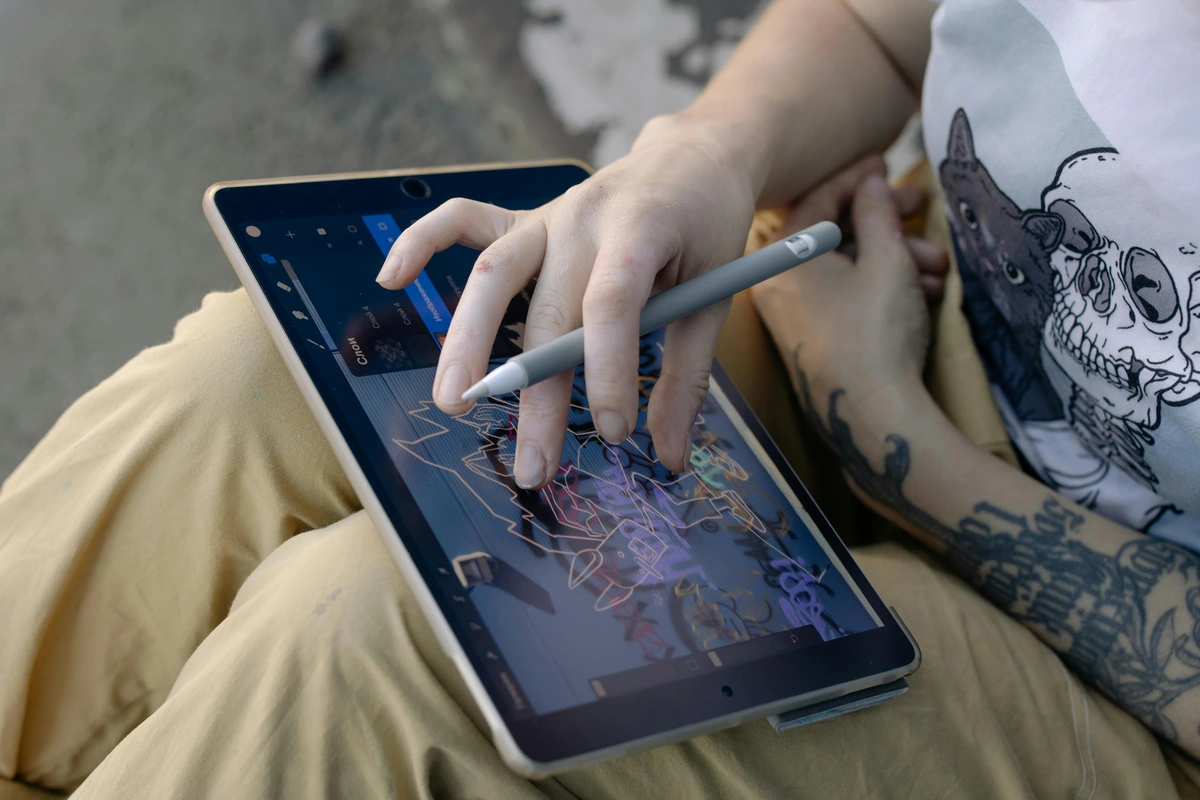
How do I clean and care for my Apple Pencil to extend its life?
Caring for your Apple Pencil is simple but important for its longevity and optimal performance. For the body, a soft, lint-free cloth (the kind you use for your glasses or iPad screen) is usually enough to wipe away fingerprints, smudges, and any accumulated dust. Crucially, avoid harsh chemicals, abrasive cleaners, or sprays directly on the Pencil, as these can damage its finish or internal components. For the nib, gently wipe it clean, especially if you use a textured screen protector, as tiny particles or residue can build up and affect its glide and precision. If your nib starts to feel rough, scratchy, or if the material is visibly worn down to a sharp or uneven edge, that's a clear sign it's time for a replacement. Always store it securely – either magnetically attached to your iPad (if compatible), in a dedicated protective case or sleeve to prevent accidental drops, bumps, or the tip being bent, or even in a secure desk organizer. Think of it as a delicate, precision instrument, because that's exactly what it is, and treating it with a little care will ensure it serves your creative journey well for years to come. It's an investment, after all, and proper care will protect that investment, allowing you to focus on creating your next masterpiece. And don't forget the power of a simple, clean cloth – sometimes the simplest solutions are the most effective for keeping your tools pristine.
How often do Apple Pencil tips need replacing?
This is a question I get a lot, and the answer, like most things in art, is "it depends!" It heavily depends on your individual usage patterns and, crucially, whether you use a matte screen protector. If you're a professional artist, for instance, sketching and painting for several hours daily on a textured, paper-feel screen protector, you might find yourself replacing the nib every 3 to 6 months. That textured surface, while fantastic for feel, does create more friction and thus more wear. For casual use directly on the smooth glass screen, however, a single nib could realistically last for years, as the wear is minimal. You'll know it's time for a replacement when the tip feels less precise, loses its smooth glide, or you notice any visible flattening or fraying of the plastic. Don't wait until it impacts your workflow!
My advice? Keep a pack of spare nibs on hand, so you're never caught mid-masterpiece without a fresh tip! You can opt for Apple's official replacements or explore third-party options that offer different tactile experiences, such as felt-tip nibs for more friction or harder plastic for a smoother glide. Think of them like paintbrushes – a fresh tip ensures optimal performance and a smoother creative experience. This is a small recurring cost, but vital for maintaining the premium drawing feel. And trust me, the frustration of a worn-out nib mid-drawing is a special kind of artistic agony that you'll want to avoid at all costs!
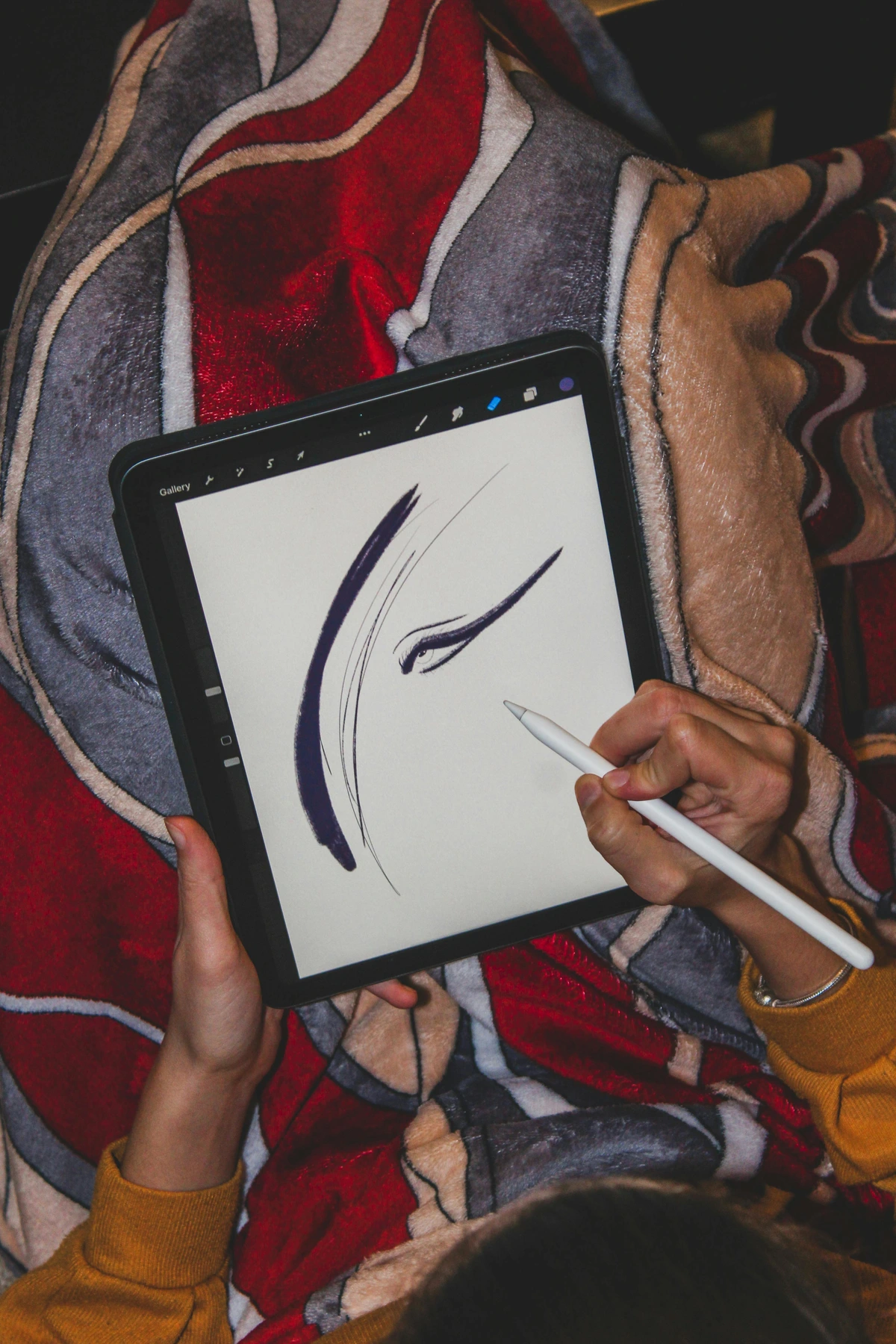







Final Verdict: So, Should You Buy the Apple Pencil as an Artist?
After all this deep dive, after wrestling with its quirks and celebrating its triumphs, here’s my honest, unfiltered take, from one artist to another: The Apple Pencil is, without a shadow of a doubt, an expensive (yes), and imperfect (certainly), but ultimately an absolutely brilliant tool that has genuinely transformed my creative process. Its flaws, while real, are mostly manageable and often solvable with a few tweaks and third-party accessories. But its strengths – the flawless tracking, the incredibly nuanced pressure and tilt sensitivity, the near-zero latency, and its seamless, almost magical integration with the iPad ecosystem – collectively make it, in my opinion, the absolute best digital drawing and painting experience you can get on a tablet today. It's truly a testament to thoughtful engineering meeting artistic needs, and it represents a significant leap forward in digital creative tools.
Let's be clear: it won't magically make you a better artist. No tool, however advanced or expensive, can simply imbue you with skill, vision, or a unique artistic voice. That part, the hard work of learning and creating, is entirely up to you. But what it will do, undeniably, is remove significant friction between your nascent creative idea and the digital canvas. It allows for a flow and immediacy of expression that feels so natural, so liberating, and utterly compelling. It frees you to focus on the art itself, on the ideas bubbling in your mind, rather than being hindered by the limitations of your tools, much like a perfectly tuned instrument allows a musician to focus on the melody. It elevates your process, allowing your ideas to flow directly to the digital page, transforming concepts into tangible (or digitally tangible!) creations. Think of it as a powerful assistant, not a replacement for your intrinsic talent. It's about empowering your innate creativity.
So, if you're a professional artist, a serious hobbyist, or even an enthusiastic beginner who has already invested in an iPad for creating art, then yes, my friend, you should absolutely buy it. Stop hesitating. It's not just another gadget; it's a profound investment in your workflow, your creative potential, and your artistic future. It's another amazing, almost inevitable, step in the long and fascinating timeline of how artists create, bridging the gap between traditional craft and digital innovation. It's a fantastic bridge to the digital realms of expression, opening up new possibilities, perhaps even inspiring you to explore my own abstract art and see what's possible when intuition meets technology. Ultimately, it’s about empowering your unique vision and giving it the best possible platform to flourish. This tool won't define your art, but it can certainly help you unleash its full potential, transforming your iPad into a boundless canvas for your imagination. Don't just buy a stylus; invest in a creative partner that will push your art to new, unimaginable places. Your future masterpieces are waiting.