The Best Drawing Apps for Apple Pencil: My Personal Guide
Tired of endless 'top 10' lists? I've used them all. Here's my personal, no-nonsense guide to the best drawing apps for the Apple Pencil that actually feel right.

My Search for the Soul of Drawing on an iPad: The Ultimate Guide to the Best Apps for Apple Pencil
I’ll be honest with you. When I first got an iPad and an Apple Pencil, a part of me felt like a traitor. My studio is a chaotic mess of real paint, charcoal dust, and turpentine fumes. It’s tangible. You can smell it. The idea of drawing on a sterile piece of glass felt... well, cold, and a little too easy (the horror!). I downloaded a dozen apps, poked around for five minutes in each, and nearly gave up, ready to relegate the iPad to a very expensive Netflix machine and a glorified recipe viewer. I almost missed the entire revolution brewing in my hands.
But then, something clicked. It wasn't a single moment, more like a slow dawning, an internal argument finally yielding to a quiet understanding. I found an app with a brush engine that didn't just imitate a pencil, it felt like one. The resistance, the texture, the happy accidents – those beautiful, unpredictable moments that make traditional art so magical – they were there. It wasn’t a replacement for my physical tools; let's be clear, nothing truly replaces the smell of turpentine, or the satisfying grit of charcoal under my palm. But it was a powerful, brilliant extension of them. It was another voice in my creative choir, not a soloist trying to usurp the others. This digital canvas, it turns out, has its own unique song.
So, this isn't going to be another generic list of 'top drawing apps' churned out by someone who just read the app store descriptions. This is my personal field guide, forged in the crucible of my own art practice. It’s about the apps that survived my skepticism, that earned their stripes through countless hours of frustrated experimentation and exhilarating breakthroughs, and that have earned a permanent spot on my home screen. It’s about finding the digital tool that truly gets out of your way so you can just… create. Because at the end of the day, whether it’s pigment on canvas or pixels on a screen, the goal is always the same: to make something from nothing, to bring an idea from the ethereal to the visible.
Before You Download: What Makes a Drawing App 'Good'? My Non-Negotiables
Before we dive into the digital trenches, let’s talk about what we're actually looking for in an iPad drawing app. It’s easy to get dazzled by a million features, a veritable buffet of digital bells and whistles. But if the core experience feels like trying to paint with oven mitts on, if the latency is off, or the brushes feel lifeless, you’ll never actually use those dazzling features. You’ll just get frustrated and go back to your trusty sketchbook (or Netflix).
For me, it boils down to a few critical, non-negotiable elements. These aren't just preferences; they're the bedrock of a truly effective digital art experience. Think of these as the foundation of your digital studio, the absolute must-haves that allow your creativity to flow freely:
- The Brush Engine: The Soul of the App. This is everything, the absolute make-or-break, the beating heart of any drawing app. How does the app respond to the Apple Pencil's nuanced pressure, tilt, and rotation? Does the digital 'ink' flow naturally, or does it feel stiff and disconnected, like you're fighting the tool? Can a charcoal brush genuinely evoke that smudgy, beautifully imprecise texture I crave, or does a watercolor brush truly bloom and blend as it would on paper? This isn't just about imitation; it's about capturing the feel, the resistance, and the spirit of traditional media, allowing for happy accidents and expressive marks. Some apps focus on raster (pixel-based) brushes for rich textures, others on vector (scalable math-based) for crisp lines, and a few even offer live brushes that simulate real paint physics. If the brush engine doesn't sing, if it doesn't disappear into your hand, the app is dead to me.
- The User Interface (UI): Your Digital Workbench. I need my tools readily accessible, ideally with customizable shortcuts and gestures, but I absolutely do not want them cluttering my precious canvas space. A truly good UI is intuitive – you don't have to hunt for a setting, it just is. You should be able to pick it up and feel immediately at home. More importantly, it disappears when you're in the zone, letting you focus solely on your art. The very same principles of good composition and what is design in art apply just as much to software as they do to a painting; it needs to be functional and aesthetically pleasing, a seamless extension of your creative flow.
- Layers: The Digital Safety Net (and Playground). Non-negotiable for any serious digital work, or even playful experimentation. The ability to separate your initial sketch from your refined line work, your base colors from your highlights, your background from your foreground, or experiment with different compositions and effects without destroying your original intent – it’s absolutely fundamental. I mean, who hasn't wished for an "undo" button for a bad paint stroke on a physical canvas? Layers give you that, and so much more. Beyond simple separation, look for features like clipping masks, alpha lock, blend modes, and layer groups to manage complex compositions. Layers aren’t just about control; they’re about boundless freedom to iterate and experiment without fear.
- Customization & Expandability: Making it Yours. Can you tweak the brushes – their texture, flow, blend modes, and responsiveness? Can you import new ones, or even create your own from scratch? What about importing custom textures, color palettes, fonts, or even 3D models for reference? A great app offers a robust foundation but also allows you to mold it to your specific artistic needs and preferences, truly making it your workshop. This flexibility ensures the tool adapts to your evolving style, rather than forcing you into a rigid box. It's about empowering your unique artistic voice.
- Pricing Model: The Practical Reality. This is a huge factor for artists at any stage, from hobbyist to professional. Are you paying a one-time fee, essentially 'buying' the software like a physical tool you own forever? Or is it a monthly/annual subscription, more akin to renting, often granting access to continuous updates, cloud storage, and an ecosystem of other tools? There’s no single 'right' answer here, and both have their merits. I personally lean towards one-time purchases because it feels like a lasting investment, a permanent addition to my toolkit. However, I completely understand the appeal of subscriptions for professional artists who rely on continuous updates, cloud synchronization, and integration with other industry-standard software. Whatever the model, it needs to be transparent – no hidden fees or nasty surprises. Always check for free trials, student discounts, or robust free tiers before committing.
Quick Criteria Checklist
Feature  | Importance Level | My Ideal | Why It Matters |
|---|---|---|---|
| Brush Engine | Essential | Realistic response, customizable, diverse types (raster/vector/live) | Direct, unhindered translation of artistic intent and feel |
| User Interface | High | Intuitive, non-intrusive, adaptable, gesture-rich | Smooth, fast workflow; keeps focus on art, not menus |
| Layers | Essential | Unlimited, blend modes, groups, masks, alpha lock | Non-destructive editing, complex compositions, iterative design |
| Customization | High | Brush creation, import assets (textures, fonts, 3D), palette management | Personalization; allows tool to adapt to your unique style |
| Pricing | Medium | Transparent (one-time purchase preferred) | Long-term value, budget predictability, access to updates |
| Performance | Essential | Stable, low latency, handles large files | Smooth, uninterrupted creative flow, prevents frustration |
| Community & Resources | Medium | Active forums, tutorials, asset libraries | Learning support, inspiration, extended toolset |
The Heavy Hitters: The Apps I Rely On
These are the apps that handle 99% of my digital work. Each has a distinct personality and purpose.
Procreate: The People's Champion and Creative Powerhouse
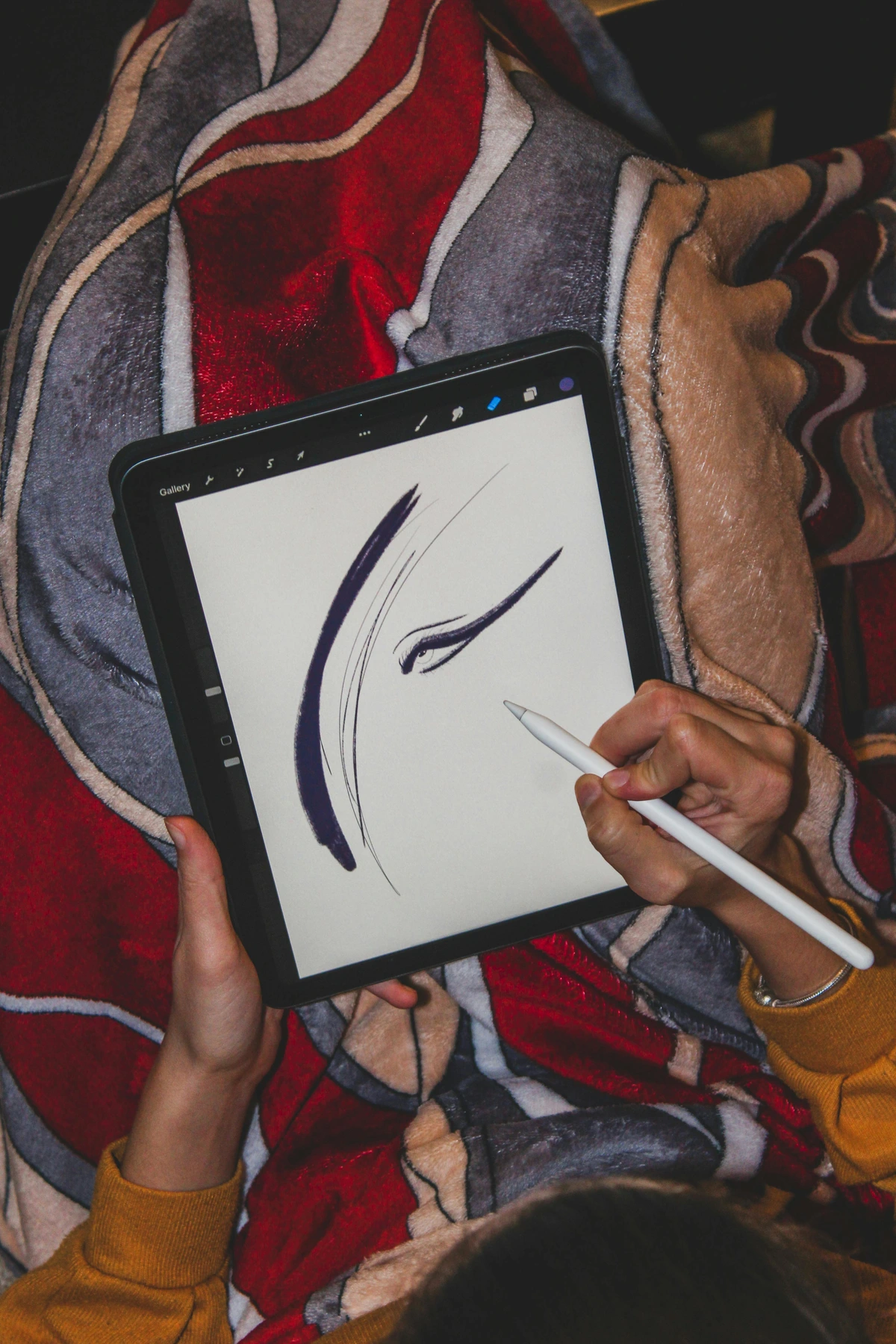
If you've heard of one drawing app for the iPad, it's almost certainly Procreate. And honestly? The hype is absolutely justified. It's the app that truly hits that elusive sweet spot between immense power and astonishing simplicity better than almost any other app I've encountered. Its brush engine isn't just smooth; it's buttery smooth, responsive to every subtle nuance of the Apple Pencil's pressure and tilt. And the sheer size and generosity of the community creating and sharing custom brushes is unparalleled. From rough conceptual sketches to intricate finished illustrations, Procreate is a versatile workhorse that simply gets out of your way and lets you create.
I often find myself instinctively opening Procreate when I just want to start drawing without a rigid plan, when the urge to just make something strikes. It has that immediate, comforting feel of a traditional sketchbook, but with infinite undo buttons (a true blessing for those of us prone to "happy accidents" that are sometimes just... accidents!). It's particularly fantastic for playing with how to abstract art because of its fluid tools, incredibly intuitive gestures (like QuickShape, which magically smooths your rough shapes into perfect ones!), and effortless color management. The Reference Companion feature, which keeps a small window of your reference image floating, is a genuine game-changer, eliminating the constant app-switching dance.
Key Features & Why They Matter:
- Intuitive Gestures: QuickShape, two-finger tap to undo, three-finger tap to redo – these aren't just shortcuts; they become extensions of your thought process.
- Massive Brush Library & Customization: Procreate comes packed with brushes, but the real magic is the ability to create your own from scratch or import thousands of custom brushes shared by the community. This means you can truly tailor your toolset.
- Animation Assist: A surprisingly powerful, yet approachable, tool for creating frame-by-frame animations, GIFs, and even short videos directly within the app.
- Reference Companion: Keep a floating window of your reference image on screen, making it incredibly easy to work from source material without constantly switching apps.
- Layer Power: Supports a huge number of layers, layer groups, blend modes, and clipping masks for complex compositions and non-destructive editing.
- Time-lapse Recording: Automatically records your entire creative process, allowing you to easily export and share speed paints of your work – a fantastic way to review your process or show off to friends.
- Color Management & Palettes: Intuitive color picker, ability to create, import, and share custom color palettes, plus advanced features like ColorDrop for quick fills.
- Alpha Lock & Clipping Masks: Essential non-destructive editing tools that allow you to paint within specific areas or apply effects to a layer without affecting its original content.
- Best for: All-around digital drawing, painting, illustration, concept art, and even animation for artists of all skill levels.
- Killer Feature: Its incredibly intuitive gesture-based interface, combined with the power of its brush engine and the vast, supportive community.
- Price: A very reasonable one-time purchase, making it an exceptional value for money.
Adobe Fresco: The Best of Both Worlds for Traditional Media Lovers
For a long time, digital artists felt like they had to choose a side in a pixelated turf war: raster (pixel-based, akin to a photograph or a painting in Procreate, great for rich textures and organic feel) or vector (math-based, infinitely scalable, delivering those crisp, clean lines perfect for graphic design or editorial illustration). Adobe Fresco, in a stroke of genius, bridges this divide, offering a seamless integration of both in a single, elegant app. You can fluidly sketch with pixel brushes, then switch to ink with vector brushes on a separate layer, all within the same canvas, without ever leaving your document. It’s the kind of flexibility that truly frees you from technical limitations, allowing you to combine expressive painting with scalable, precise line work.
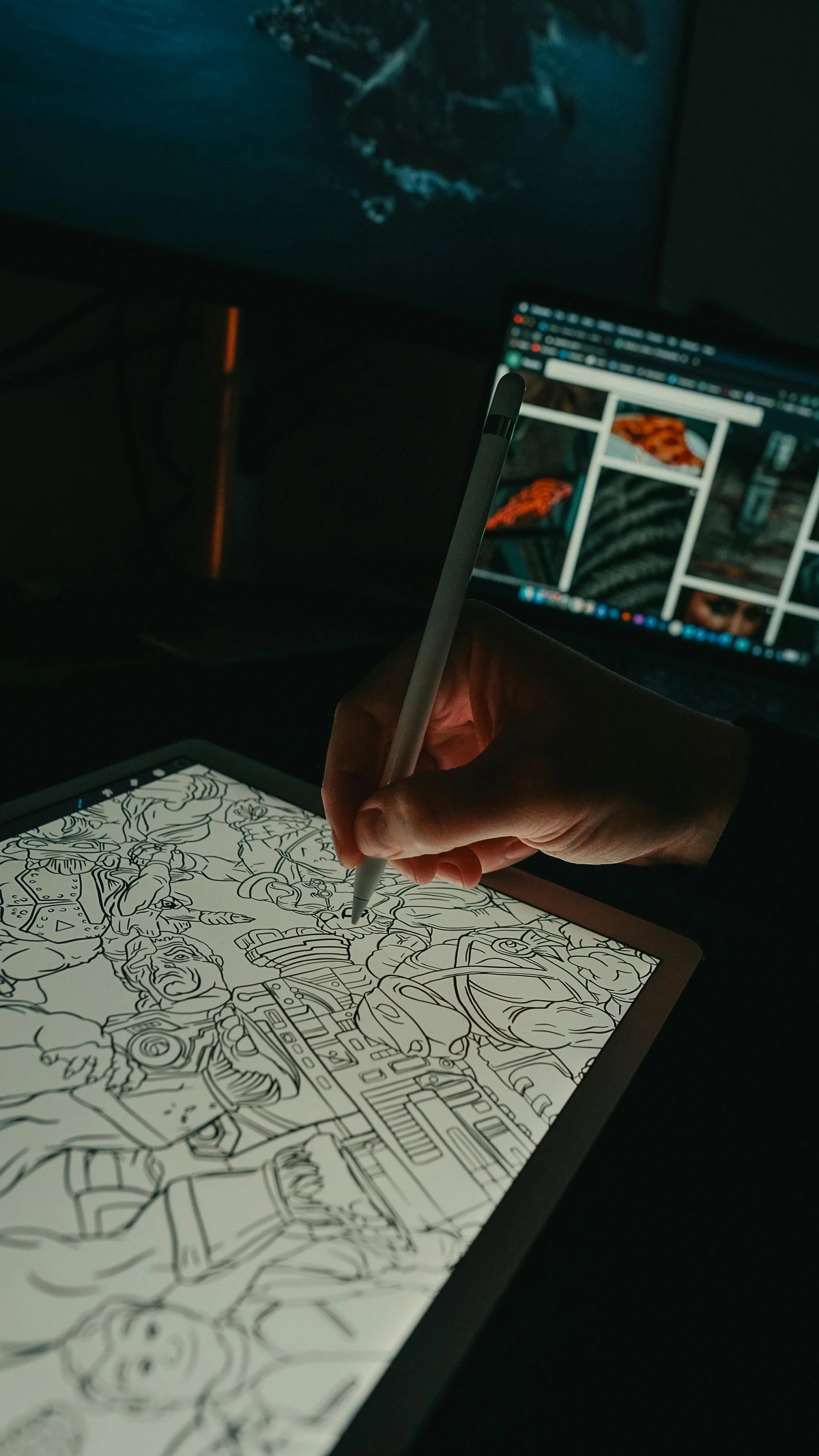
But if I'm being honest, Fresco's real, undeniable magic lies in its 'Live Brushes.' Oh, these brushes! The watercolor brushes don't just look like watercolor; they behave like it. They bleed, blend, and diffuse in a way that is utterly jaw-droppingly realistic. The oil brushes build up impasto texture you can almost feel, mixing directly on the canvas as you paint. It’s the closest I’ve ever seen a digital tool come to mimicking the beautiful, unpredictable chaos and tactile joy of real-world paint. For anyone who cherishes traditional media but wants the convenience of digital, this is a revelation.
Key Features & Why They Matter:
- Live Brushes (Watercolor & Oil): This is the crown jewel. These brushes simulate the physical properties of paint with astonishing accuracy, creating organic blends and textures that feel alive. It's truly a game-changer for artists transitioning from traditional mediums.
- Vector & Raster Integration: Work with pixel brushes for rich textures and detailed painting, and then switch to vector brushes for scalable, clean line art and graphics, all within the same document. This versatility is incredible for illustrators and graphic artists.
- Cloud Synchronization: Seamlessly sync your projects across iPad, iPhone, and desktop (Windows) versions of Fresco, as well as with other Adobe Creative Cloud apps like Photoshop and Illustrator. This creates a truly connected workflow.
- Intuitive Interface (Adobe Familiarity): For those already familiar with Adobe products, the UI will feel instantly recognizable, making the learning curve much gentler.
- Multitouch Gestures: While not as extensive as Procreate's, Fresco offers useful gestures for undo, redo, and quick canvas manipulation.
- Selection Tools & Masks: Robust selection tools (lasso, magic wand, pixel select) combined with powerful masking capabilities for precise non-destructive editing and compositing.
- Cloud Documents & Version History: Seamlessly save and access your work across devices with automatic cloud syncing and a comprehensive version history, providing a digital safety net.
- Best for: Artists who want the expressive freedom of both raster and vector tools, those deeply invested in realistic watercolor and oil paint effects, and users already within the Adobe Creative Cloud ecosystem.
- Killer Feature: The unparalleled realism and expressive capabilities of its Live Brushes, which truly emulate traditional media.
- Price: Freemium model, offering a robust free tier, with full power, cloud storage, and access to the entire Adobe Fonts library unlocked via a Creative Cloud subscription. For professional artists, this integration often makes the subscription highly worthwhile.
Clip Studio Paint: The Comic, Manga, and Precision Art Powerhouse
Don't let the name 'Clip Studio Paint' fool you into thinking it's only for a niche audience. While it absolutely excels in those areas, CSP is a true beast for virtually any kind of illustration, period. However, it truly, profoundly shines for comics, manga, webtoons, and any artwork where precise, controlled line art is paramount. The level of granular control it affords you over your lines is astounding – it's like having a master calligrapher living inside your iPad, constantly refining your strokes. Stabilizers that make shaky lines smooth, customizable pressure curves for nuanced expression, and most crucially, incredible vector line tools that allow you to adjust the thickness, curvature, and even the individual anchor points of a line after you've drawn it. This isn't just a convenience; it's a control freak's dream come true, ensuring the pure quality and expressive potential of the elements of art line is fully realized, even if your hand isn't perfectly steady.
CSP is also packed to the gills with features specifically designed for sequential art. We're talking dedicated panel creation tools, integrated word balloons, screentones, and even a robust story manager for multi-page projects. And for those moments when you need a tricky pose, its ability to import and manipulate 3D models (either from its vast asset store or your own creations) directly on your canvas is an absolute lifesaver for dynamic compositions and definitive-guide-to-perspective-in-art. Yes, the interface is denser than Procreate's, reflecting its desktop heritage, and the learning curve is steeper. But for anyone serious about creating professional comics, detailed illustrations, or truly refined line work, investing the time to learn CSP is an investment that pays dividends. It’s the go-to tool for anyone inspired by the graphic styles of Pop Art or the intricate narratives of visual-storytelling-techniques-in-narrative-art.
Key Features & Why They Matter:
- Unparalleled Vector Line Tools: The ability to edit lines after drawing them is revolutionary. Adjust thickness, move anchor points, and even erase intersecting lines cleanly. This ensures perfect line art every time.
- Comic & Manga Specific Features: Dedicated tools for panel creation, speech bubbles, perspective rulers, screentones, and even story management for multi-page projects. This makes it a complete solution for sequential artists.
- 3D Model Import & Posing: Use included 3D figures, objects, or imported models as reference. Pose them directly on your canvas to nail challenging anatomy or complex perspectives.
- Extensive Asset Store: A vibrant marketplace (some free, some paid) for brushes, materials, 3D models, textures, and even entire comic backgrounds, constantly expanding your creative toolkit.
- Deep Customization: Nearly every aspect of the brushes, tools, and interface can be customized to suit your precise workflow.
- Desktop-Class Power: While on iPad, it retains the professional-grade feature set of its desktop counterpart, meaning no compromise on capabilities.
- Perspective Rulers & Guides: Advanced perspective rulers (1, 2, 3, and even custom point perspectives) that snap your lines precisely, making architectural drawing and complex scenes significantly easier.
- Advanced Text & Lettering Tools: Comprehensive text editing capabilities with granular control over fonts, kerning, leading, and text bubbles, essential for comics and graphic novels.
- Best for: Professional and aspiring comic artists, manga creators, webtoon artists, illustrators obsessed with perfect, editable line work, and those who need advanced features for complex projects.
- Killer Feature: Its unparalleled vector line tools and comprehensive suite of comic creation features, making it a true industry standard.
- Price: Subscription-based for the iPad, offering various tiers, reflecting its professional-grade capabilities and continuous development.
Quick Comparison of the Top Tiers
Quick Comparison of the Top Tiers: Finding Your Digital Co-Pilot
To make your decision a little easier, here's a quick side-by-side comparison of the heavy hitters. Think of it as a cheat sheet for finding your ideal digital co-pilot, a breakdown of their superpowers and where they truly shine:
App | Primary Use Cases | Killer Feature | Pricing Model | Learning Curve | Platform Availability |
|---|---|---|---|---|---|
| Procreate | General Illustration, Digital Painting, Concept Art, Animation | Unrivaled UI & Gesture System, Massive Brush Community | One-time Purchase | Low to Moderate (very intuitive for touch) | iPadOS, iOS (Pocket version) |
| Adobe Fresco | Realistic Traditional Media Simulation (Watercolor/Oil), Hybrid Raster+Vector Workflows, Adobe Ecosystem Integration | Hyper-realistic Live Brushes (watercolor/oil), Seamless CC integration | Freemium / Creative Cloud Subscription | Moderate (familiar for Adobe users) | iPadOS, iOS, Windows (desktop) |
| Clip Studio Paint | Comics, Manga, Webtoons, Precision Line Art, Animation, Detailed Illustration | Industry-leading Vector Line Tools, Comprehensive Comic Creation Suite | Subscription | High (desktop-level features, deep toolset) | iPadOS, iOS, Windows, macOS, Android (mobile) |
The Specialists and Hidden Gems
Sometimes you don't need a full studio, just the right pencil. These apps are more focused, but they do their one thing exceptionally well.
- Concepts: The Infinite Canvas for Ideas & Precision. This isn't your traditional painting app, but rather a profoundly powerful infinite canvas vector sketchbook. It's a boundless expanse for brainstorming, technical drawing, product design, architectural sketches, and even storyboarding. Its beauty lies in its unparalleled vector capabilities – every stroke you make is editable, allowing you to tweak, scale, and refine lines, shapes, and entire drawings without any loss of quality or pixelation. The 'tool wheel' UI is genuinely genius, keeping everything at your fingertips without cluttering your vast workspace. It’s where I go when I need to think visually, design a layout with absolute precision, or create detailed blueprints. It truly lets you focus on the what is minimalism in art of ideas, creating crisp, clean visuals that can be infinitely scaled.
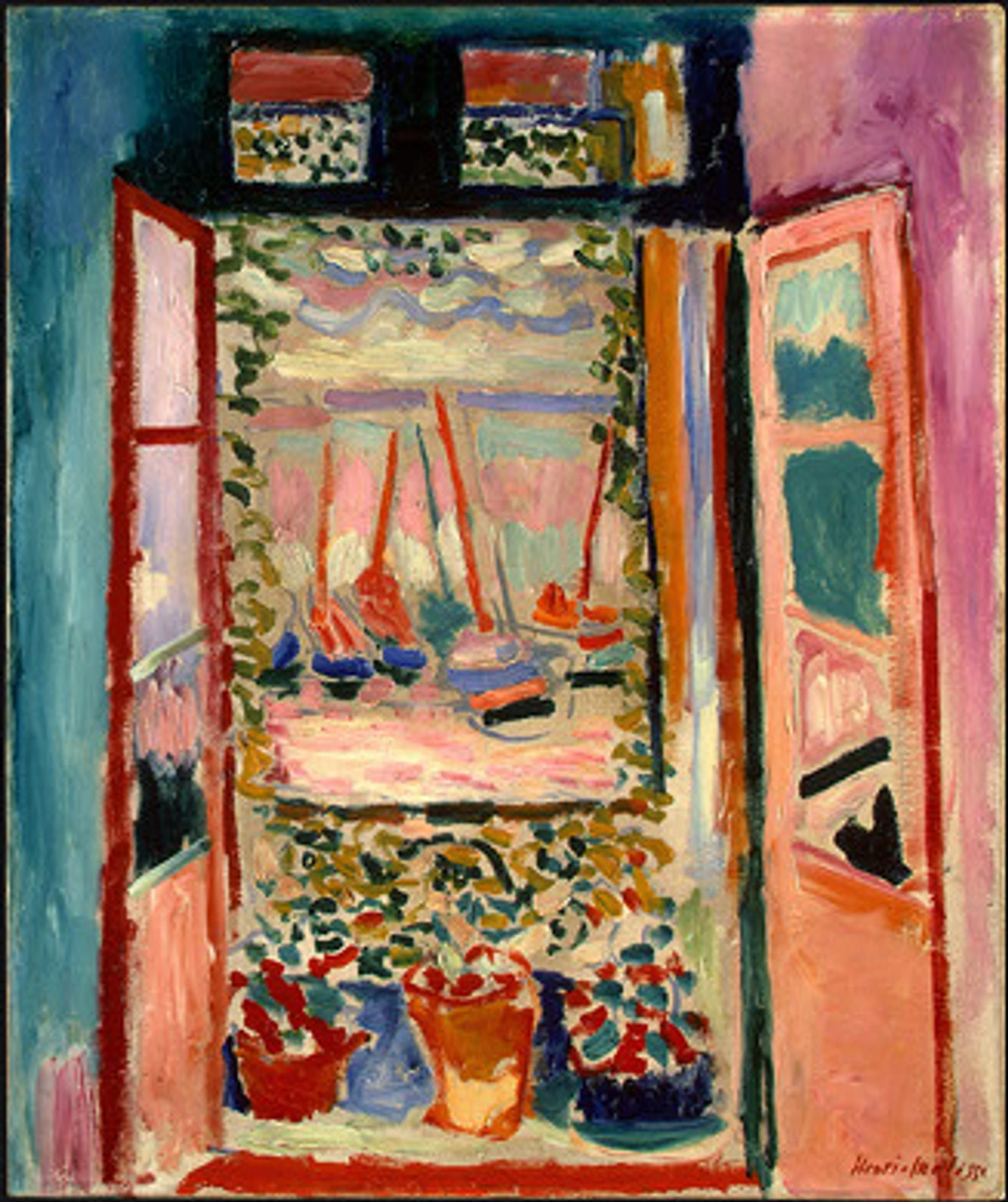
- ArtRage Vitae: Embracing the Messy Beauty of Traditional Paint. If your heart yearns for the tactile sensation of thick, juicy impasto oil paint that you can smear, blend, and sculpt with a virtual palette knife, ArtRage Vitae is your app. It does an astonishing job of simulating the texture, volume, and mixing properties of real paint, allowing colors to blend on the canvas as they would in real life, with wet-on-wet mixing and realistic drying times. You can even simulate different canvas textures – from fine linen to rough watercolor paper – which genuinely impacts how the digital paint behaves. It’s an incredibly satisfying, almost meditative experience for those who love to get messy without actually getting messy (a huge plus for studio cleanup and avoiding turpentine fumes!).
- Tayasui Sketches: Elegance in Simplicity. This is a truly beautiful, minimalist app that genuinely feels like an artist's journal, a digital counterpart to a beloved physical sketchbook. Its strength lies in its simplicity and the sheer elegance of its natural media tools. The watercolors bloom with convincing bleed, the pencils sketch with authentic grit, and the pastels smudge with a lovely, organic feel. It’s the app I consistently recommend to beginners, or to anyone who feels intimidated by the feature-rich complexity of Procreate or Clip Studio Paint. Sometimes, less truly is more, especially when 'less' means perfectly crafted, intuitive tools that just work beautifully and get out of your way.
- Affinity Designer & Photo: Professional Powerhouse Alternatives. While technically two separate apps, the Affinity suite (Designer for vector graphics, Photo for raster photo manipulation and painting) offers a compelling, professional-grade alternative to Adobe's subscription model. They are incredibly powerful, desktop-class applications fully optimized for the iPad, capable of handling complex projects with ease. If you need robust vector drawing for logos, branding, or intricate illustrations, or advanced photo retouching and digital painting beyond what Procreate offers, and you prefer a one-time purchase, Affinity Designer and Photo are absolute game-changers. Their interface can be a bit dense initially, reflecting their desktop heritage, but the power they unlock is immense.
So, Which One Should You Actually Choose? (The Artist's Conundrum)
I know, I know. You've read through all this, and a part of you is screaming for a single, definitive answer. The 'best' app! But asking which app is 'best' is like asking if you should use a pencil, a paintbrush, or a lump of clay. It entirely depends on what you want to make and how you like to work, and crucially, how you prefer to feel when you're creating. Each app has a distinct personality, a unique superpower, and frankly, a particular vibe. Here’s a more nuanced breakdown to help you navigate this glorious digital smorgasbord, tailored to different artistic paths:
- If you're a beginner, a hobbyist, or simply want the most powerful and intuitive all-arounder that grows with you: Your answer is Procreate. Seriously, stop overthinking it, just get it. It offers incredible value for a one-time purchase, a relatively gentle learning curve, and the versatility to tackle almost any artistic project you can imagine – from quick sketches to intricate illustrations, even short animations. It’s the best first investment you’ll make in your digital art journey, offering immense power without overwhelming you.
- If you cherish the organic feel of traditional media (especially watercolor or oil), or if you're deeply embedded in the Adobe Creative Cloud ecosystem for professional workflows: Give Adobe Fresco a serious look. Start with the free version and experiment extensively with those Live Brushes – I promise you'll be amazed. If you find yourself mesmerized by the way the digital paint moves and blends, creating truly painterly effects, the subscription will likely be a worthwhile investment for you. Its seamless integration with Photoshop or Illustrator via cloud documents makes it a natural fit for editorial illustration, concept art, and fine art reproduction.
- If your passion lies in comics, manga, webtoons, or you are absolutely obsessed with clean, editable, perfect line work for any illustration: Clip Studio Paint is your destiny. Yes, it has a steeper learning curve, and yes, it’s subscription-based. But the sheer depth of its features for sequential art – from dedicated panel tools and screentones to 3D model import for posing and perspective – and its unparalleled vector tools make that complexity and cost worth every penny for the dedicated professional or aspiring comic artist, even for animation pre-production or character design. Embrace the power; your lines will thank you.
- If you're a designer, architect, engineer, or someone who primarily sketches, brainstorms, or creates technical drawings where precision is paramount: Concepts will be your secret weapon. Its infinite canvas and vector precision are unmatched for ideation, precise technical illustration, UI/UX design wireframing, or even storyboarding complex scenes. Every stroke remains editable, meaning you can refine and iterate indefinitely. It’s a thinking tool as much as a drawing tool, perfect for translating complex ideas into clear visuals.
Frequently Asked Questions (FAQ): Demystifying Digital Art on iPad
I get a lot of questions about drawing on the iPad, and rightly so! It's a significant investment and a new way of working for many. Here are some of the most common queries I encounter, alongside my two cents on each:
What are some common pitfalls or frustrations for new digital artists?
Honestly, the biggest pitfall is expecting it to feel exactly like traditional art from day one. It won't. The lack of tactile feedback, the sheer number of options, and the initial unfamiliarity with gestures can be frustrating. Another common one? Hoarding brushes. You download hundreds, use ten. Focus on mastering a few versatile tools. Overthinking the 'perfect' setup instead of just creating is also a trap. My advice: embrace the learning curve, start simple, and don't be afraid to make 'bad' art – it's all part of the process.
How important is screen size and storage for digital art?
Screen size definitely impacts the immersive experience and how much canvas you have to work with without constantly zooming. A larger iPad Pro offers a more expansive digital workspace, making it feel closer to a traditional drawing board. However, it's not essential. Many artists create stunning work on smaller iPads. For storage, it's more critical. High-resolution art files, especially with many layers, can be quite large. Factor in photos, other apps, and system updates, and storage can fill up fast. I recommend going for at least 128GB, or preferably 256GB or more, if you plan to make serious art. You can always offload finished projects to cloud storage or an external drive, but ample onboard storage provides peace of mind.
Do I need the newest iPad Pro and Apple Pencil 2 to make great art?
No, absolutely not! While the latest iPad Pro models and the Apple Pencil 2 offer delightful refinements (like magnetic charging, better refresh rates, a more responsive screen, and the handy double-tap gesture for tool switching), they are by no means essential to creating great art. Any iPad that supports an Apple Pencil (even the first generation Pencil and older iPad models like the iPad Air 3 or base iPad 7th generation) will run these core drawing apps beautifully. The fundamental experience – pressure sensitivity, tilt, low latency, and palm rejection – is robust across the board on all Apple Pencil compatible devices. Focus on making art with the tools you have, not obsessing over the bleeding edge of tech. Your skill and vision matter far more than an extra few hertz on your screen.
Are there any genuinely good free drawing apps that aren't just glorified coloring books?
Yes, absolutely! But as with anything truly valuable in life, there's usually a 'catch' or a clear pathway to unlocking full potential. The free versions of Adobe Fresco and Tayasui Sketches are fantastic starting points, offering robust core features that allow you to get a real feel for them and create legitimate artwork. Autodesk Sketchbook is another excellent free option that’s surprisingly fully featured and has a very intuitive interface. Ibis Paint X is also popular for its extensive features, though its free version is ad-supported. However, for a truly professional, unrestricted, and continuously updated experience, apps like Procreate (for a small, one-time fee) or the full subscription tiers of Fresco and Clip Studio Paint offer unparalleled depth and value. My personal philosophy? Good tools are worth paying for, just like quality paints or brushes. Think of it as investing in your craft and supporting the developers who make your artistic life easier.
Can these iPad apps truly replace my desktop software like Photoshop or Illustrator for professional work?
For an increasing number of artists and illustrators, the answer is a resounding yes. For pure drawing, painting, illustration, concept art, storyboarding, and even animation, an iPad with Procreate, Fresco, or Clip Studio Paint can be a completely self-sufficient and professional workflow. The power of these mobile chips is astonishing! I've seen entire graphic novels, animation projects, and client commissions completed entirely on an iPad. However, for extremely heavy-duty photo manipulation (think complex compositing with dozens of non-destructive smart objects), intricate multi-page print layouts with precise bleeds and color profiles, or highly specialized vector graphic design with extensive typography control and pre-press requirements, you might still find yourself occasionally needing to jump back to a desktop. But honestly, the gap is closing faster than ever, with apps like Affinity Photo/Designer making huge strides, and many artists now prefer the portability, immediacy, and tactile experience of the iPad for their primary work. It really depends on your specific industry niche and client demands.
What's the hardest part about switching from traditional to digital art on an iPad?
Without a doubt, for most traditional artists, it's the lack of tactile feedback – that glorious feeling of a pencil dragging on textured paper, the resistance of a brush on canvas, the grit of charcoal. Drawing on a smooth glass screen can feel alien and slippery at first. It takes time for your hand-eye coordination and muscle memory to adjust; it's like learning to write with a new pen. A common, and highly recommended, solution many artists swear by is using a matte screen protector (like Paperlike or similar brands) which adds a subtle 'tooth' and friction to the glass, making it feel much closer to paper. It can make a huge difference in that initial transition, providing a more satisfying drawing experience. It's not just about the visuals; it's about the feel, a concept often explored when thinking about the physical experience of art, much like the process of introduction-to-ceramics-history-techniques-and-contemporary-practice emphasizes the hands-on connection. Don't underestimate the mental shift required, either – giving yourself permission to experiment digitally is key.
How do I find a good community or resources for learning digital art on iPad?
This is fantastic question, because community and learning are huge! Don't feel like you have to figure it all out alone. Here are some of my favorite avenues:
- YouTube: A treasure trove! Search for "[App Name] tutorials for beginners," "[App Name] workflow," or "digital painting iPad." Many professional artists share their entire processes.
- Skillshare/Domestika/Udemy: These platforms offer structured courses, often taught by industry pros, for a subscription fee or one-time purchase. They're great for foundational skills and in-depth project walkthroughs.
- App-Specific Forums & Social Media: Most popular apps have official forums (e.g., Procreate's official forums are incredibly active) and bustling communities on Instagram, Reddit, and Discord. Search for hashtags like #ProcreateArt or #DigitalPainting.
- Patreon: Many artists run Patreons where they share exclusive tutorials, brushes, behind-the-scenes content, and even offer critiques.
- Art Blogs & Websites: Many art and tech websites publish guides and reviews. (Hey, you're already on one!)
The key is to find artists whose style you admire and see what tools and resources they recommend. Don't be afraid to ask questions!
What are some recommended accessories for iPad art beyond the Apple Pencil?
Beyond the essential Apple Pencil, a few accessories can significantly enhance your iPad art experience:
- Matte Screen Protector: As mentioned, these add a paper-like texture, reduce glare, and improve pen control. (e.g., Paperlike, Bellemond).
- Good Case/Stand: A sturdy case that allows for various drawing angles is crucial for ergonomics and comfort during long sessions.
- External Keyboard: While not essential for drawing, if you do a lot of journaling, annotation, or comic lettering, an external keyboard (like Apple's Magic Keyboard Folio) can speed up your workflow.
- Portable Power Bank: Digital art can be power-intensive, especially with larger canvases. A good power bank ensures you don't run out of juice mid-flow.
- External Storage (Optional): If you create huge files or many projects, an external SSD can be handy for backup and archival, though iCloud often suffices for many.
How do I manage files and back up my artwork on iPad?
This is a critical, often-overlooked aspect! Most drawing apps have their own internal gallery system, but it's vital to regularly export your work. Here's how:
- Native Cloud Sync: Apps like Adobe Fresco offer seamless Creative Cloud sync. Procreate allows you to connect to various cloud services like Google Drive, Dropbox, or iCloud.
- Manual Export: Regularly export your finished (or in-progress) art in various formats (JPEG, PNG, PSD, TIFF) to your iPad's Files app, and then upload them to your preferred cloud storage or an external drive.
- Procreate's .procreate file: This proprietary format saves all your layers, time-lapse video, and metadata. Always keep a backup of these files for maximum flexibility.
- Time-Lapse Video: Procreate automatically records a time-lapse of your entire process, which can be exported separately for sharing or review.
Is digital art 'real' art? And how does it compare to traditional mediums?
This is a question that's been debated since the invention of the camera, and my answer is unequivocally: Yes, digital art is absolutely real art. The medium doesn't define the art; the artist's vision, skill, and emotional expression do. Digital tools are simply another set of brushes, pencils, and canvases. The fundamental principles of art – composition, color theory, anatomy, perspective – remain the same, whether you're working with oil paint or pixels. The 'magic' still comes from your hand and your brain.
In terms of comparison, I see them as complementary. Traditional art offers a unique tactile experience, the beauty of physical pigments, and often a slower, more deliberate process. Digital art offers unparalleled flexibility, infinite undo, easy color correction, instant sharing, and portability. Neither is superior; they are different languages for the same human drive to create. Think of it like a chef using both a classic cast-iron pan and a modern sous-vide machine – different tools for different effects, all serving the culinary vision.
A Final Thought: The Journey is the Art
Look, I'll say it again: the perfect app doesn't exist. It's a unicorn. But the perfect app for you absolutely does. It’s the one that truly makes you forget you’re even holding a tablet, that fades into the background, becoming an invisible conduit for your creativity. It’s the one that feels like an extension of your hand, your eye, and your very brain. My strongest advice? Don't just download these apps, poke around, and then delete them. That's like buying a new set of brushes and never painting with them.

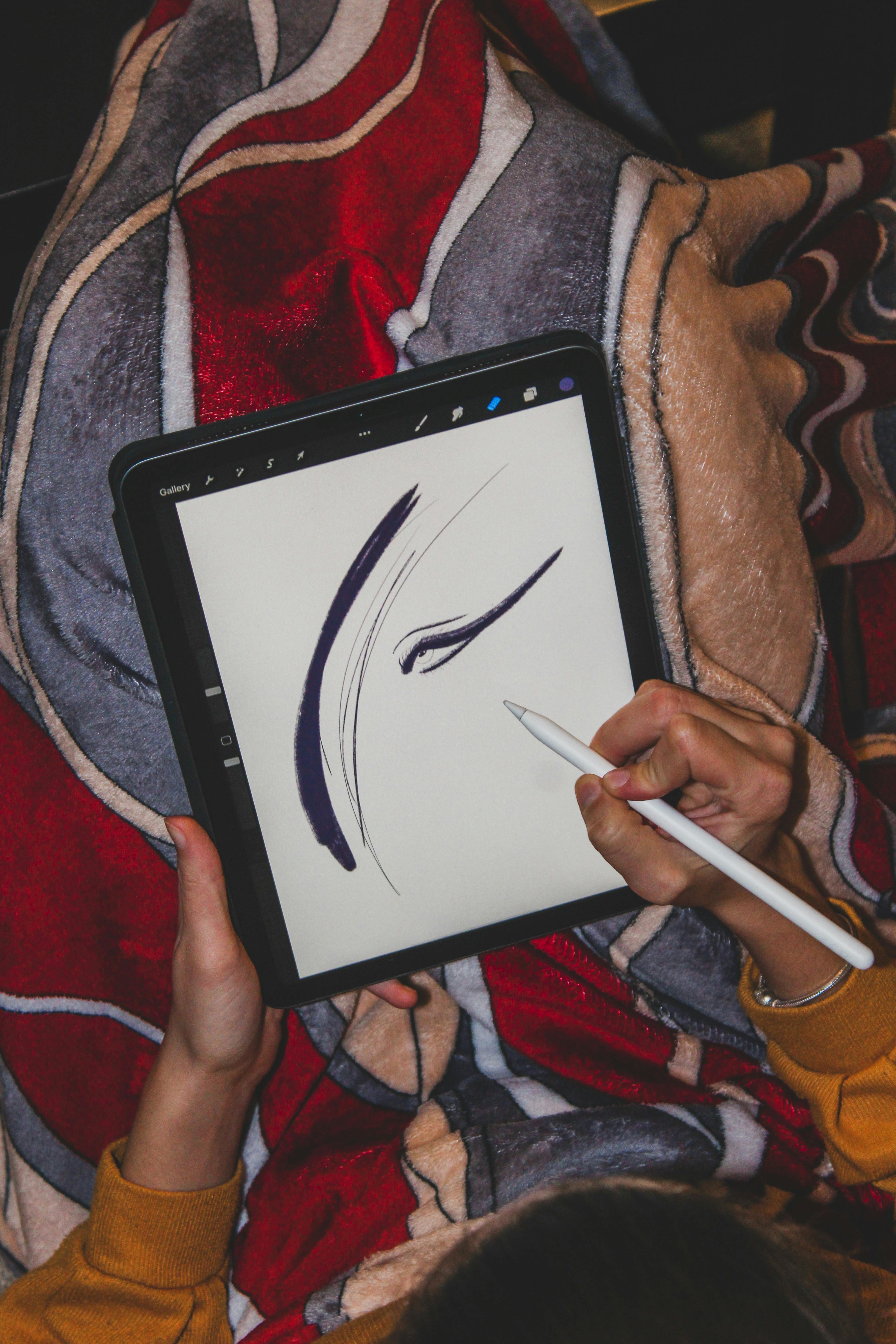





Instead, give each contender a real, honest-to-goodness project. Don't just noodle around; commit. Try to take an idea – a rough sketch, a character concept, a landscape you envision – from its initial spark to a polished, finished piece within each app. Struggle with it. Celebrate the small victories. You'll quickly discover which interface 'clicks,' which brush engine 'sings,' and ultimately, which app speaks your unique artistic language, becoming an invisible extension of your hand and mind. The technology is merely a sophisticated conduit, a powerful amplifier for your inherent creativity. The passion, the vision, the struggle, and the ultimate triumph of creation – that, my friend, is still all you. And if you're looking for art that embodies that very spirit, that celebrates the messy, beautiful act of making something from nothing, feel free to explore my own creations here. Maybe you'll find something that inspires your next digital masterpiece.