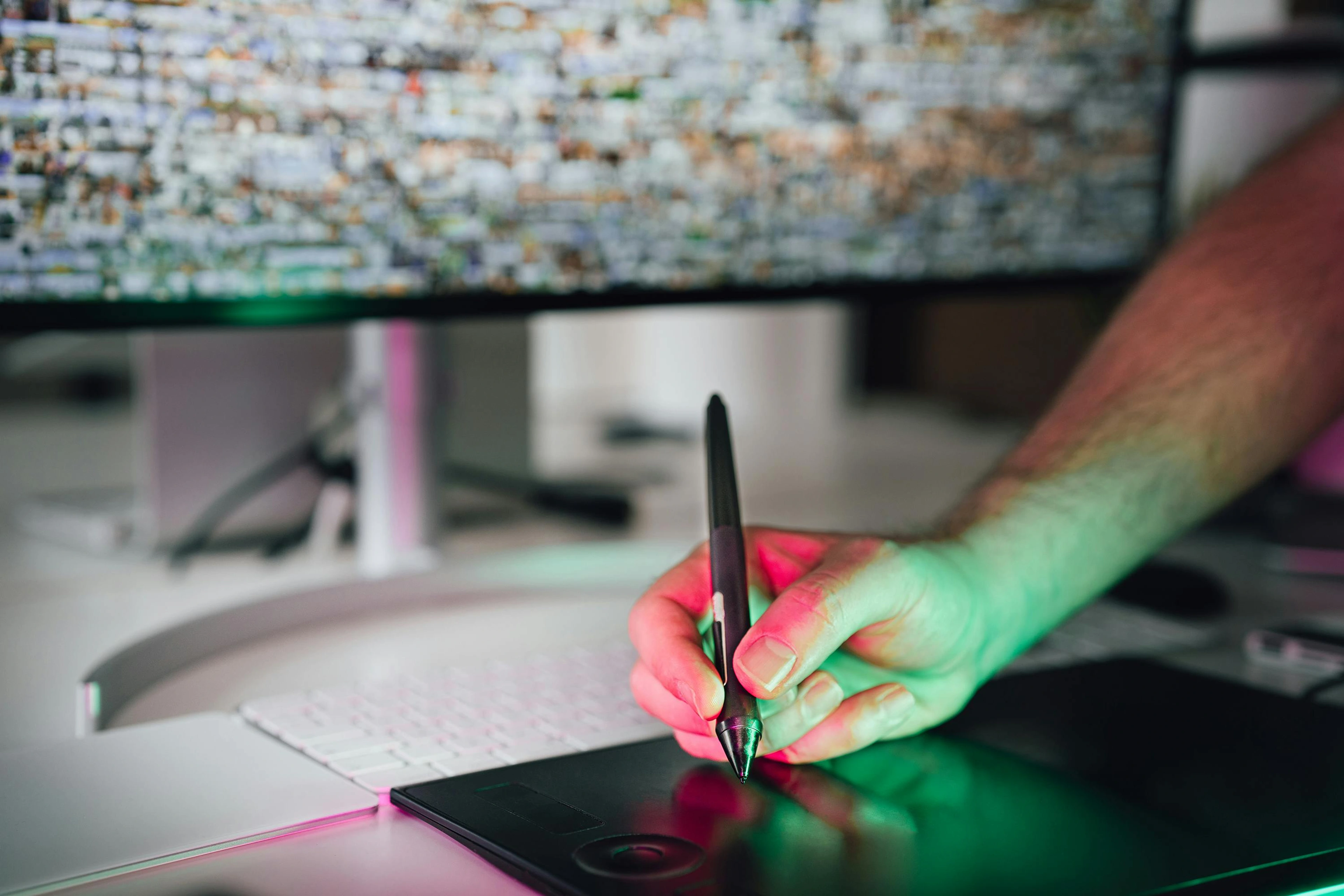
Apple Pencil vs. Wacom: The Ultimate Digital Artist's Guide to Choosing Your Tool
Stuck between an Apple Pencil/iPad and a Wacom drawing tablet? This ultimate guide, from a professional artist, offers a deep dive into features, software, ergonomics, cost, and workflows to help you make the perfect choice for your creative practice, including why a hybrid approach often wins. Find your ideal digital art companion.

Apple Pencil vs. Wacom: The Ultimate Digital Artist's Guide to Choosing Your Tool
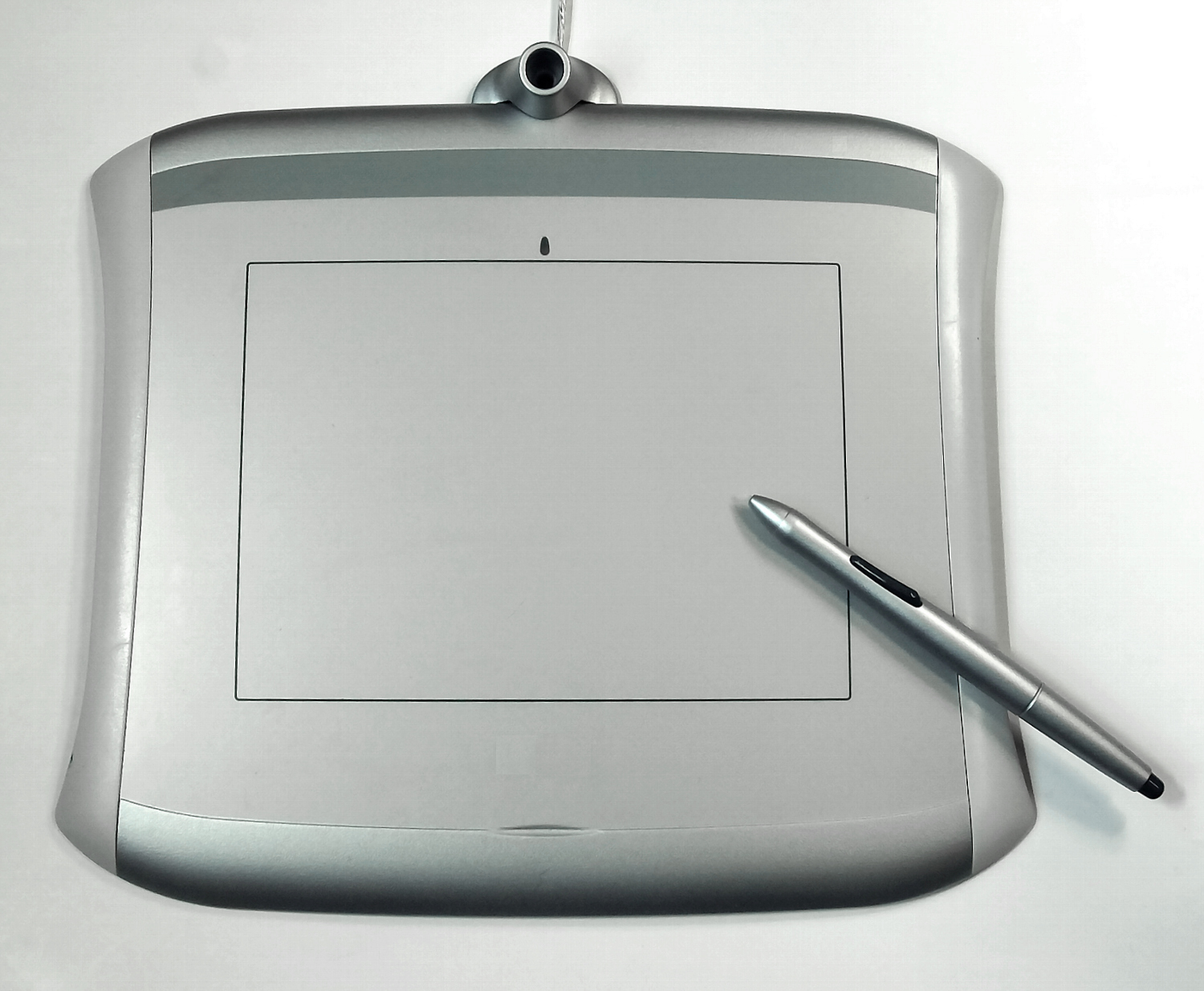
Apple Pencil or Wacom: Which digital drawing tool is truly right for you? It's the question that keeps so many aspiring and even seasoned artists staring blankly at product comparison pages, often late into the night. I still vividly remember the clumsy, almost alien sensation of my first "real" drawing tablet. It was a humble Wacom Bamboo, a small, unassuming grey rectangle that felt less like a direct extension of my hand and more like trying to communicate telepathically with a distant screen.
My hand would glide across its smooth, featureless surface, and poof, lines would magically appear on the monitor far across my desk. It was bizarre, a bit like patting my head and rubbing my stomach at the same time, and frankly, I was terrible at it for weeks. The learning curve was real, steep, and humbling. But that's how it often starts, isn't it? A new tool, a new challenge, a fresh canvas for your creative spirit. You endure the awkward phase, hoping for that breakthrough moment when it all just clicks.
But that tiny Bamboo represented a huge leap in creative technology, building on decades, even centuries, of human desire to make marks. Before these digital marvels, artists often relied on entirely different tools – charcoal on cave walls, pigments on canvas, ink on paper. The concept of pressure-sensitive digital art tools truly began to evolve from early digitizers and light pens in the mid-22th century. Pioneers like Douglas Engelbart, with his invention of the mouse in the 1960s, laid foundational groundwork, and the development of early flat panel displays and nascent touchscreens hinted at the interactive future to come. While rudimentary tablet computers like the GRiDPad emerged, dedicated art input remained the domain of companies tirelessly pushing boundaries, trying to capture the nuance of traditional media. For a long, long time, Wacom was virtually synonymous with professional digital art, driving innovation with varied pressure sensitivity, tilt recognition, and customizable buttons that mimicked natural brushstrokes and pencil angles. Their dominance shaped an entire generation of digital artists. Then, out of seemingly nowhere, Apple waltzed in with the iPad Pro and the first Apple Pencil, fundamentally changing the game for many.
Fast forward a decade or so, and the digital art landscape is a vibrant, sometimes overwhelming, place. Now, the big question I get from aspiring artists isn't if they should go digital, but what tools they should use. And it almost always boils down to this epic clash of titans: the industry-standard Wacom tablet versus the sleek, incredibly capable Apple Pencil and iPad combo. If you're stuck in this decision paralysis – and believe me, I've absolutely been there, staring at tech specs until my eyes blurred – I get it. It feels like you're choosing a creative partner for the foreseeable future, a tool that will directly influence your workflow, your comfort, and potentially even your artistic style. So, let's break it down, not with a bunch of dry technical jargon, but from the perspective of someone who has spent countless hours with both, trying to wrangle ideas from my brain onto a screen. We'll explore each contender, go head-to-head on key features, identify who each tool is truly for, and even look at how a hybrid approach can offer the best of both worlds.
Understanding the Philosophies: Two Pillars of Digital Artistry
Before we dive into the head-to-head, let's understand the fundamental philosophies and offerings of each contender. They come from very different families, offering distinct pathways to digital creation.
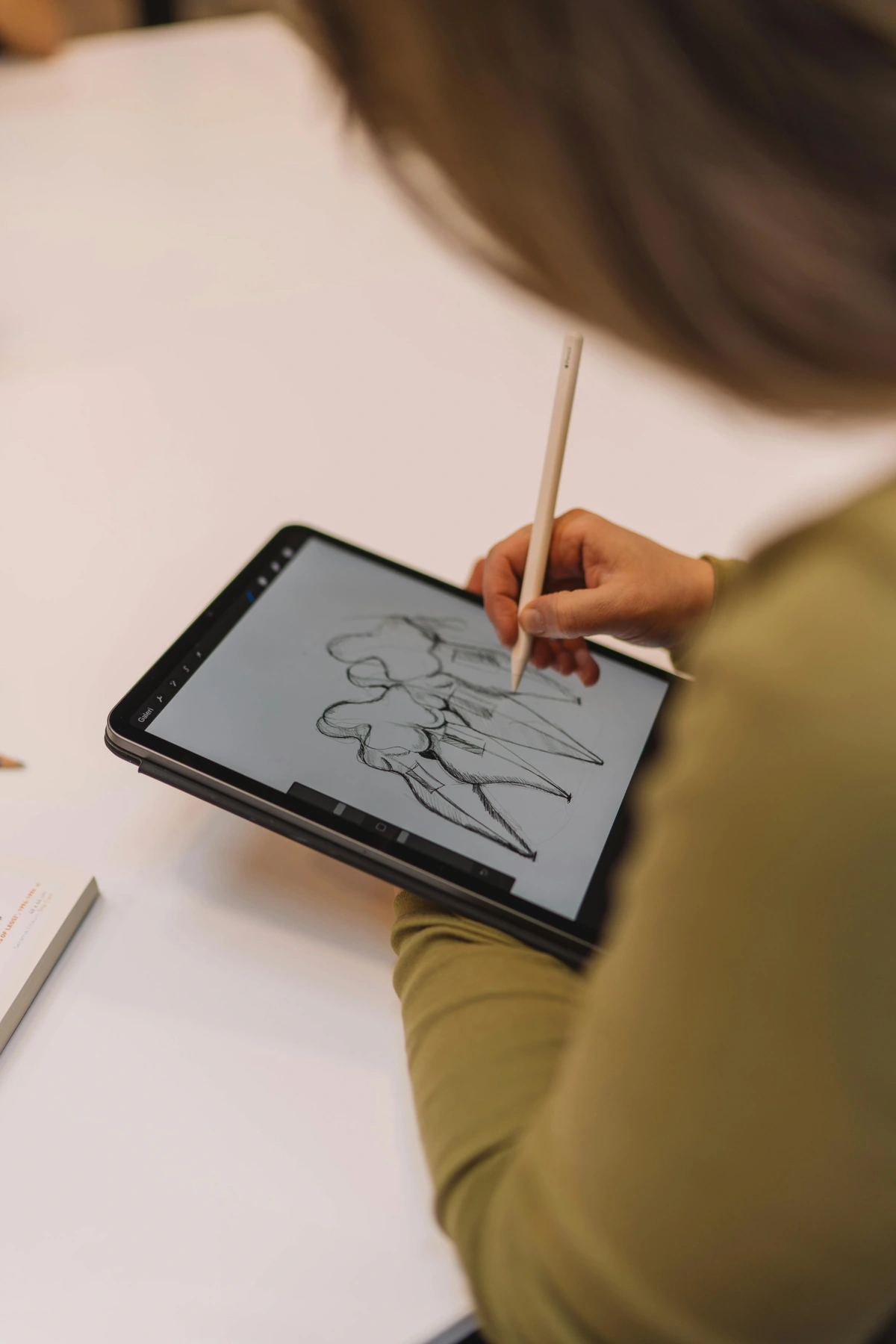
Team Wacom: The Old Guard, The Studio Workhorse
Wacom has been the undisputed king of the digital art castle for so long that, for years, the term "Wacom" was basically synonymous with "drawing tablet." They are the industry standard for a reason: unwavering precision, robust build quality, and deep customization. Their entire philosophy revolves around providing professional-grade input devices designed to integrate seamlessly with powerful desktop computers, forming the heart of a dedicated creative workstation.
Pros of Wacom:
- Unparalleled precision and pressure sensitivity
- Deeply customizable physical buttons and software drivers
- Ergonomically superior for long, stationary studio sessions
- Seamless integration with full desktop software (Adobe Creative Suite, 3D apps)
- Often more budget-friendly entry point if you already own a powerful computer
Cons of Wacom:
- Generally not portable (requires a computer and cables)
- Can have a steeper learning curve (especially screen-less graphics tablets)
- High-end models (Cintiq Pro) are very expensive
- Single-purpose device; offers little utility beyond drawing
There are a few main flavors you'll encounter in the Wacom universe:
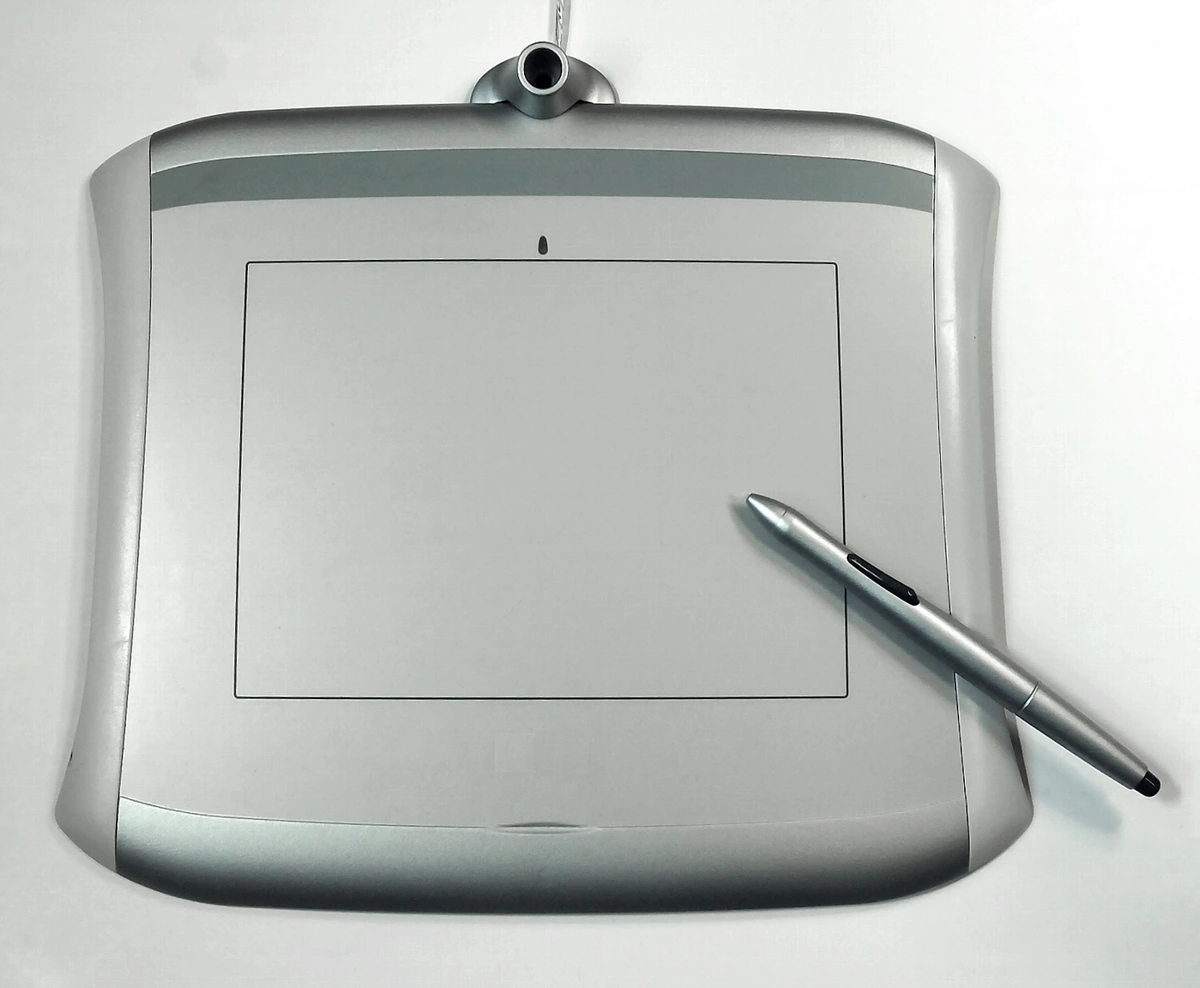
- Graphics Tablets (e.g., Wacom Intuos, Intuos Pro, Wacom One Pen Tablet): This is the classic, screen-less setup I started with. You draw on a blank tablet on your desk and look up at your computer monitor to see the lines appear. It's purely an input device, not a screen. The Intuos series (starting around $80-100 for the small model) is an excellent entry-level option, while the Intuos Pro (medium size around $380, large for $500+) offers more pressure levels, tilt recognition, and programmable ExpressKeys for serious hobbyists and professionals. It takes significant muscle memory and hand-eye coordination to get used to looking away from where your hand is drawing, but it's often more ergonomic for long sessions as it encourages keeping your neck straight and your arm resting naturally. This is often the most budget-friendly entry point, assuming you already have a capable computer.
- Pen Displays (e.g., Wacom Cintiq, Cintiq Pro, Wacom One Display): These are the fancy ones with a screen built right in – an all-in-one screen with input capabilities. You draw directly on the display, which is much more intuitive, feeling very close to drawing on paper, but with all the digital bells and whistles. The Wacom One (around $400) is a more accessible, entry-level pen display, great for students or those wanting to try direct-to-screen drawing without the hefty investment. The Cintiq Pro models (Cintiq Pro 16 starting around $1400, Cintiq Pro 24 often $2200-$2500+), in particular, are professional powerhouses, offering incredible color accuracy and responsiveness, though they come with a price tag that can make your wallet weep.
Wacom's driver software is legendary for its deep customization, allowing artists to map virtually any command to buttons on their pens or tablets, creating highly optimized, personalized workflows. Imagine mapping a specific brush, an undo command, and a color picker to three buttons on your pen – it's a huge time-saver. While Wacom dominated for years, the market has seen excellent alternatives emerge, such as Huion and XP-Pen. These brands offer increasingly competitive pen displays and graphics tablets at often more accessible price points, sometimes even boasting comparable or superior screen resolutions and pressure levels. The main trade-offs often come down to brand reputation, driver software maturity (which can sometimes be less stable or have less intuitive user interfaces, occasionally causing conflicts with OS updates), and subtle build quality differences – though the gap is closing fast, making them fantastic, more affordable entry points for many artists looking for a dedicated studio experience.
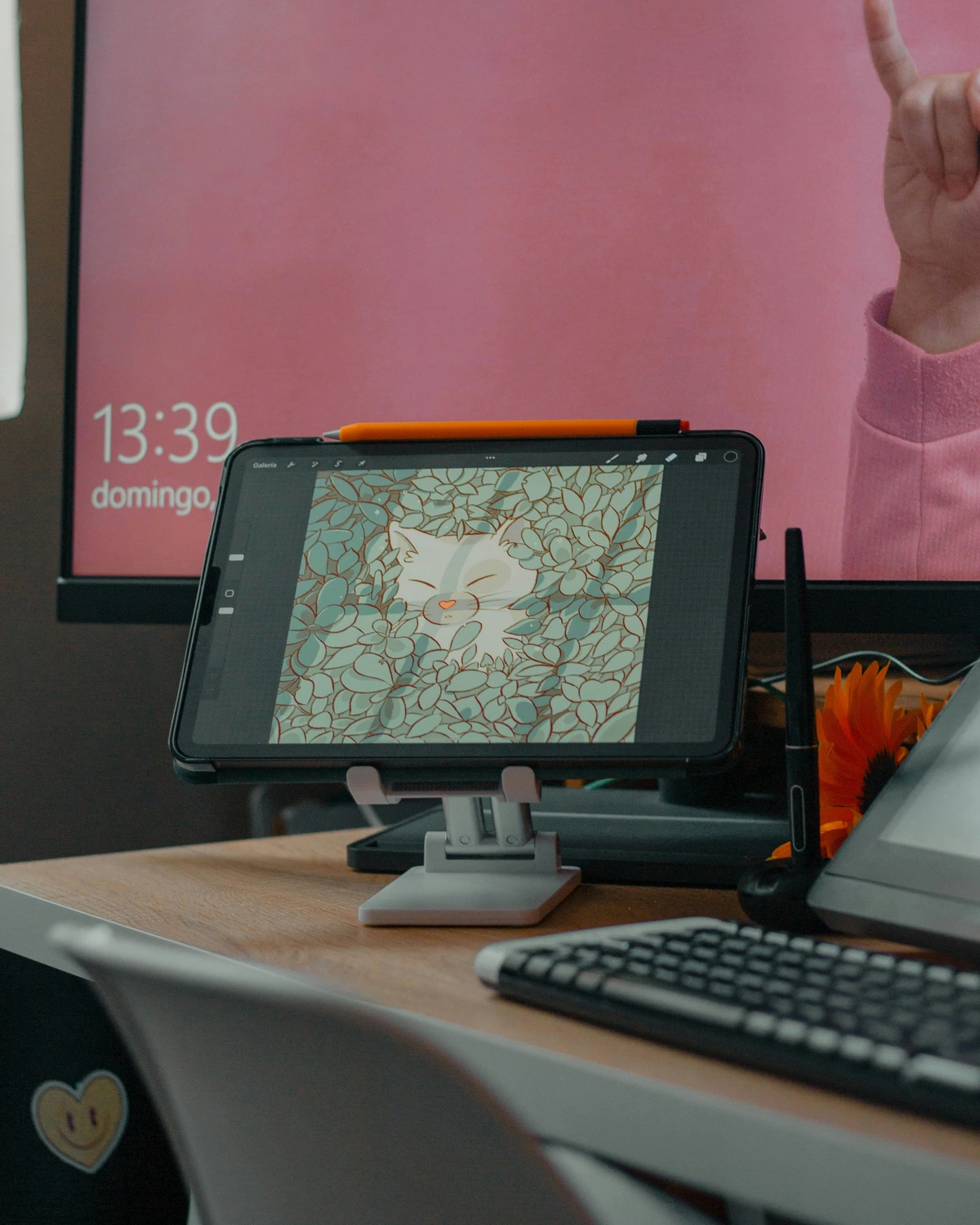
Team Apple: The All-in-One Creative Powerhouse
Then Apple waltzed in with the iPad Pro and the Apple Pencil. At first, a lot of pros scoffed. "A toy!" "A consumer device!" But then... they tried it. And many, myself included, were stunned. It truly was a disruptive entry, offering a whole new paradigm for digital creation that was both intuitive and incredibly powerful. This device, once focused on music and communication, redefined portability and intuitiveness in the creative arena.
Pros of Apple Pencil & iPad:
- Unbeatable portability and instant-on capability
- Intuitive direct-to-screen drawing with virtually no parallax or latency
- Versatile all-in-one device (not just for art)
- Powerful mobile-first apps (Procreate, Fresco) optimized for touch/stylus
- Excellent battery life for mobile sessions
Cons of Apple Pencil & iPad:
- Higher upfront cost for a capable art setup (iPad + Pencil)
- Mobile apps, while powerful, are not full desktop replacements for all professional tasks
- Can be less ergonomic for very long, sustained studio work without accessories
- File management for complex projects can sometimes be clunkier than on desktop
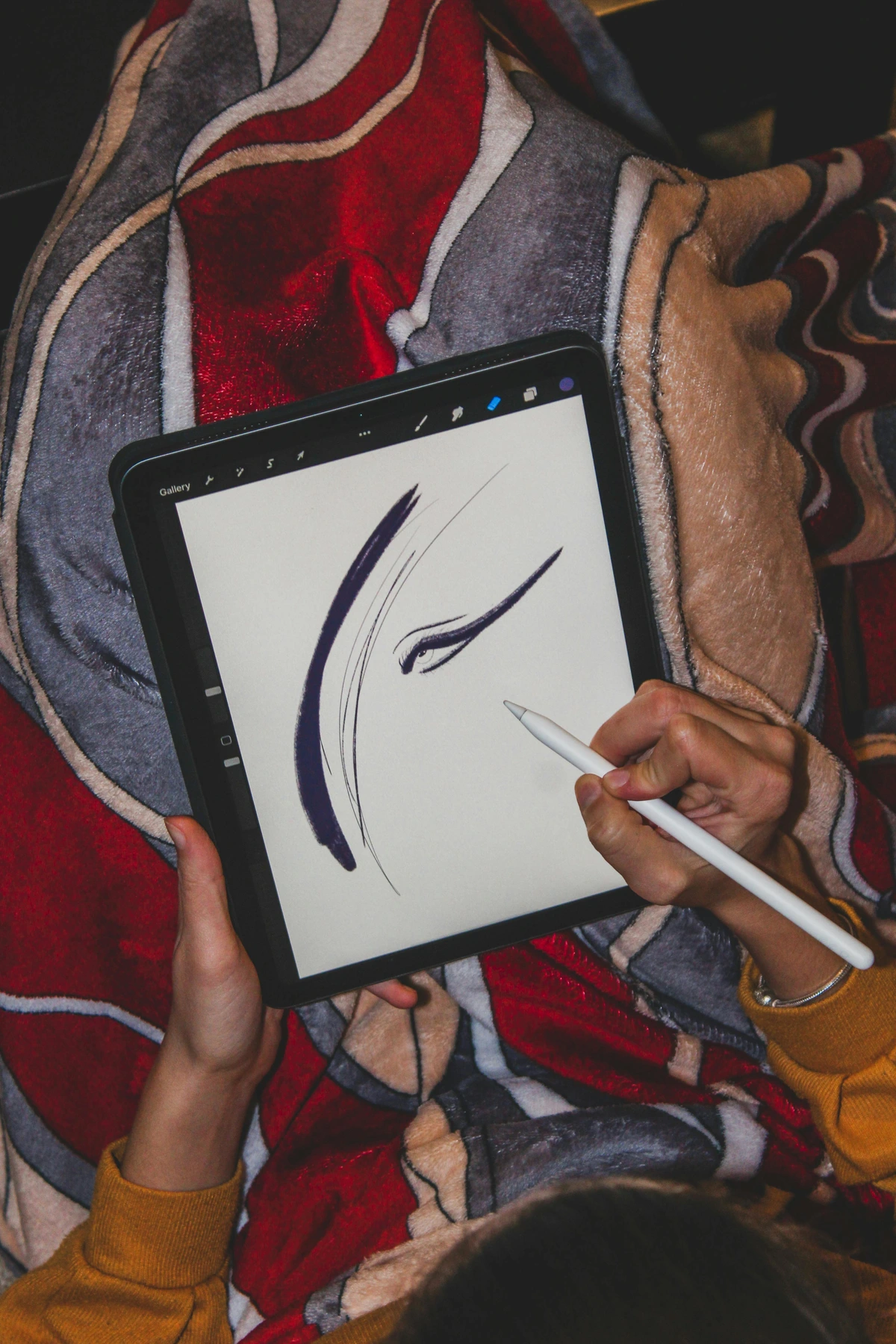
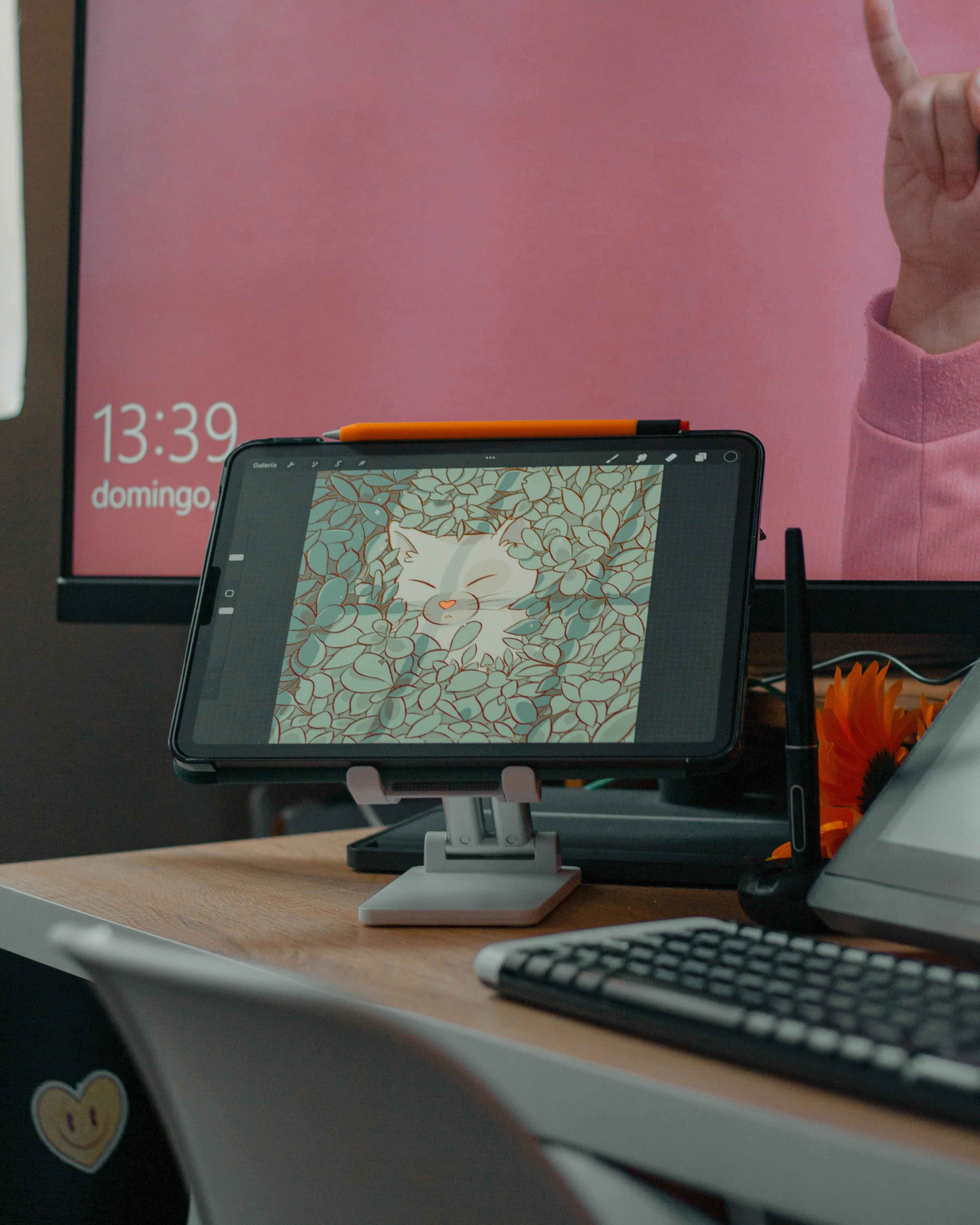
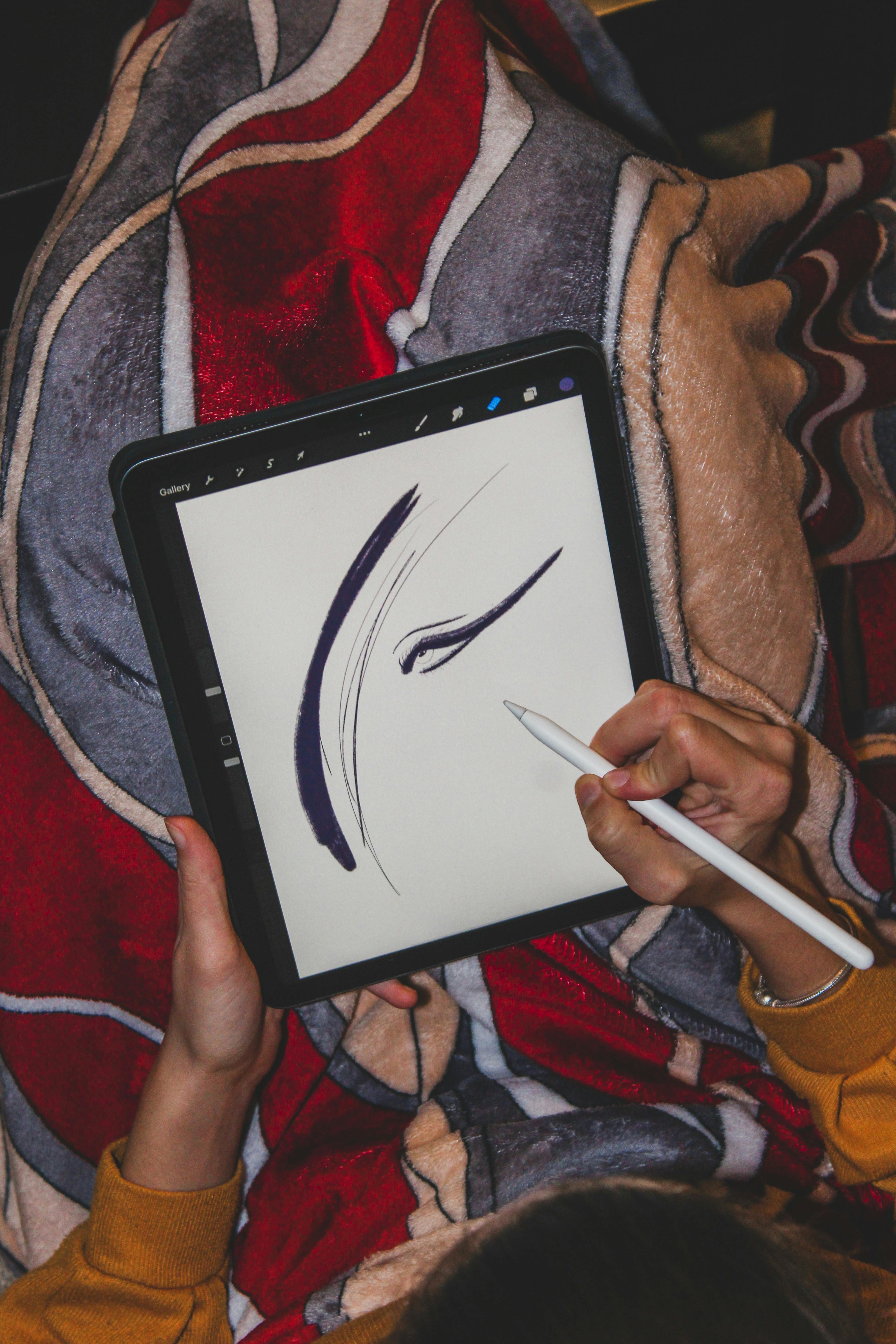
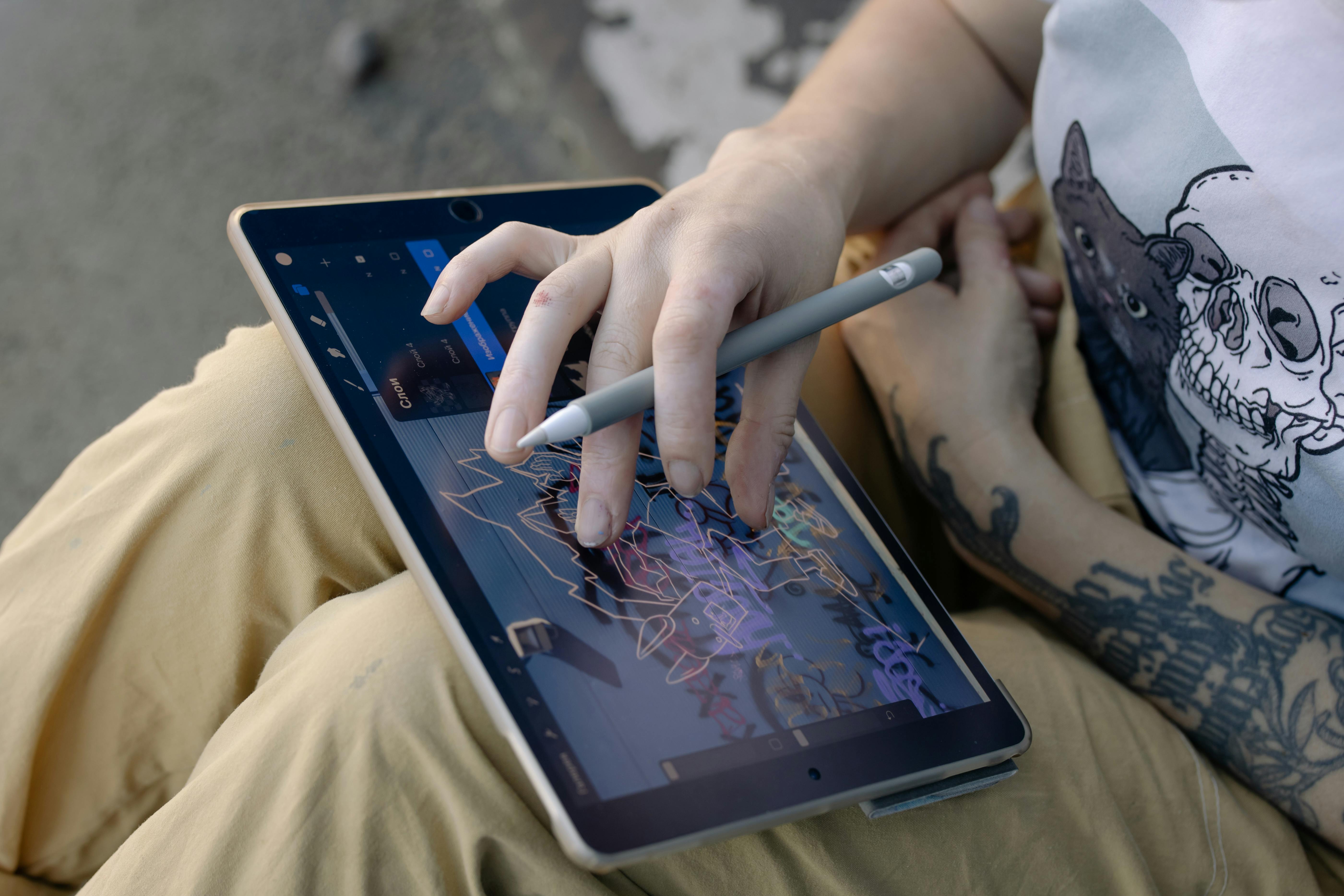
The appeal is obvious: it's a single, beautiful device. The Liquid Retina or Liquid Retina XDR screen is gorgeous, the Apple Pencil (especially the 2nd generation) is incredibly responsive, and the experience of drawing directly on the glass with virtually no perceived lag or latency is just... magic. We're talking millisecond delays, often indistinguishable from traditional media. This near-instantaneous feedback feels incredibly natural, almost like the ink flows from your very thoughts. You're not tethered to a desk. You can be on your couch, in a café, on a train, or in a park. It's freedom, pure and simple, and frankly, sometimes that's all your creative spirit needs. Ancillary features like Sidecar (using your iPad as a second display for your Mac) and Universal Control (seamlessly moving your cursor and keyboard between Mac and iPad) further integrate the iPad into a broader creative ecosystem.
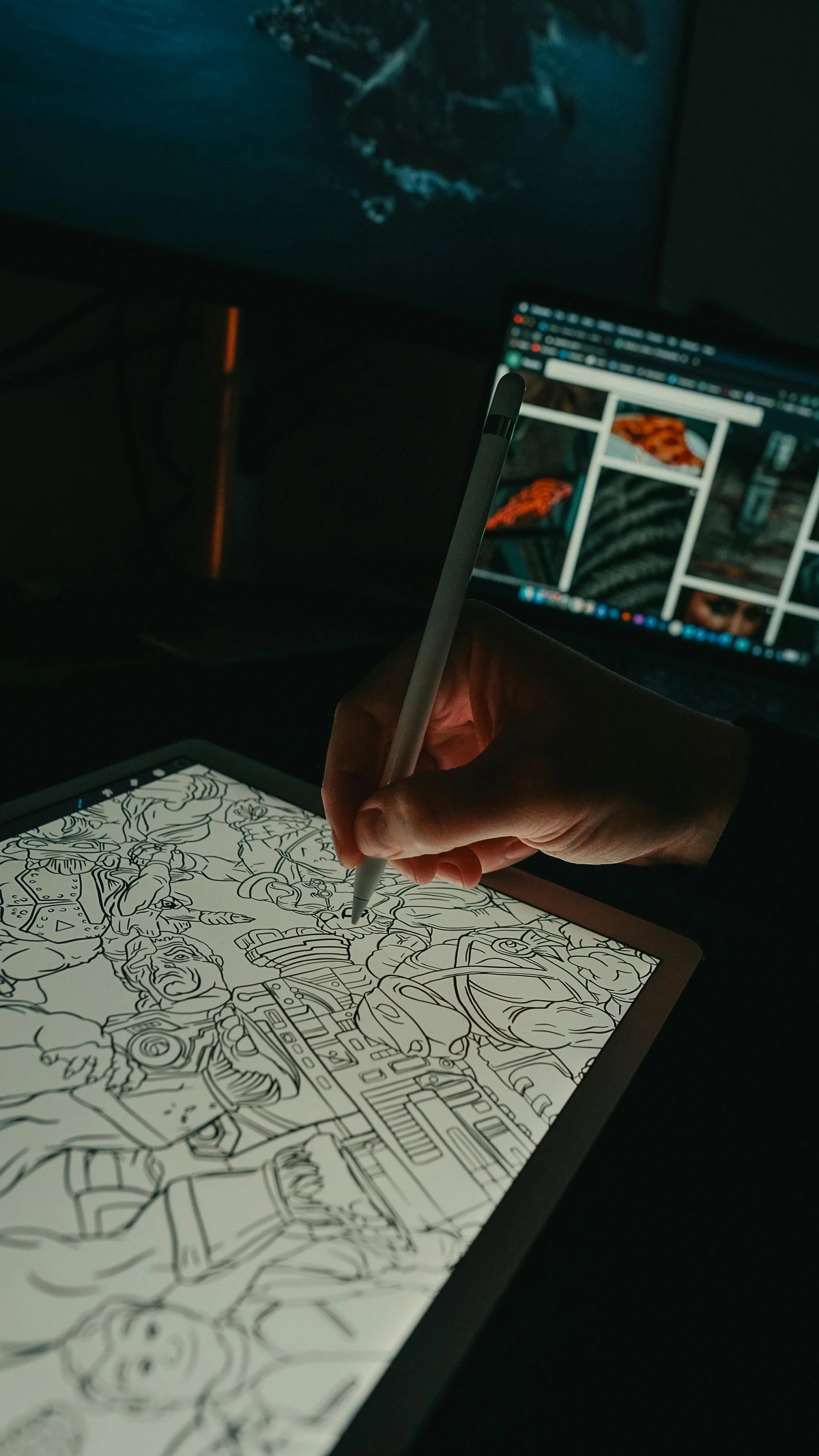
The iPad's strength lies in its simplicity, portability, and the sheer power delivered by Apple's custom A-series or M-series chips, which are optimized for tasks like graphics rendering and machine learning. Its Metal graphics engine, a low-level API, allows apps like Procreate and Fresco to harness the iPad's GPU directly for exceptionally smooth performance, even with complex brushes and high-resolution canvases. These apps are built from the ground up for a touch-and-stylus experience, renowned for their intuitive gesture-based controls and powerful, unique brush engines. Procreate, for example, offers time-lapse recording of your artwork, a highly customizable brush studio, and incredibly fluid smudge tools, while Adobe Fresco boasts incredible "live brushes" that mimic oil and watercolor with stunning realism. It’s less a dedicated input tool and more a self-contained creative studio you can carry in your bag, seamlessly integrating with the rest of your digital life. Remember, though, while these apps are incredibly powerful, they are not always full desktop programs, meaning some highly specialized professional features (like extensive Photoshop plugin support or complex 3D rendering requiring dedicated GPUs) are still easier or only possible on a Mac/PC.

The Head-to-Head Comparison: Putting Them in the Ring
Alright, let's put them in the ring. I've made a table to compare the things that actually matter when you're in the creative flow. This isn't just about specs; it's about the feel, the experience, and the practicalities of making art.
Feature  | Wacom (Cintiq/Intuos) | Apple Pencil & iPad | My Unfiltered Take |
|---|---|---|---|
| Drawing Feel (Surface Texture) | Excellent "bite" or texture on the screen, particularly on Cintiqs, which often feels very much like pen on paper due to finely etched glass surfaces. This texture provides a satisfying drag and control, making precise line work or subtle shading feel very natural, almost like the friction of a real pencil on paper. Ideal for traditional media simulation. | Hyper-smooth, glossy glass feel. This allows for incredibly fluid, fast strokes and glides. Some artists adore this slickness for speed painting or sweeping gestures. For those desiring more texture or "grip" (to mimic paper), many opt for matte or paper-feel screen protectors, which can significantly alter the tactile experience, though they sometimes slightly reduce visual clarity. | This is highly personal. I find Wacom's built-in texture often superior for fine detail and control. An iPad with a good matte screen protector can get very close, simulating the satisfying drag of charcoal or a pencil on paper. Without one, the iPad can feel a bit too slippery for my taste, especially for detailed work. |
| Parallax & Latency | Parallax (the visible gap between pen tip and cursor) is minimized on modern, high-end Cintiqs but can still be present on older or cheaper models, creating a slight visual disconnect (like drawing through thick glass). Latency is impressively low on modern Wacom devices, making strokes feel responsive, often in the 10-20ms range. | Virtually zero parallax on modern iPads thanks to advanced lamination techniques that bring the display closer to the surface. This means your pen tip is the line. Latency is also incredibly low, often quoted in single-digit milliseconds (around 9ms), making the experience feel almost instantaneous (like writing with a perfect pen that flows instantly). | Apple currently edges out Wacom on this, even if only by a hair. The "directness" of the iPad experience is truly remarkable and contributes heavily to its natural feel. It's like your thoughts instantly appear on the canvas. |
| Pressure Sensitivity & Tilt | The gold standard. Wacom's Pro Pen 2 boasts up to 8,192 levels of pressure sensitivity, offering unparalleled nuance over line weight, opacity, and brush size – crucial for professional illustration, fine art, and subtle shading. Also features highly accurate tilt recognition, allowing for broad strokes like a graphite stick or soft watercolor washes. | Excellent and feels very natural, offering tilt and technically robust pressure sensitivity. While Apple doesn't publish exact pressure levels, industry consensus suggests they are in the thousands, more than sufficient for the vast majority of artists. Both platforms feature excellent palm rejection, allowing you to rest your hand naturally on the screen without accidental marks. | Both are stellar here. For 99% of artists, the Apple Pencil offers more than enough precision. The feeling of control, however, can sometimes be enhanced by Wacom's textured surfaces. Don't get caught up in the numbers too much; both are fantastic for expressive line work and subtle gradients. |
| Portability | Awful to non-existent. Even the smallest Cintiq needs a powerful computer, multiple cables, and a power outlet. The Intuos is portable, but you still need a laptop to connect it to, along with its own cable. It's fundamentally a stationary setup, not a grab-and-go device. | Unbeatable. This is its superpower. You pick it up and go, instantly. Whether you're on your couch, in a café, on a train, or in a park, your studio is with you. (Unless you forget to charge it, then it's a very expensive paperweight that's still quite good for Netflix.) Battery life is generally excellent for several hours of drawing, but extended sessions will require a charger. | No competition here. If you need true creative freedom on the move, the iPad wins, hands down. It has transformed my ability to capture ideas the moment they strike. |
| Software Ecosystem | Full desktop power. You can run the entire Adobe Creative Suite (Photoshop, Illustrator, InDesign, After Effects), powerful 3D sculpting tools like ZBrush and Blender, specialized video editing suites, high-end CAD software, and highly specific plugins with no compromises. This is essential for complex, multi-application professional workflows, large-format print preparation with advanced color management, and intricate file management. Dedicated painting apps like Clip Studio Paint and Krita also shine here, offering immense depth. | Amazing mobile apps like Procreate, Fresco, Affinity Photo, and Concepts, all built from the ground up for a touch-and-stylus experience. They are incredibly powerful within their mobile ecosystem, often leveraging Apple's A/M-series chips and Metal graphics engine for exceptional performance. However, they are not full desktop programs, meaning some highly specialized professional features (like extensive Photoshop plugin support, complex 3D rendering pipelines requiring dedicated GPUs, advanced compositing tools, or certain highly specialized vector editing capabilities) are still easier or only possible on a Mac/PC. Adobe Photoshop on iPad, while impressive, isn't yet a 1:1 replica of its desktop counterpart. Clip Studio Paint for iPad is also a strong contender. | Desktop still rules for raw, uncompromised power, complex multi-app workflows, and niche plugins. The iPad's apps are phenomenal for what they are, but the desktop ecosystem offers unparalleled depth and flexibility for true professional production. I've been caught out many times trying to find an iPad equivalent for a niche Photoshop plugin, only to realize I have to go back to my desk. |
| Comfort for Long Sessions (Ergonomics) | Generally better for long-term posture, especially the screen-less Intuos which keeps your neck straight as you look at a monitor. Cintiqs often require an expensive, dedicated stand to achieve an ergonomic drawing angle, but when properly set up, they allow for a natural drawing posture and excellent arm support, designed for sustained professional use. Crucially, they facilitate keeping your screen at eye-level. My neck, back, and wrists thank me after an intense day. | Can lead to "hunching" over the screen if not propped up. It's not designed for 8-hour drawing sessions without some kind of external stand, keyboard, or ergonomic support. While adaptable, it requires conscious effort and accessories to maintain good posture over long periods. Also, the Apple Pencil's smooth finish can be less comfortable for very long holds compared to Wacom's more textured, often rubberized grip. | For serious, marathon sessions, Wacom's dedicated setup often wins for ergonomics, primarily because it's designed to integrate into a fixed, adjustable workstation. The iPad can be ergonomic, but it requires more conscious effort and additional purchases (like a good stand and an external keyboard, or even using Sidecar to prop it up next to a main monitor). |
| Cost | Can be very cheap (Intuos Small for under $100) or astronomically expensive (Cintiq Pro 24 often $2200-$2500+, Wacom One around $400, Intuos Pro Medium around $380). Crucially, you also need a powerful desktop computer to connect it to, which adds significantly to the total investment. For instance, a basic Intuos and a mid-range PC might be around $800-$1000 total. | Mid-to-high range. An iPad Air (starting around $599) or iPad Pro (starting around $799-$1099 for the 11-inch, $1499+ for the 13-inch) with an Apple Pencil (Gen 1 for $99, Gen 2 for $129) will set you back at least $700-$1500+ depending on the iPad model (Air vs. Pro, storage size, M-series chip) and Pencil generation. You may also need to budget for a stand, keyboard case, or screen protector. The device, however, does a lot more than just draw, so its value is multifaceted. Refurbished models can offer significant savings. | Total cost of ownership can be surprisingly similar if you're buying a full setup from scratch. A high-end iPad Pro plus Pencil can easily match an entry-level Cintiq and a mid-range PC. For pure drawing on a budget, an Intuos and an existing computer is still the cheapest entry point. |
| Multifunctionality | It's a drawing tool. That's it. It exists solely to facilitate digital art on a connected computer. Some Wacom devices have multi-touch gestures, but their primary purpose is input. | It's an iPad! It's for movies, email, browsing, music, games, video calls, photography, creative writing, and productivity... and it's also a world-class drawing tablet. This versatility is a huge selling point and often justifies its higher upfront cost for many users. | The iPad's versatility is a huge factor for many. If your budget only allows for one device, the iPad offers far more utility beyond just art. I've often caught myself answering emails or watching Netflix during a quick art break on the same device. |
| File Management & Cloud Syncing | Seamless integration with desktop operating systems (Windows, macOS) for traditional file management. Cloud services like Adobe Creative Cloud, Dropbox, Google Drive are native to the desktop for easy syncing across devices and robust version control, essential for collaborative or large-scale projects. | Excellent cloud integration, especially with iCloud and apps like Adobe Fresco/Creative Cloud. Procreate files (.procreate) can be exported as PSDs, PDFs, PNGs for desktop work. Transferring files is generally straightforward, but managing very large archives or complex folder structures can still be clunkier than on a desktop, requiring more navigation through app-specific folders. | Both platforms handle cloud syncing well, but desktop systems (with Wacom) offer more granular and powerful local file management, especially for massive projects or specific backup strategies. For heavy project managers, the desktop still feels more robust. |
| Color Management | Desktop setups typically offer more robust color calibration options with dedicated hardware calibrators and advanced software (like XRite or Datacolor), crucial for print professionals who need absolute color accuracy and consistency across devices and print media. This is where what you see on screen perfectly matches what you get on paper. | While iPads have excellent color-accurate displays (especially Pro models with Liquid Retina XDR), their built-in calibration options are simpler. Achieving the same level of precise, professional-grade color management for critical print output as a desktop setup is more challenging. While you can trust the iPad's display for general accuracy, for very high-stakes print jobs, it's a good idea to cross-reference on a calibrated desktop monitor. | For fine art print preparation and ensuring what you see is what you get on paper, the Wacom-desktop combination with dedicated monitors often has the edge. If you're selling prints, this difference can actually hit your wallet. |
Who Is Each Tool Really For? Finding Your Creative Match
Specs are one thing, but your workflow, lifestyle, and unique artistic needs are what really count. Choosing the right tool often comes down to understanding which fits your creative identity, and frankly, which helps you actually get art done. We're aiming to be the definitive breakdown you won't find anywhere else.
You Should Probably Get a Wacom If...
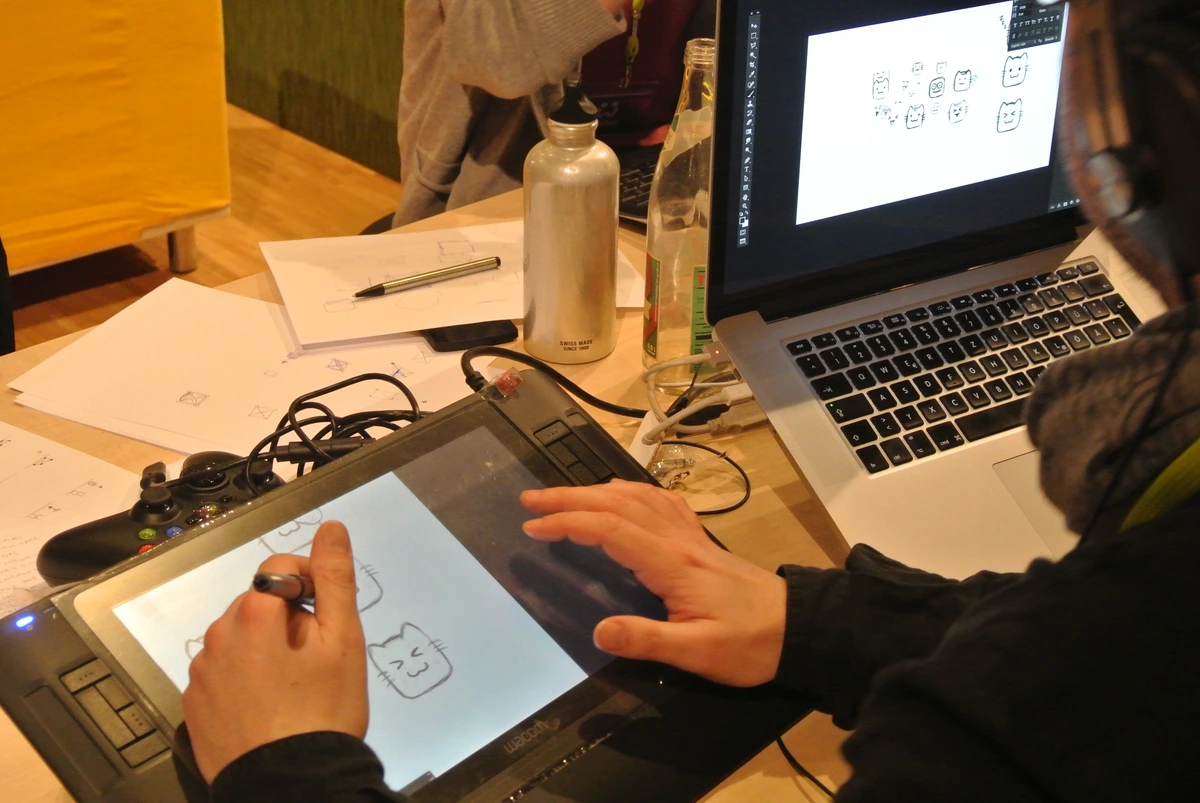
- You're a studio professional working in specific fields. If you make your living as an illustrator, concept artist, 3D modeler (using software like ZBrush, Blender, Maya, 3ds Max), graphic designer, or animator, chances are you need the raw power and extensive software ecosystem of a desktop computer. The Wacom, particularly a Cintiq Pro, is the native and deeply integrated tool for that environment. This includes artists who rely on professional-grade desktop software for complex rendering, intricate animation sequences, advanced photo manipulation with specialized plugins, high-end CAD, or multi-application workflows. You need precise color calibration for print, and that's often best achieved with a dedicated monitor setup, which integrates perfectly with Wacom's offerings.
- You're a marathoner, not a sprinter. If you regularly pull 8+ hour art sessions, the ergonomic benefits of a dedicated desk setup with a Wacom tablet or pen display can literally save your neck, back, and wrists. It allows for a more sustained, comfortable working posture, especially when paired with a good monitor arm or stand. These devices are built for the grind. I've certainly felt the difference after a grueling day.
- You are a master of customization. The endless programmable buttons (ExpressKeys), touch rings, and radial menus on most Wacom tablets are a godsend for power users who have their keyboard shortcuts down to a science and need to streamline complex workflows. You crave ultimate control and efficiency over your tools, minimizing trips to the keyboard or menus.
- You're on a shoestring budget and already own a capable computer. An entry-level Wacom Intuos Small (under $100) or Intuos Medium (around $200) is the most affordable way to get into pressure-sensitive digital art, assuming you already have a computer you're happy to work with. For those looking for a pen display on a budget, strong alternatives like Huion or XP-Pen (often starting around $200-300 for decent models) also offer excellent value, often with impressive specs.
You'll Likely Love the Apple Pencil & iPad If...
- You are a nomad or a spontaneous creator. If you want to create art anywhere and everywhere—a coffee shop, a park, an airplane, or even just another room in your house—there is simply no better option. The freedom and instant-on capability it offers are transformative for spontaneous creativity. Your art studio fits into any bag. What's not to love about that? I've sketched landscapes before the light changed, all thanks to my iPad.
- You're a beginner or value directness and simplicity. The intuitive experience of drawing directly on the screen with virtually zero fuss has a much smaller learning curve than a screen-less tablet, making it incredibly inviting for those new to digital art. You just pick it up and draw. No complex drivers to install, minimal cables to manage (mostly).
- Your world revolves around Procreate (or similar mobile-first apps). Procreate is a masterpiece of an app, constantly pushing boundaries for mobile art with its unique brush engine and gesture controls. If that's your jam, and you love its workflow, then the iPad is your only choice. Apps like Fresco, Affinity Photo, and Concepts also thrive in this environment, offering powerful tools for raster and vector art alike. Even Clip Studio Paint has an excellent iPad version, making it a viable option for comic artists and illustrators on the go.
- You want one device to do it all. If you need a tool for art but also for watching Netflix, answering emails, browsing the web, reading books, and managing your calendar, the iPad is an amazing value proposition. It's a powerful creative tool that seamlessly integrates with the rest of your digital life, thanks to its versatile operating system and Apple's powerful A-series or M-series chips.
- You need accessibility and flexibility. The iPad's touch interface and various accessibility features, combined with the Apple Pencil's tilt functionality, can be highly beneficial for artists with specific physical needs or preferences, offering more adaptable ways to interact with their creative tools.
And What About Hobbyists and Students?
This is where the "it depends" answer truly shines. For hobbyists, if you already own an iPad, an Apple Pencil (Gen 1 or 2, depending on your iPad model) is a no-brainer addition, instantly turning your tablet into a powerful art tool. If you have a computer, an entry-level Wacom Intuos is a fantastic, affordable gateway. For students, the iPad offers incredible versatility for note-taking, research, and art, making it a great all-in-one device. However, if your art program specifically requires desktop software (like a full version of Photoshop or a 3D modeling suite) or a specialized monitor for print preparation, a Wacom Intuos with a reliable laptop or desktop is still the more practical choice, often at a lower overall cost than a high-end iPad Pro. My advice for students? Check your course requirements before committing!
Advanced Workflow: The Hybrid Approach - The Best of Both Worlds
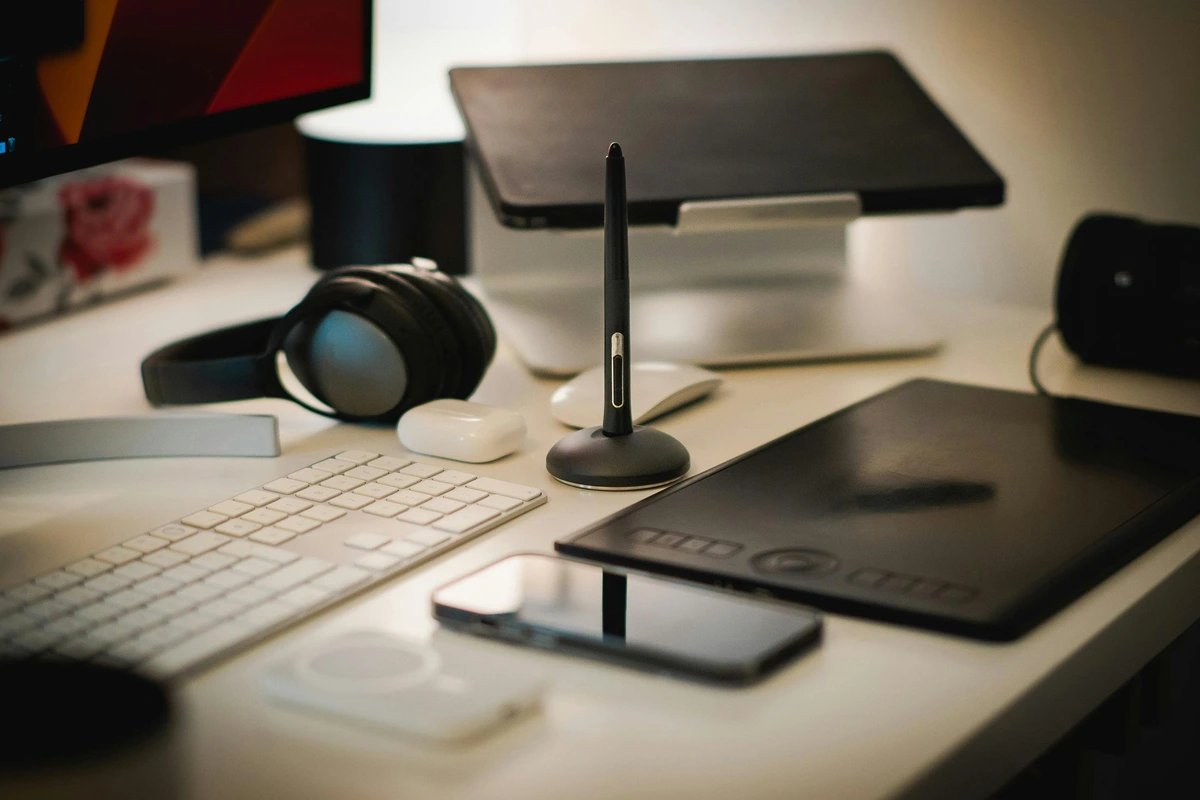
Many professional artists, myself included, don't see this as an either/or dilemma. Instead, they embrace a hybrid approach, leveraging the unique strengths of both devices. Think of it as having different tools for different stages of your creative process, much like a traditional artist uses different brushes or pencils. It's all about making the tools serve your art, not the other way around. This approach is, I believe, where true creative freedom lies for many professionals.
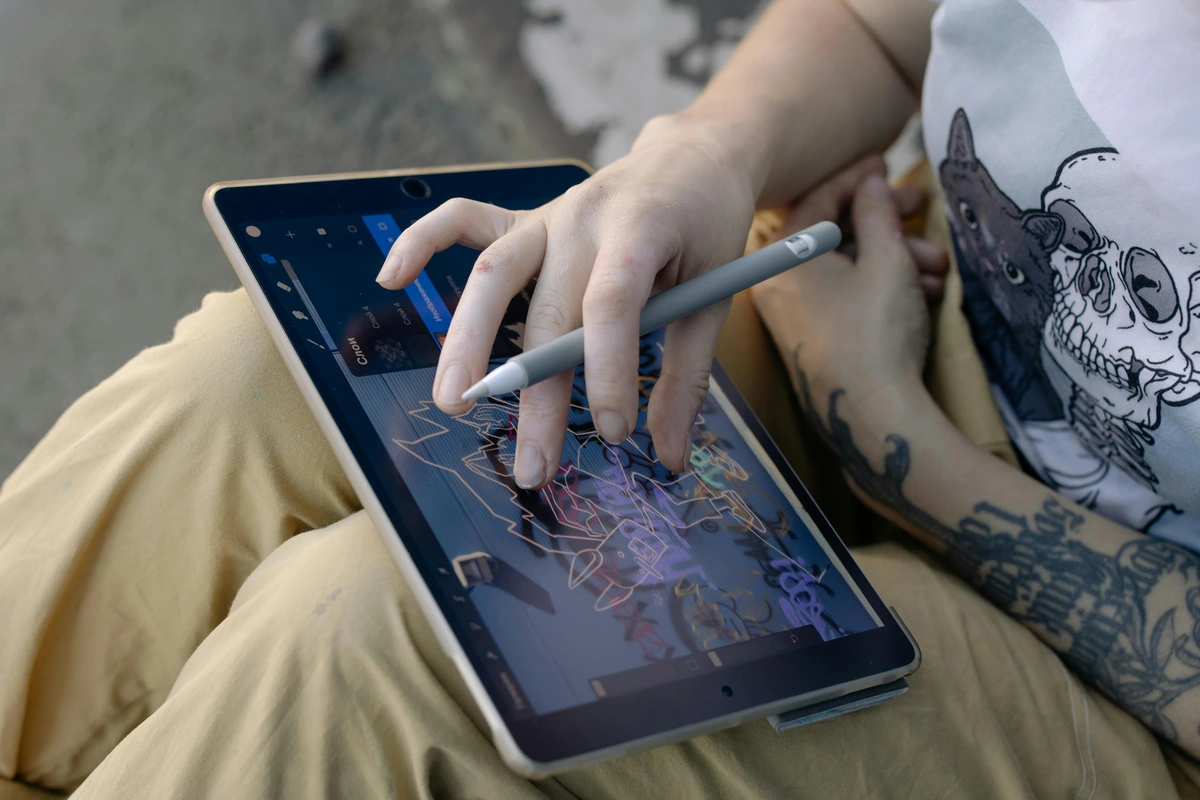
Phase 1: Ideation & Sketching (The iPad's Domain)
I often start by sketching ideas, concepts, or storyboards on my iPad. Its portability and immediate responsiveness make it perfect for capturing fleeting inspirations anywhere. Think quick thumbnails, vibrant color studies, character concept iterations, or brainstorming sessions during a commute. Apps like Procreate excel here, allowing for rapid iteration and experimentation without the friction of a complex setup. It's a fluid, intuitive way to get those initial sparks down, letting my mind run free without technical barriers. This is especially true for capturing a fleeting landscape sketch before the light changes, or a spontaneous character pose. I find that apps like Adobe Fresco with its cloud sync also make this initial phase incredibly smooth, knowing I can pick up the PSD later on my desktop. For instance, if I'm designing a new abstract piece, I might use the iPad to quickly block out shapes and colors, experimenting with how artists use color or exploring different elements of art like line.
Phase 2: Refinement & Finalization (The Wacom/Desktop's Territory)
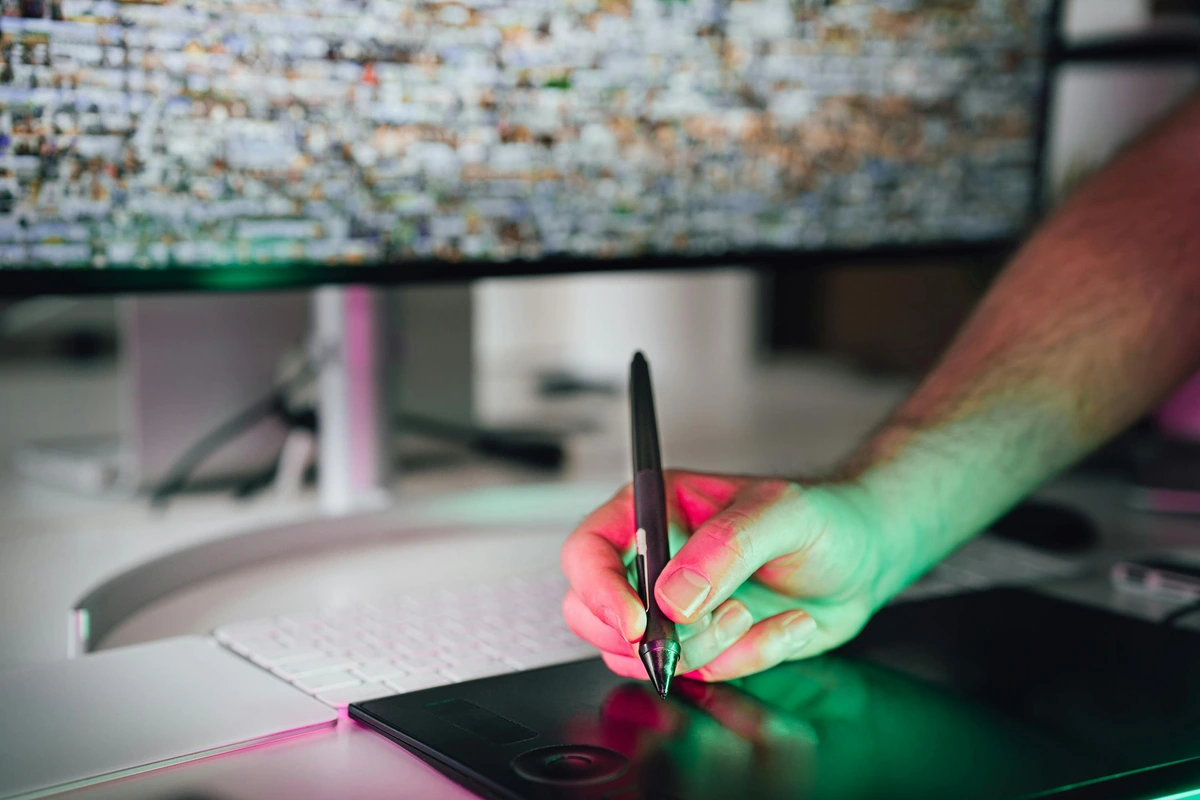
Once the concept is solid, the project is often transferred to a powerful desktop environment. Here, with a Wacom Cintiq or Intuos, I benefit from:
- Full Desktop Software Power: Access to the full, uncompromised versions of Photoshop, Illustrator, ZBrush, or 3D animation suites, along with all their plugins and specialized functionalities that might not be available on mobile. This is crucial for complex tasks like high-end 3D rendering that require specific GPU processing power, advanced compositing, or detailed architectural rendering. Cloud services like Adobe Creative Cloud and file formats like PSD and TIFF make transferring files seamless for raster art, though vector and 3D files sometimes require more careful management.
- Precision and Control: The higher pressure sensitivity, robust drivers, and customizable ExpressKeys of Wacom devices offer unmatched control for intricate line art, detailed textures, or highly specific brush work, especially for large-format canvases or when needing to master basic brushstrokes for acrylic painting in a digital sense. It's where every stroke needs to count.
- Color Accuracy: A professionally calibrated monitor (often hooked up to the Wacom display) ensures true-to-life color for print preparation – something absolutely crucial for fine art and professional output. I can't stress enough how important this is for physical art sales or creating art for decorating with art in modern farmhouse interiors.
- Ergonomic Comfort: A dedicated studio setup allows for prolonged, comfortable working sessions, minimizing strain over many hours. My neck, back, and wrists thank me after an intense day.
- Advanced File Management: Easier handling of very large files, complex layers, and seamless integration into broader production pipelines. This helps me stay organized and efficient when dealing with multiple assets and ensures robust version control for large projects.
This workflow allows for maximum flexibility and efficiency, proving that sometimes, the best solution isn't one tool, but a carefully integrated toolkit. It's about letting each device play to its strengths. My own journey has heavily involved this integration, from pixels to paint, embracing digital tools in my abstract art practice.
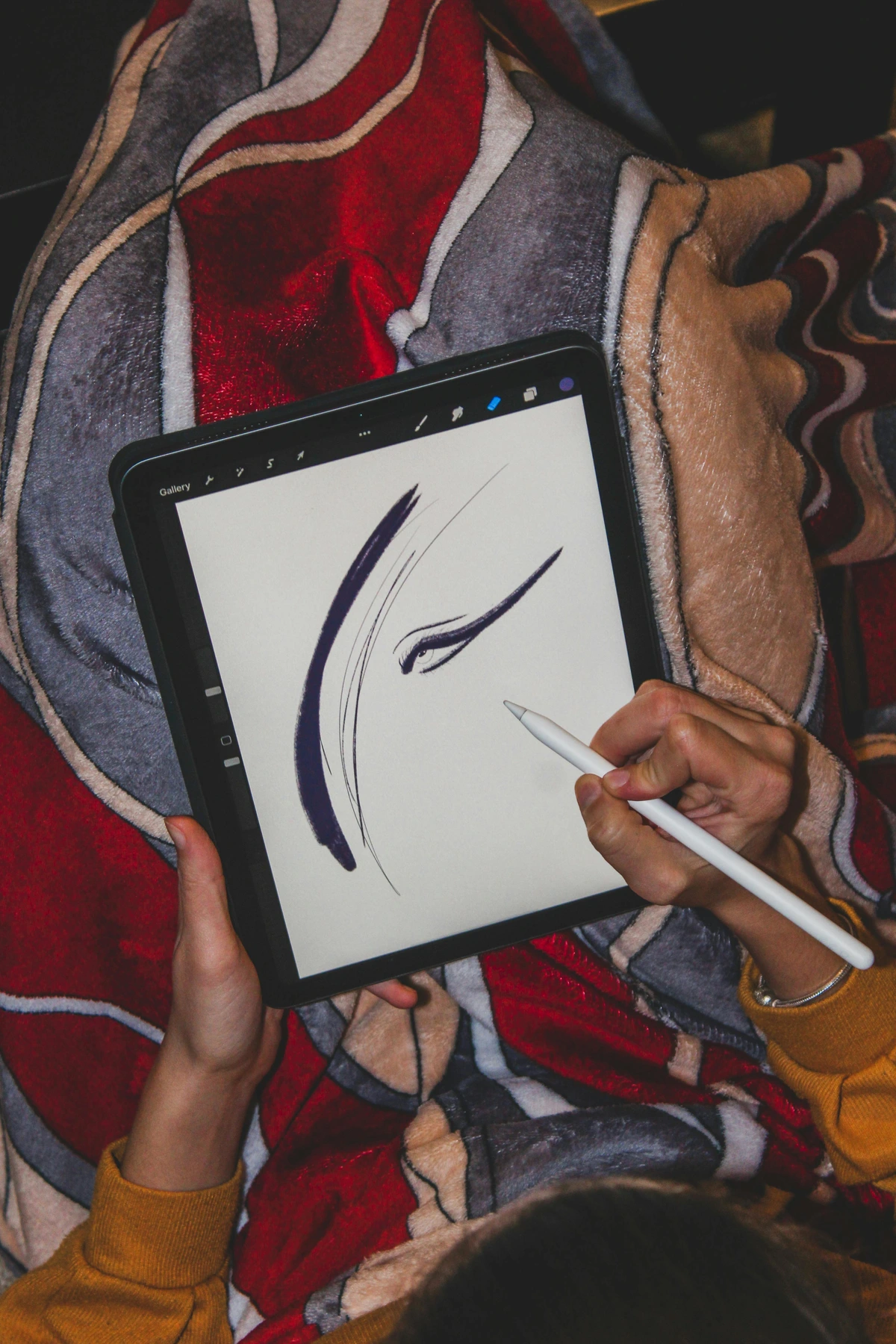
My Unfiltered, Personal Verdict: Why I Use Both
So, after all that, which one do I use? The honest answer is... both. And I know that's the most annoying answer imaginable, but it's the truth. My artistic journey, like many others, has evolved to embrace the best of both worlds because they genuinely serve different purposes in my workflow. For me, it's not a matter of 'either/or' but 'when and where.' If I'm forced to pick just one, and budget wasn't an issue, for pure studio work, I'd probably lean Wacom. But for sheer creative freedom and versatility, the iPad would win.
My M2 iPad Pro with its 2nd Gen Apple Pencil is my sketchbook, my ideation station, and my travel companion. It's where ideas are born. I take it everywhere. I'll be watching a movie and an idea for a composition will strike, so I'll pause and quickly sketch it out in Procreate. It's spontaneous and liberating. My entire journey of finding my artistic voice has been shaped by the ability to capture ideas the moment they appear, regardless of where I am. It's indispensable for quick value studies or laying down initial color harmonies for a new piece of what is minimalism in art.
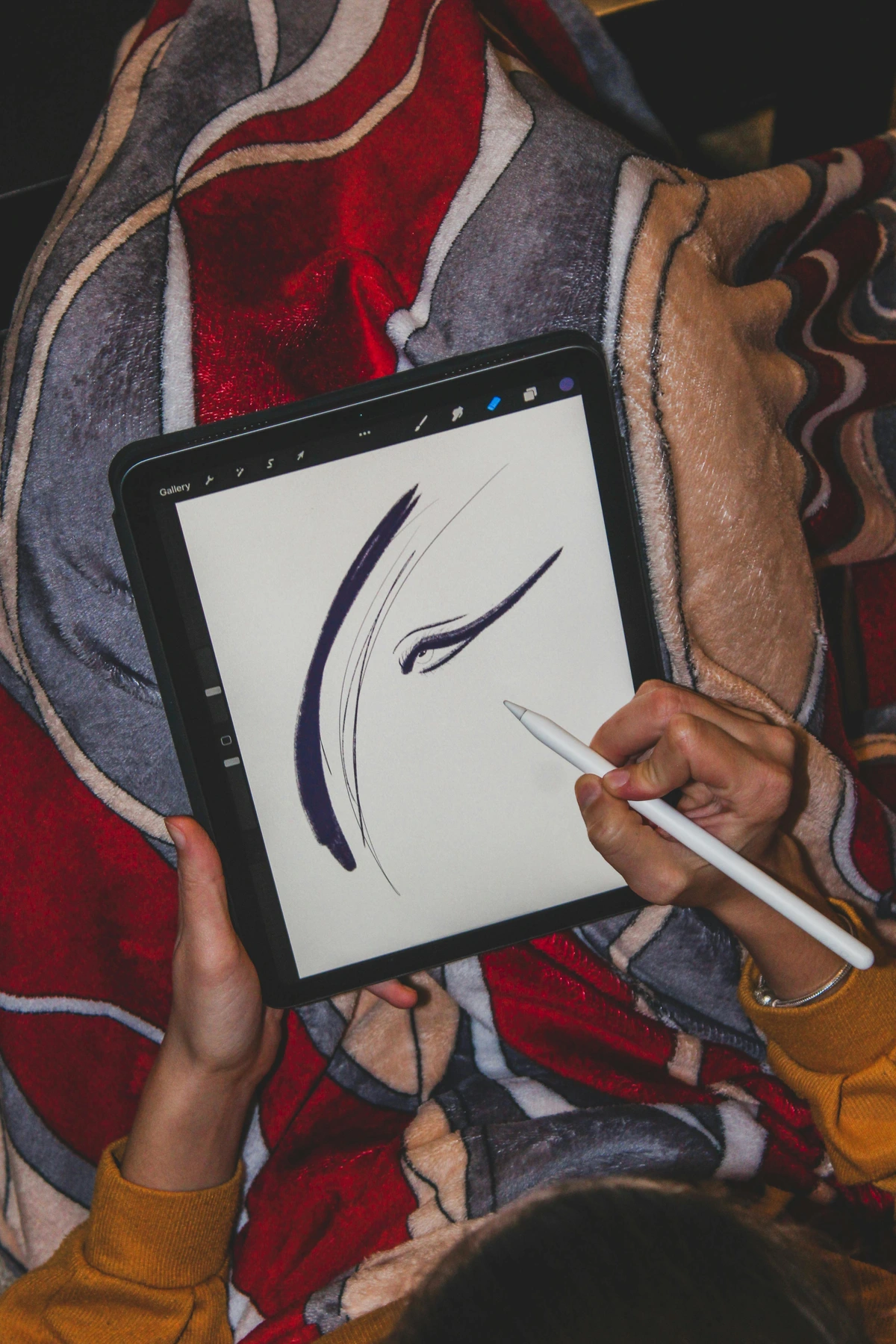
But when it's time to create a large, final piece for a print or a big project, especially those requiring a high degree of precision, I almost always move to my big Wacom Cintiq 27QHD hooked up to my powerful desktop. I need the robust file management, the full power of Photoshop (with its extensive plugin support), the absolute color calibration of my professional monitor for print accuracy, and the ergonomic comfort of my studio chair for extended sessions. It’s where the rough sketches evolve into finished, polished work. For those wanting to delve deeper into the building blocks of art, exploring the elements of art like line can provide invaluable foundational knowledge, regardless of your chosen digital tool. And let's be honest, sometimes you just need that massive screen real estate.
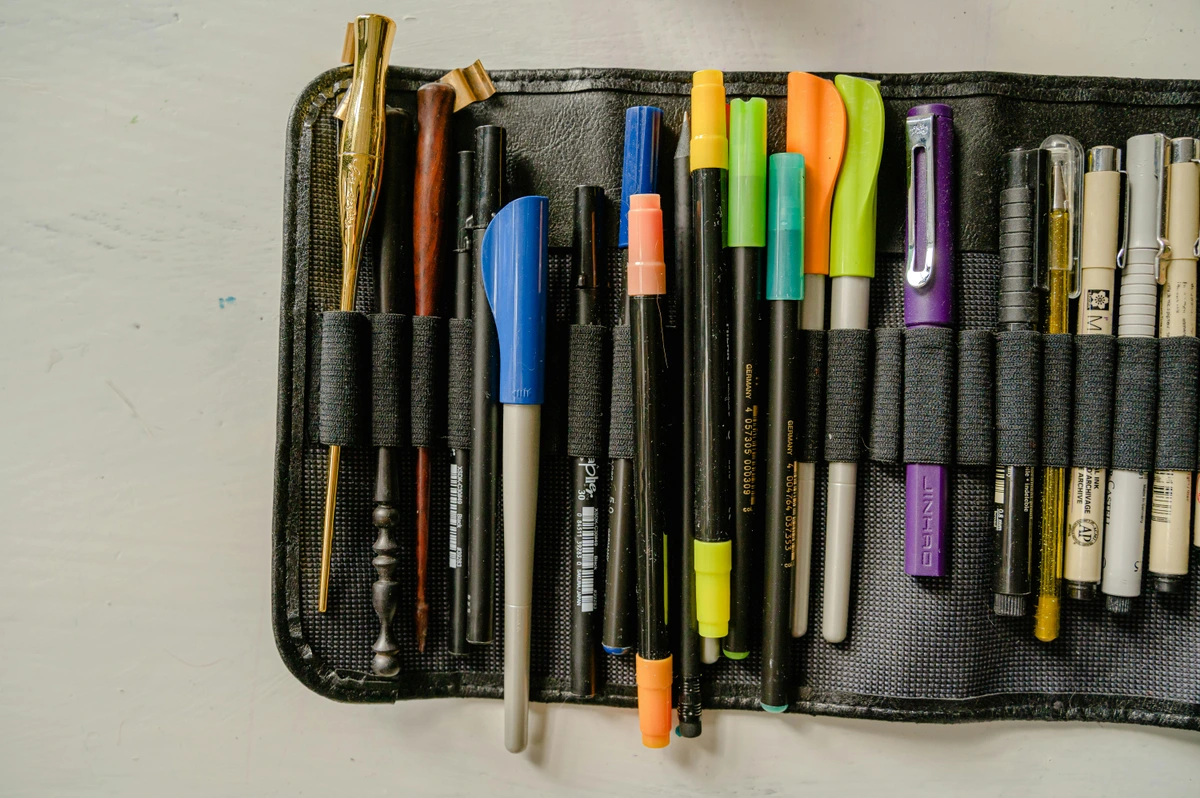
The tool doesn't make the artist. A pencil is a pencil, a brush is a brush. The most important thing is understanding the fundamentals, like how to use a simple line to convey emotion or form, or how to master basic brushstrokes for acrylic painting. A solid grasp of artistic principles will serve you far better than the fanciest new gadget. My point? Don't let the technology overshadow the art. So, if you're looking to explore the freedom of creativity and perhaps buy some art that embodies it, remember the spirit behind the brush and the hand holding it. Your understanding of the definitive guide to understanding line in abstract art from gestural marks to geometric forms will always be more impactful than the brand of your stylus.
The Future of Digital Art Tools: The Lines Continue to Blur
Looking ahead, the lines between these two titans may continue to blur. I wouldn't be surprised to see Wacom lean further into standalone devices that don't require a connected computer, perhaps integrating more advanced processing power and AI-powered features for on-device rendering or creative assistance (think AI-assisted composition suggestions, automated retouching suggestions, or even AI-generated brush libraries based on your style). Conversely, Apple could introduce more powerful, desktop-class software for the iPad, perhaps even supporting external monitor setups more robustly for professional multitasking, moving iPadOS closer to a desktop experience for specific pro users. The continuous innovation in screen technology, pen sensitivity, processing power, and even cloud-based creative suites will only make the choice harder – and more exciting. The potential for more integrated AR/VR creative tools also looms, potentially offering entirely new ways to sculpt and paint digitally in immersive environments. Ultimately, both companies are pushing towards a future where digital creation feels as natural and uninhibited as possible.
Ultimately, the best advice I can give is to stop agonizing and start creating. Pick the tool that your budget and lifestyle allow for right now. You can always change later, evolve your workflow, or even embrace the hybrid approach. The important thing is to get that stylus moving and bring your ideas to life. Your creative spirit is the most powerful tool you possess; nurture it, and the art will follow.
Frequently Asked Questions (FAQ)





What about other brands like Huion, XP-Pen, or even Microsoft Surface Pro/Samsung Galaxy Tab?
They've gotten incredibly good over the years and offer amazing value, especially in the pen display category. For many people, they are fantastic and more affordable alternatives to Wacom Cintiqs, often boasting comparable or even superior specs like higher resolution screens or more customizable buttons at a lower price point. The main trade-off is often in brand reputation, driver software maturity (which can sometimes be less stable, have less intuitive UIs, or occasional conflicts with OS updates), and long-term support. However, the gap is closing fast. Devices like the Microsoft Surface Pro or Samsung Galaxy Tab S series with their respective styluses (Surface Pen, S Pen) also offer compelling portable drawing experiences, often with full desktop OS (Windows) or a robust mobile OS (Android). They can be excellent choices, especially if you prioritize versatility and already have an existing ecosystem you prefer.
Do I need the most expensive iPad Pro or Wacom Cintiq to make great art?
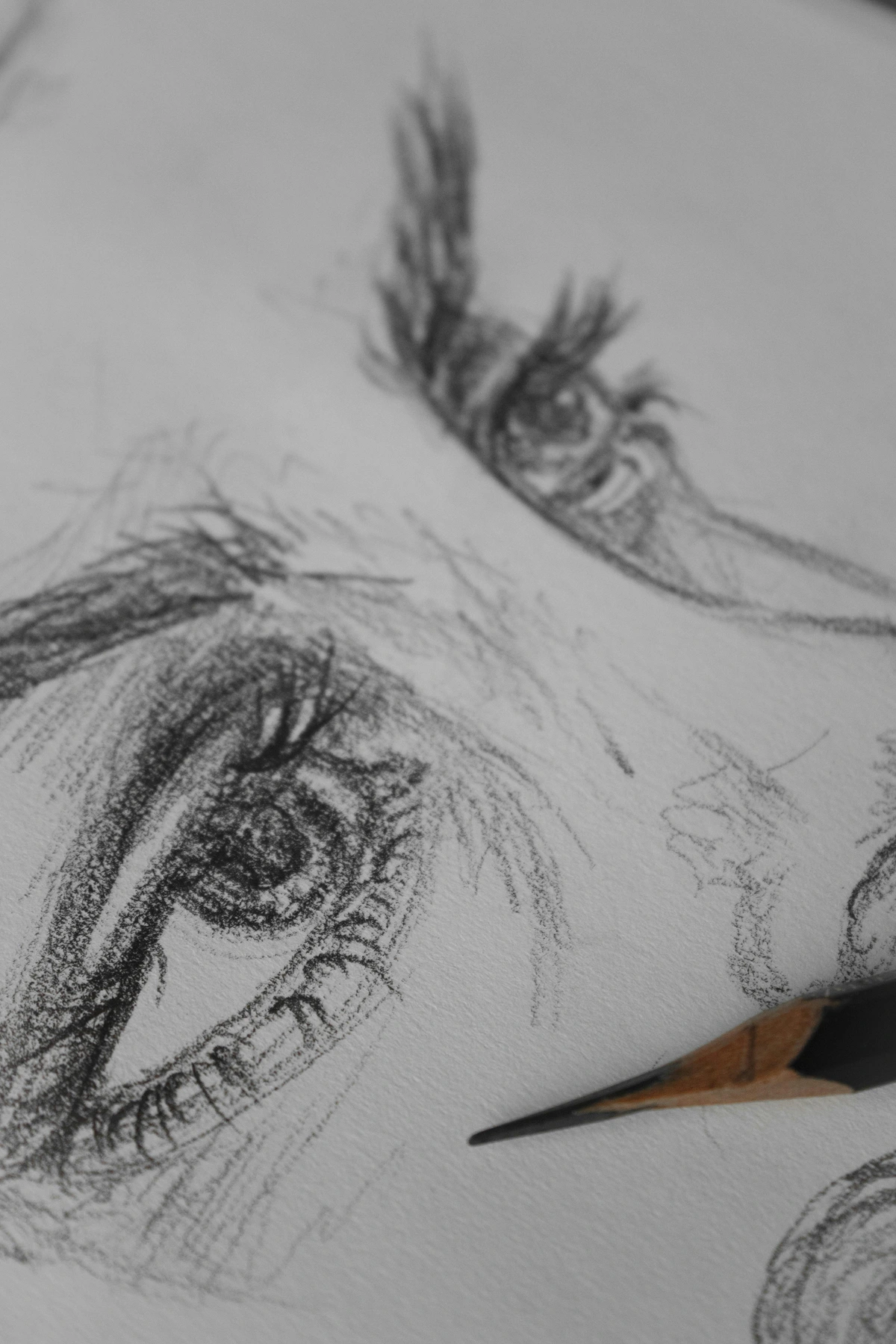
Absolutely not, and this is a common misconception! A mid-range iPad Air (starting around $599) or an entry-level Wacom Intuos (under $100) is more than capable of producing professional-level work. The expensive models offer quality-of-life improvements (better screens, less parallax, more customizable buttons, faster processors), but they won't magically improve your drawing skills. Focus on your technique and understanding art principles; a simple set of best sketching pencils for artists can teach you more than a top-tier tablet if you apply yourself. Invest in your skills, not just your gear. Always remember, the art comes from you, not the device.
Is the Apple Pencil 2 that much better than the Apple Pencil 1?
Yes, for usability and workflow, it's a significant upgrade. The magnetic charging and storage (no more awkwardly sticking it out of your iPad's charging port!), the matte finish, and especially the double-tap gesture for switching tools (like between brush and eraser) make it much more convenient and seamlessly integrated into the creative workflow. If you have an iPad that supports it (most modern iPads do), it's absolutely worth the extra cost for the quality-of-life improvements alone. It truly feels like a more complete tool.
Can an iPad completely replace a Wacom for a professional artist?
This is the million-dollar question, and the answer is: it depends entirely on your specific workflow and field. For some artists—like many incredible comic book artists, 2D illustrators focused on single-panel work, or letterers—yes, the iPad, especially an iPad Pro, has become their primary or exclusive tool. For others who rely heavily on specific desktop software features (e.g., advanced 3D rendering, complex animation, VFX work, high-end photo manipulation requiring specific plugins), extensive file management across multiple applications, or precise color management for print, it's still more of a companion device than a full replacement. It's about adapting the tool to your unique work, not forcing your work into a single tool.
What about screen protectors for iPads? Are they worth it for artists?
Yes, absolutely, for many artists! A good quality matte or "paper-feel" screen protector can dramatically change the drawing experience on an iPad. It adds a subtle friction and texture that can feel much more like drawing on actual paper, providing greater control and a more satisfying tactile experience for line work and shading. While they might slightly reduce the screen's visual clarity, for many, the trade-off is worth it for the improved drawing feel. Just be sure to pick one that's easy to apply without bubbles!
How does cloud storage impact large art file management between devices?
Cloud storage (like iCloud, Adobe Creative Cloud, Dropbox, Google Drive) is a lifesaver for bridging the gap between desktop and mobile. You can start a sketch on your iPad, save it to the cloud, and then seamlessly open the PSD (or other compatible format) on your desktop with your Wacom to continue working. This is particularly useful for raster art. For very large files (e.g., multi-gigabyte PSDs with hundreds of layers), ensure you have a fast internet connection and sufficient cloud storage. While effective, local desktop file management still often offers more granular control and speed for complex archiving or backup strategies, especially for 3D or video projects. Most mobile apps are getting better at managing cloud files directly, reducing the "clunkiness" of older methods.
Are there specific drawing apps better suited for one platform over the other for certain styles (e.g., vector art)?
Definitely. For raster painting and illustration, both platforms shine. Procreate (iPad) is a mobile-first powerhouse, while Photoshop (desktop with Wacom) offers unparalleled depth. For vector art, Adobe Illustrator (desktop with Wacom) is the industry standard for precision and features. While apps like Affinity Designer and Graphic on iPad are excellent mobile-first vector tools, the desktop versions often offer a more comprehensive feature set, especially for complex typography or print-ready layouts. For 3D sculpting and modeling, desktop software like ZBrush or Blender (with Wacom) is still dominant due to the intensive processing power and dedicated hardware (GPUs) required. So, your specific artistic style or medium can indeed heavily influence which platform will serve you best.